Monday, February 17, 2014

Install and run CCleaner on multiple remote Windows workstations


RemoteExec is an agentless and encrypted software solution that will allow you to:
- easily deploy MSI packages, Service Packs, patches, hotfixes, etc. and be instantaneously informed of the results
- remotely execute programs, scripts, and associated files, or schedule them for a later date or time
- modify the registry, change LocalAdmin passwords, disable local accounts, copy/update/delete files and folders
- remotely power off, wake up, reboot servers and workstations, lock or close user sessions, etc.
http://www.isdecisions.com/products/remoteexec/
1.

Download CCleaner [Part 1 - Deploy CCleaner]

Download the latest version of CCleaner from: http://www.piriform.com/ccleaner/download
Ccleaner-logo_big
2.

Open RemoteExec [Part 1 - Deploy CCleaner]

Open RemoteExec and go to Remote Jobs/New Remote Job/File execution through the Configuration tree.
Re-configuration-tree-file-execution_big
3.

Select the setup file [Part 1 - Deploy CCleaner]

In the first section "Settings", browse the File field to the setup file previously downloaded.
Ccleaner-settings_big
4.

Set installation parameters [Part 1 - Deploy CCleaner]

You can find in the help file of CCleaner all command line parameters:
http://www.piriform.com/docs/ccleaner/advanced-usage/command-line-parameters
/S: Performs a silent install of CCleaner with default options.
/D= Permits to choose a different installation folder than the default.
/L= Choose the language file identified by the locale ID.
List of locale ID: http://support.microsoft.com/kb/221435

List of CCleaner supported languages: http://www.piriform.com/docs/ccleaner/ccleaner-settings/changing-the-language-ccleaner-uses

At minima you must specify the /S as Argument. If you’d like, you can choose the installation path and language.
5.

Set the execution context [Part 1 - Deploy CCleaner]

Set the Context to Administrative and keep the Auto option checked. RemoteExec will optimize the remote execution.
6.

Select target computers [Part 1 - Deploy CCleaner]

Go to the Target Computers section and select the computers on which you want to deploy CCleaner.
Re-browse_big
7.

Deploy CCleaner [Part 1 - Deploy CCleaner]

You can now start your deployment by clicking on "Launch".
The Progress window will pop in a new tab allowing you to follow the remote execution process.
Re-launch-btn_big
8.

Select file execution [Part 2 - Remotely run CCleaner]

Go to Remote Jobs/New Remote Job/File execution through the Configuration tree.
Re-configuration-tree-file-execution_big
9.

Specify the remote CCleaner.exe path [Part 2 - Remotely run CCleaner]

In the File field, specify the remote CCleaner.exe path.
By default: C:\Program Files\CCleaner\CCleaner.exe
Ccleaner-settings3_big
10.

Set the execution parameters [Part 2 - Remotely run CCleaner]

- Fill Argument(s) field with "/AUTO".
- Set the Context to Administrative.
- Uncheck the Auto box.
- Select the Verb "Open".
- Select "No" for the Copy files option.
11.

Select target computers [Part 2 - Remotely run CCleaner]

Go to the Target Computers section and select the computers on which you want to run CCleaner.
Re-browse_big
12.

Shoot! [Part 2 - Remotely run CCleaner]

You can now start your remote execution by clicking on "Launch". The Progress window will pop in a new tab allowing you to follow the remote execution process.

How To Remove All the Network Printers on a Computer?


For better or worse, here’s the Windows 2000 script:
Const NETWORK = 22

Set objNetwork = CreateObject("WScript.Network")

strComputer = "."

Set objWMIService = GetObject("winmgmts:\\" & strComputer & "\root\cimv2")
Set colPrinters = objWMIService.ExecQuery("Select * From Win32_Printer")
     
For Each objPrinter in colPrinters
    If objPrinter.Attributes And NETWORK Then 
        strPrinter = objPrinter.Name
        objNetwork.RemovePrinterConnection strPrinter
    End If
Next
This time around we start out by defining a constant NETWORK and setting the value to 22; we’ll use this constant to help us determine whether a given printer is a network printer or a local printer. After that we create an instance of the Wscript.Network object, the WSH object we can use to remove printers from a computer.
From there we bind to the WMI service (remember, local computer only) and then use the following line of code to return a collection of all the printers on a computer:
Set colPrinters = objWMIService.ExecQuery("Select * From Win32_Printer")
Now, you’re right: we don’t want to remove all the printers on a computer, do we? Instead, we want to remove only network printers. That’s why, after setting up a For Each loop to walk through the collection of printers, we run this line of code:
If objPrinter.Attributes And NETWORK Then
As it turns out, the Attributes property is a “bitmask” property, a property that can contain more than one value.
Bitmasks are composed of “switches” that can be either on or off; for example, the Attributes property has a “switch” with a value of 22 that tells us whether a printer is a network printer. If this switch is on then we have a network printer; if this switch is off then we have a local printer. The preceding line of code simply checks to see if the Network switch is on. If it is, we assign the printer Name to a variable named strPrinter, then use this line of code to delete that printer connection:
objNetwork.RemovePrinterConnection strPrinter
From there we loop around and repeat the process with the next printer in the connection. It’s not the most elegant script in the world, and it is restricted to the local machine (making it a candidate for inclusion in a logon script) but it works.
By the way, local printers have their own switch, one with a value of 100. How does that help you search for local printers? Well, to search for local printers you can first define a constant named LOCAL, with a value of 100:
Const LOCAL = 100
And then you can check each printer on the computer to see if the local switch is on or off:
If objPrinter.Attributes And LOCAL Then

Adding 32-bit printer drivers to a 64-bit print server


Printing from a 32-bit computer through a 64-bit print server can be a challenge especially when moving to Windows 7 and 2008 server. Windows 7 and 2008 server require "Type 3" print drivers to work properly. To install the 32-bit drivers on the 64-bit server, a 32-bit Windows 7 computer will be needed.

1.
Download the latest "Type 3" printer drivers

Download the latest "Type 3" printer drivers for all printers on the print server (both 32- and 64-bit). If there are no drivers available from the manufacturer's web site, the drivers may need to be pulled from Windows Update as legacy drivers.

2.
Navigate to the print server

Using the Windows 7 PC, navigate to the UNC path of the print server. Make sure to be logged into the PC with an account that has admin rights on the print server.

3.
View remote printers

Click on the "View remote printers" link at the top of the window.

4.
Modify a printer

Right-click on a printer in the list and choose "Server properties".

5.
Install the 32-bit driver

Click on the "Drivers" link. Click on the "Add" button and run through the wizard to add the 32-bit driver for that printer. If there are 32-bit drivers already loaded (which were loaded on the print server directly), delete them before adding the new ones.

6.
Continue to add remaining drivers

Continue to add the remaining 32-bit drivers in the Server Properties window. Make sure to update any drivers in the window which still show "Type 2".

Configuring the Remote Desktop Gateway Server


Applies To: Windows Server 2008 R2

Restoring a Disabled Mailbox in Exchange 2010

The following is a shortcut for restoring a mailbox in exchange 2010 that should work within 6 days or less.

Procedure:
• Connect to a Mail Server and run the EMC(Exchange Management Console)
• Right click “Disconnected Mailbox” and select “View Exchange Management Shell Command Log…”
• Maximize the window to view all commands that have been run, and navigate to the Command example: 'mycompany.com/mycompany/user/User Name' | Disable-Mailbox
• Now open the Exchange Management Shell, and paste the command in the Shell and change Disable-Mailbox to Enable-Mailbox and press enter.
• Now go back to “Mailbox” and refresh the list and confirm that the mailbox in question is back in the list. 

Saturday, February 15, 2014

Unable to use fingerprint reader to log on to Windows 7 in Dell Latitude E6420


This is the Dell ControlVault Windows Biometric Framework (WBF) Driver supporting Integrated Built-in Fingerprint Reader devices in systems with Windows 7 Operating Systems.
Important Information
IMPORTANT: The stand-alone Dell ControlVault Windows Biometric Framework Driver cannot coexist with other Biometric Authentication Software Applications or Drivers. Therefore it is important to uninstall any Biometric Authentication Software if previously installed.
(Start->Control Panel->Programs and Features)
Check and un-install the following components if present:
• Dell ControlPoint Security Manager
• Dell Data Protection | Access | Drivers
• Dell Data Protection | Access | Middleware
• Dell Data Protection | Access
• Any non-Dell Windows Biometric Framework Drivers or Applications
Dell ControlVault WBF components installation steps:
NOTE: Installation order is very important – use the following procedure, including reboots or the software will not function properly:
1. Download the following software packages and install in the order listed below:
a. Dell Data Protection | Access | Drivers Package
i. Double click package filename and select Custom installation Setup Type
ii. Uncheck the Dell ControlVault box
iii. Continue to follow the wizard installation instructions until completed
b. Dell ControlVault Windows Biometric Framework Driver package
i. Double click package filename and follow the wizard installation instructions
ii. Go to the C:\dell\drivers\RXXXXXX\USH folder and double click on CVHCI.msi and follow the wizard installation instructions until completed
iii. Reboot
c. Dell ControlVault Firmware
i. Double click package filename and follow the wizard installation instructions
ii. Go to C:\dell\drivers\RXXXXXX\firmware folder and double click on ushupgrade.exe and follow the wizard installation instructions
iii. In the pop up dialog window press the Start button
iv. When installation is completed press the Restart button. The system will reboot.
2. Enable ControlVault Windows Biometric Framework feature (Start->All Programs->Broadcom->USH Tools and click on ControlVault WBF
a. In pop up dialog window select Enable and the press the Set button.
b. Press the Exit button
c. Allow time for any windows updates to complete
Errata Data:
Windows Update may sometimes conflict with the installation of the Dell ControlVault Windows Biometric Framework driver installation and not allow proper installation. To identify if this occurs, go to Device Manager (Start->My Computer->Properties->Device Manager) and click on “Biometric Devices” and notice if there is a yellow exclamation mark (yellow bang) on the “ControlVault w/Fingerprint swipe sensor”. If this is so, right click on “ControlVault w/Fingerprint swipe sensor” and select Update Driver and choose “Browse my computer for driver software. Wait until Driver has been detected and installed (~30 secs).
Steps to run Fingerprint Management Application (FMA) User Interface:
1. Go to Windows Start->Control Panel->Hardware and Sound->Biometric Devices
2. Click on Change biometric settings
a. Select Biometrics on settings
b. Choose Allow users to log on to Windows and domain
c. Press Save Changes button
3. Click on Use your fingerprint with Windows
4. Follow wizard installation instructions to enroll your fingerprints(s)
5. Begin using fingerprint authentication feature by selecting the Fingerprint emblem at Logon. The first time it will ask you to enter your password to verify authentication.  Thereafter you can use just the fingerprint to logon.  A slow finger swipe is recommended. It may take a few seconds to fingerprint authenticate.

Troubleshooting Failed Requests Using Tracing in IIS 7


Request-based tracing is available both in stand-alone IIS Servers and on Windows Azure Web Sites (WAWS) and provides a way to determine what exactly is happening with your requests and why, provided that you can reproduce the problem that you are experiencing. Problems like poor performance on some requests, or authentication-related failures on other requests, or the server 500 error from ASP or ASP.NET can often be difficult to troubleshoot--unless you have captured the trace of the problem when it occurs. the following article discusses failed request tracing on IIS Server. For information about doing this with Windows Azure Web Sites click here
Failed-request tracing is designed to buffer the trace events for a request and only flush them to disk if the request "fails," where you provide the definition of "failure". If you want to know why you're getting 404.2 error messages or request start hanging, use failed-request tracing.
The tasks that are illustrated in this article include:
  • Enabling the failed-request tracing module
  • Configuring failed-request tracing log-file semantics
  • Defining the URL for which to keep failed request traces, including failure definitions and areas to trace
  • Generating the failure condition and viewing the resulting trace

Prerequisites

Install IIS

You must install IIS 7 or above before you can perform the tasks in this article. Browse to http://localhost/ to see if IIS is installed. If IIS is not installed, see Installing IIS on Windows Server 2008 for installation instructions. When installing IIS, make sure that you also install the following:
  • ASP.NET (under World Wide Web Services - Application Development Features - ASP.NET)
  • Tracing (under World Wide Web Services - Health and Diagnostics - Tracing)

Log In as Administrator

Ensure that the account that you use to log in is the administrator account or is in the Administrators group.
Note: Being in the Administrators group does not grant you complete administrator user rights by default. You must run applications as Administrator, which you can do by right-clicking on the application icon and selecting Run as administrator.

Make a Backup

You must make a backup of the configuration before doing the following tasks.
To make a backup of the configuration:
  1. Click Start -> All Programs -> Accessories.
  2. Right-click Command Prompt, and then click Run as administrator.
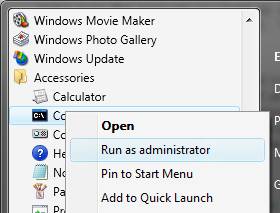
3. In a command prompt, run the following command:
%windir%\system32\inetsrv\appcmd add backup cleanInstall

Create Sample Content

  1. Navigate to %systemdrive%\inetpub\wwwroot.
  2. Move the content to a secure location (in case you want to restore the existing content) or delete it.
  3. Create a blank file and name it test.asp.
  4. In the command prompt, navigate to the test.asp file in \inetpub\wwwroot.
  5. In the test.asp file, paste the following content:

Failed Request Tracing Lab


Today's date is <% response.write(Date()) %>

Disable ASP

ASP must be disabled for this task. ASP is disabled only as an example and for the purposes of the tasks in this article.
To disable ASP:
  1. Open IIS Manager.
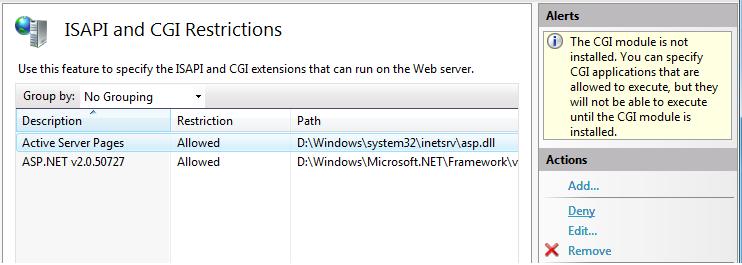
  2. Double-click ISAPI and CGI Restrictions.
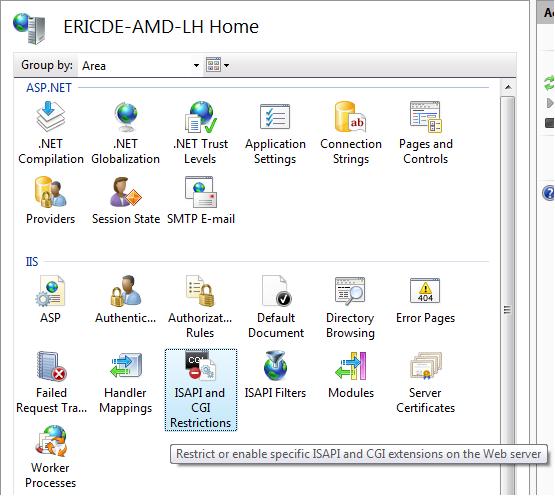
3. Select Active Server Pages. In the Actions pane, click Deny to disable ASP.

Enable Failed-Request Tracing

After you enable failed-request tracing, you need to configure where the log files will reside. In this task, you will enable failed-request tracing for the Default Web Site and specify where to put the log files. You will then configure the failure for which to generate failure logs.

Step 1 : Enable Failed-Request Tracing for the Site and Configure the Log File Directory

  1. Open a command prompt with administrator user rights.
  2. Launch inetmgr.
  3. In the Connections pane, expand the machine name, expand Sites, and then click Default Web Site.
  4. In the Actions pane, under Configure, click Failed Request Tracing….
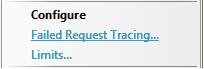
5. In the Edit Web Site Failed Request Tracing Settings dialog box, configure the following:
  • Select the Enable check box.
  • Keep the defaults for the other settings.
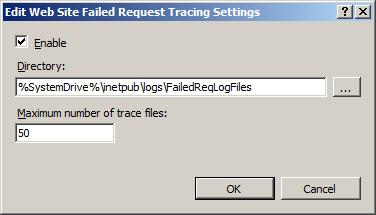
6. Click OK.
Failed-request tracing logging is now enabled for the Default Web Site. Check the %windir%\system32\inetsrv\config\applicationHost.config file to confirm that the configuration looks as follows:


name="Default Web Site" id="1">

enabled="true" />


Step 2 : Configure Your Failure Definitions

In this step, you will configure the failure definitions for your URL, including what areas to trace. You will troubleshoot a 404.2 that is returned by IIS for any requests to extensions that have not yet been enabled. This will help you determine which particular extensions you will need to enable.
  1. Open a command prompt with administrator user rights.
  2. Launch inetmgr.
  3. In the Connections pane, expand the machine name, expand Sites, and then click Default Web Site.
  4. Double-click Failed Request Tracing Rules.

5. Click Finish.
6. In the Actions pane, click Add....
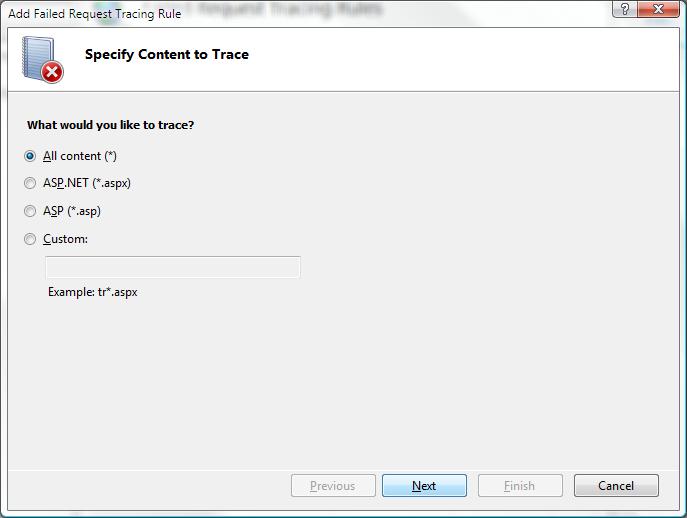
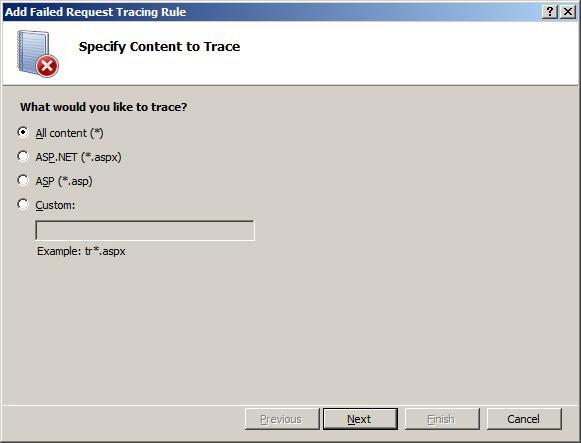
7. In the Add Failed Request Tracing Rule wizard, on the Specify Content to Trace page, select All content (*). Click Next.
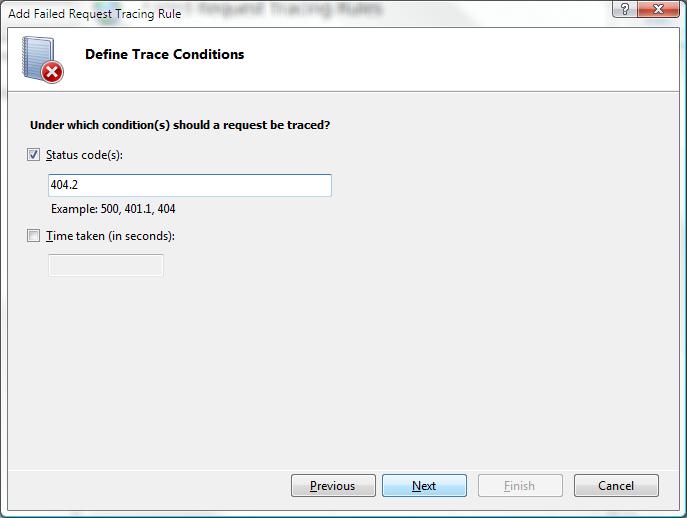
8. On the Define Trace Conditions page, select the Status code(s) check box and enter 404.2 as the status code to trace.
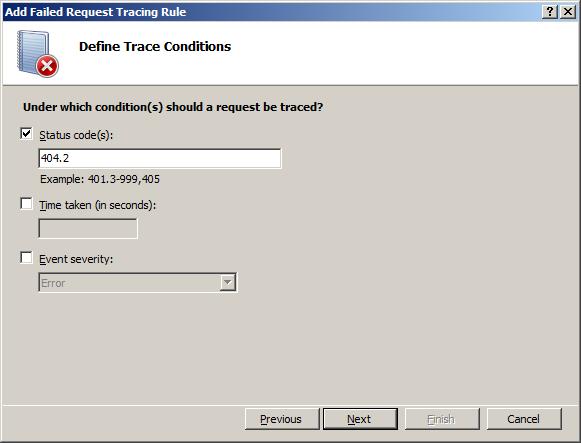

9. Click Next.
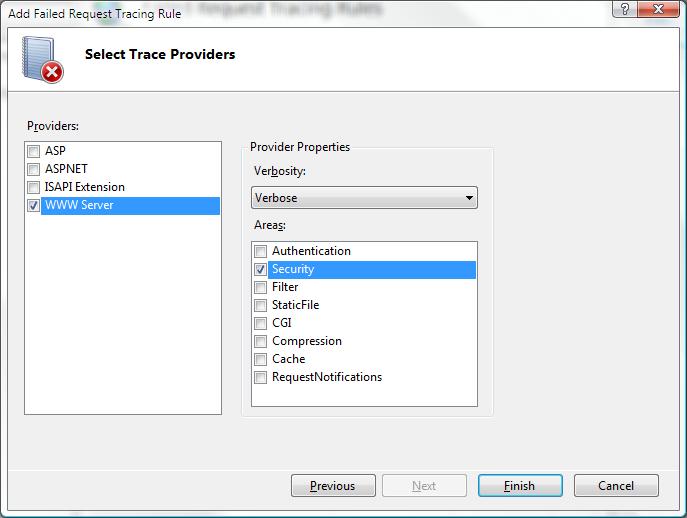
10. On the Select Trace Providers page, under Providers, select the WWW Server check box. Under Areas, select the Security check box and clear all other check boxes. The problem that you are generating causes a security error trace event to be thrown. In general, authentication and authorization (including ISAPI restriction list issues) problems can be diagnosed by using the WWW Server – Security area configuration for tracing. However, because the FREB.xsl style sheet helps highlight errors and warnings, you can still use the default configuration to log all events in all areas and providers.
Under Verbosity, select Verbose.
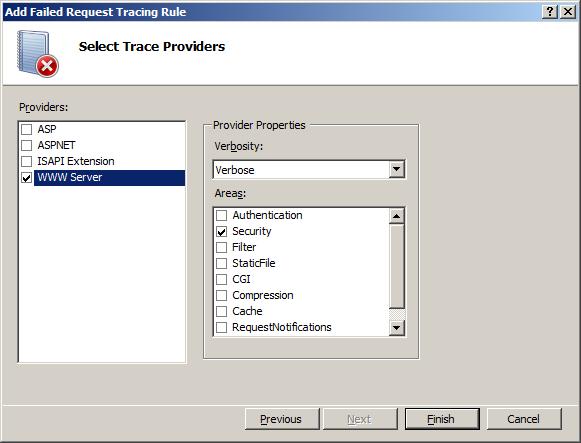
11. Click Finish. You should see the following definition for the Default Web Site:

IIS Manager writes the configuration to the %windir%\system32\inetsrv\config\applicationHost.config file by using a tag. The configuration should look as follows:
path="Default Web Site">


path="*">

provider="WWW Server" areas="Security" verbosity="Verbose" />

statusCodes="404.2" />


Test and View the Failure Request Log File

In this task, you will generate a failed request and view the resulting trace log. You already configured IIS to capture trace logs for http://localhost/*.asp requests that fail with an HTTP response code of 404.2. Now verify that it works.

Step 1 : Generate an Error and the Failure Request Log File

  1. Open a new Internet Explorer window.
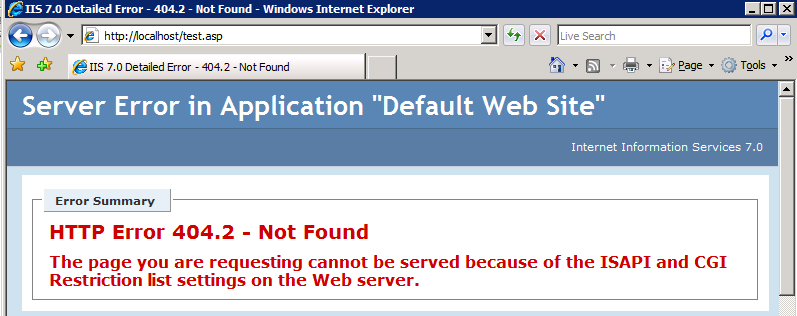
  2. Type in the following address: http://localhost/test.asp.
  3. You should see the following:

Step 2 : View the Failure Request Log File

  1. Now that you have generated a failed request, open a command prompt with administrator user rights and navigate to %systemdrive%\inetpub\logs\FailedReqLogFiles\W3SVC1.
  2. Run start to start an Internet Explorer window from the directory.
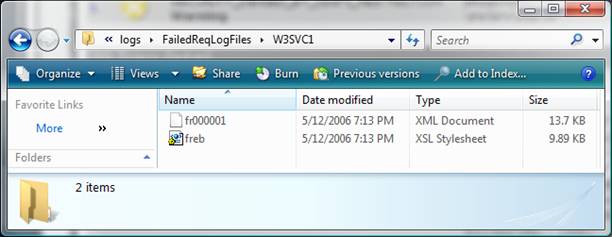

3. Notice a few things here: When IIS writes the failed request log file, it writes one file per failed request. A freb.xsl style sheet is also written, one per directory. This helps when you view the resulting failure request log files (such as fr000001.xml above).
4. Right-click the log file for the 404.2 error, and click Open With -> Internet Explorer. If this is the first time that you are opening a Failed Request Tracing file, you must add about:internet to the list of trusted sites, since Internet Explorer's Enhanced Security Configuration is enabled by default. If this is the case, you will see the following:
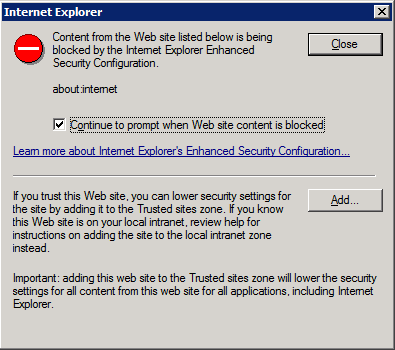
5. In the Internet Explorer dialog box, click Add… to add about:internet to the list of trusted sites. This allows the XSL to work. You will see the following after adding about:internet to the list of trusted sites:
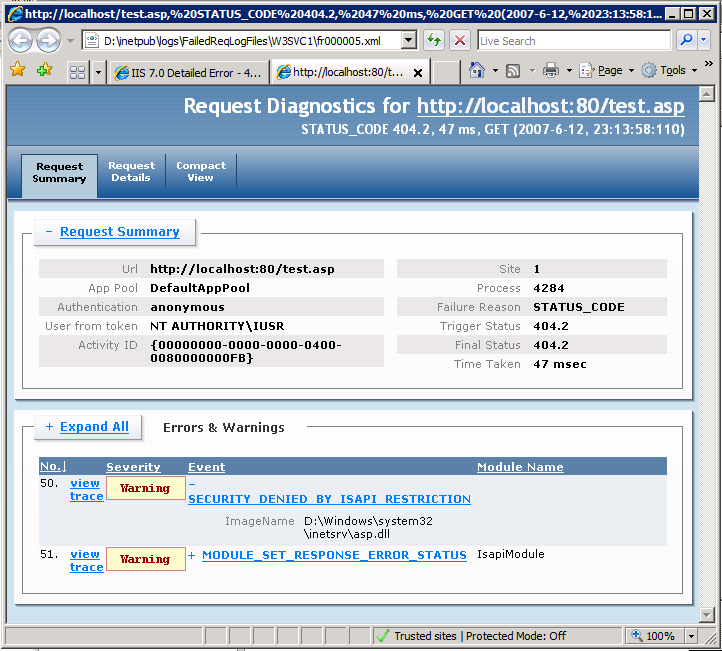
A summary of the failed request is logged at the top, with the Errors & Warnings table identifying any events that are WARNING, ERROR, or CRITICAL ERROR in severity. In this example, the WARNING severity level is due to ISAPI RESTRICTION. The image that you tried to load was %windir%\system32\inetsrv\asp.dll.
6. Open the raw XML file directly by using a text editor, and look at the contents of each event.

Summary

You have completed two tasks: configured failed request tracing to capture traces for * if IIS returns it with a 404.2 status code; and verified that IIS captured the trace for your request. You also verified that the freb*.xml log file did not contain any other requests for the requests that you made because the requests did not have a 404.2 return code. When you consult the failure log file, you determined that the cause of the failure was that the extension was disabled for that request. You can try other non-HTML pages (like gifs or jpgs) and note that the log file does NOT add these traces. You can also easily change this to be 404, or capture the failure if the request takes longer than 30 seconds by setting the timeTaken field in your failureDefinitions.

Restore Your Backup

Now that you have completed the tasks in this article, you can restore the backup of the configuration. Run the following command with administrator user rights:
%windir%\system32\inetsrv\appcmd restore backup cleanInstall