Showing posts with label Office 365. Show all posts

Tuesday, July 26, 2022

Configure SPF Record for Office 365


SPF record information

SPF is a protocol that helps to reduce spam via email. An SPF record is set in the DNS zone of the domain name. Receiving mail servers can check for the presence of an SPF record. This check verifies that the server from which an email is being sent has permission to do so. The server that has permission to send emails on behalf of the domain name is listed in the SPF record.

Find Office 365 SPF record

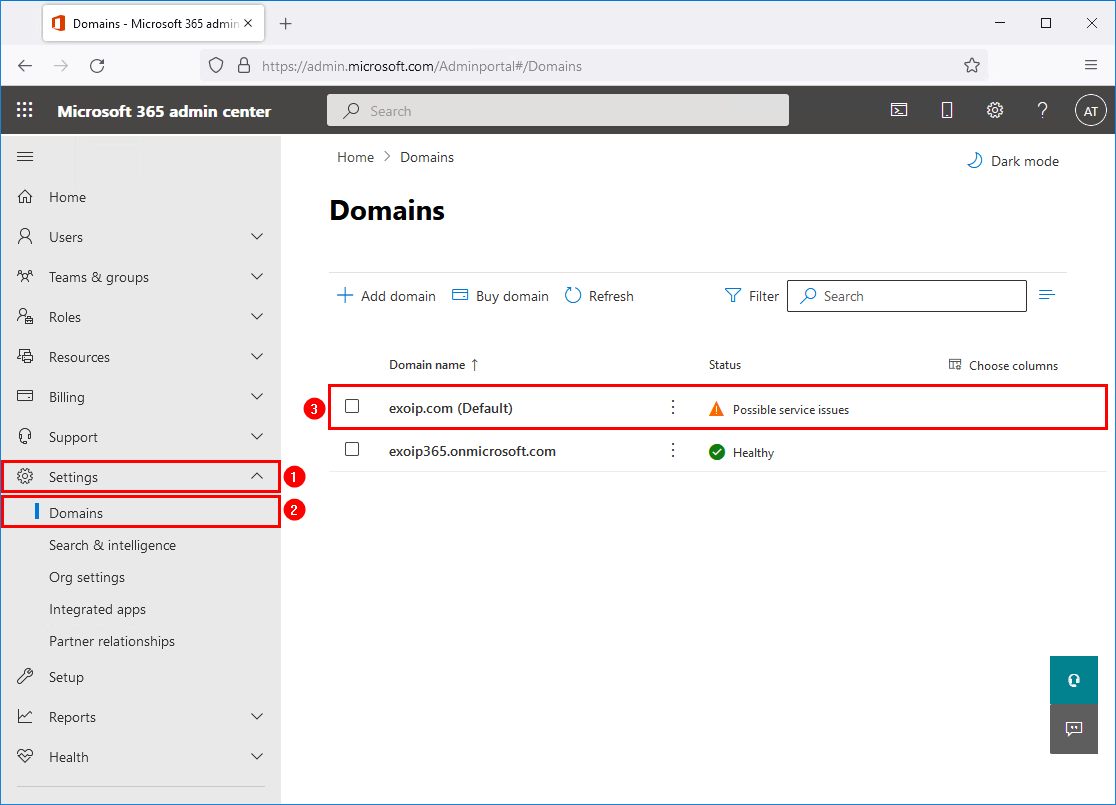
Sign in to Microsoft 365 admin center. Go to Settings > Domains. Click on the domain that you want to configure the SPF record for. In this example, it’s the domain exoip.com.

Edit domain in Microsoft 365 admin center

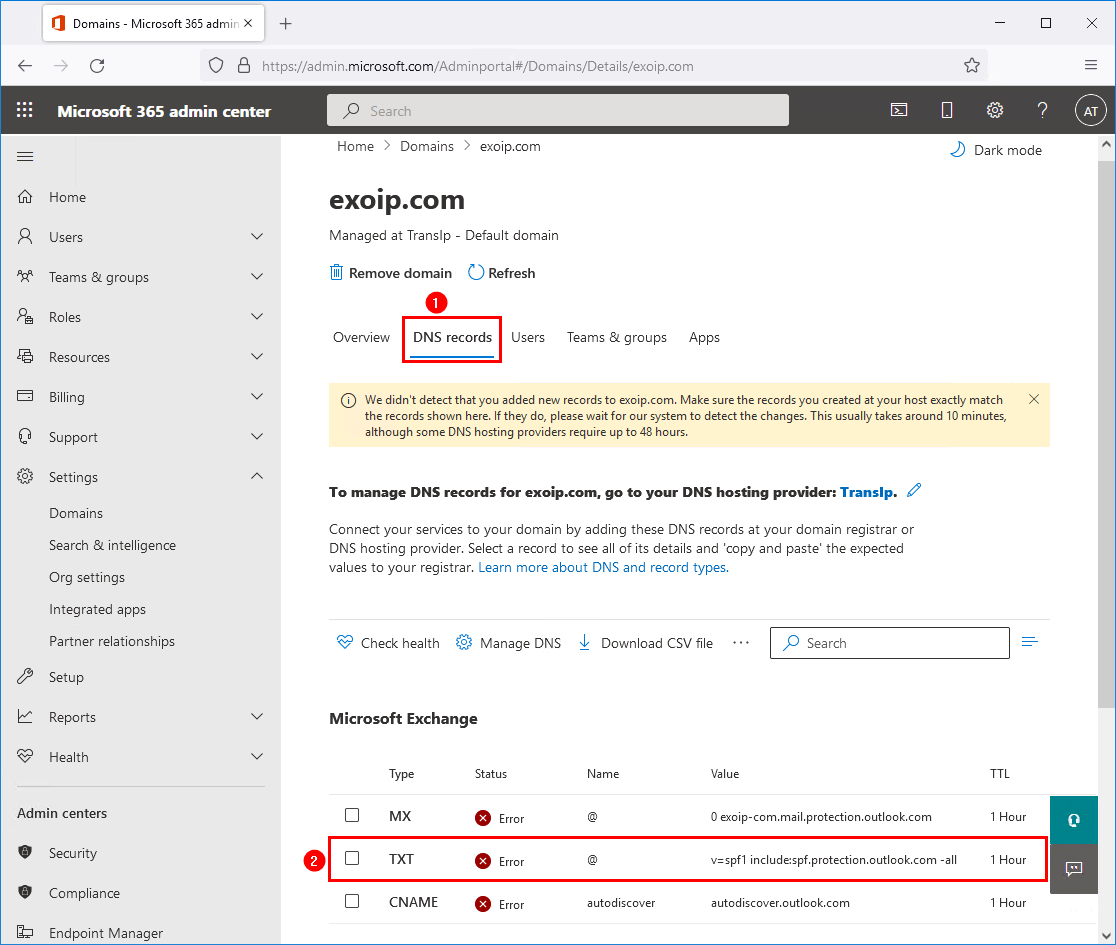
Click on the tab DNS records, and down below, there are three records for Exchange Online:

  1. MX
  2. TXT
  3. CNAME

The one that we are interested in for now is the TXT record, which is the SPF record for Exchange Online. Click on the TXT record.

Configure SPF record for Office 365 TXT record status error

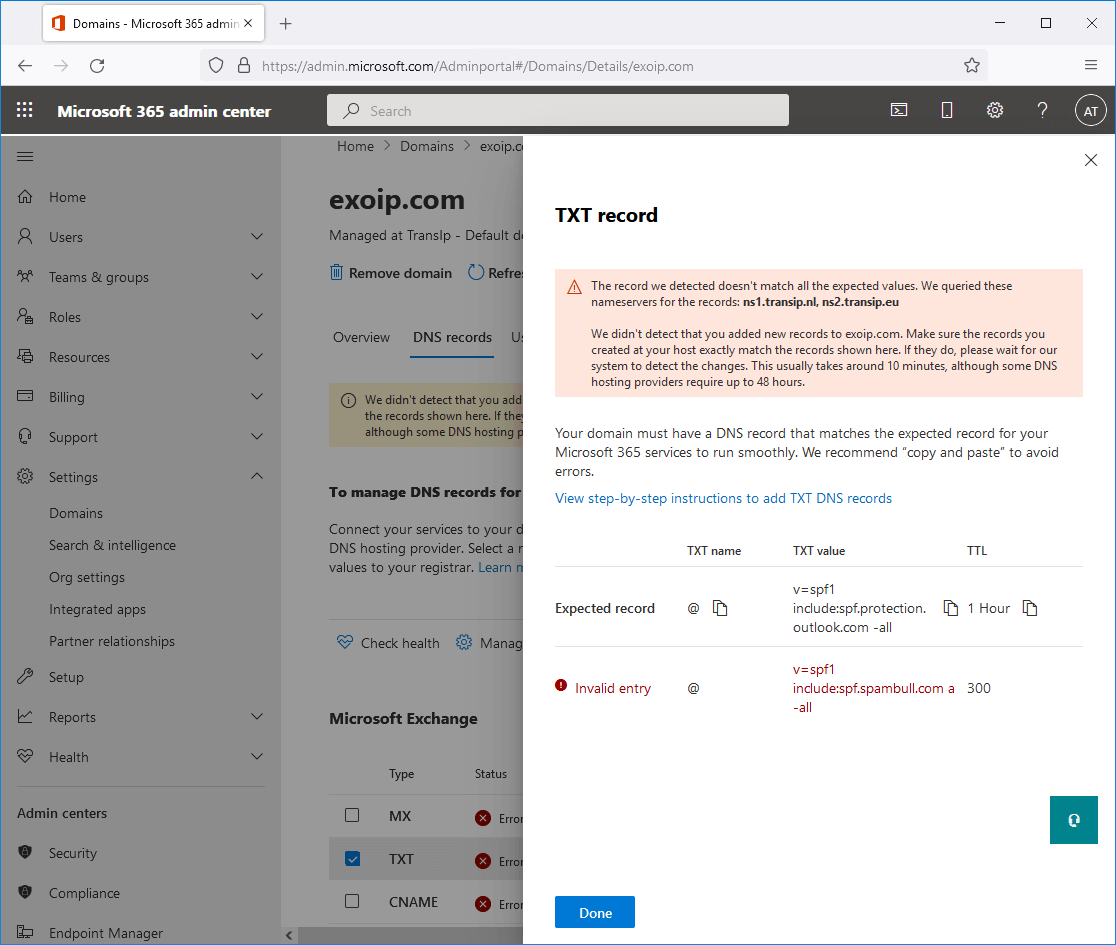
The domain already has an SPF record configured, v=spf1 include:spf.spambull.com a -all. The SPF record tells that the SpamBull spam filter and A record is an approved sender for the domain. Therefore, email coming from the SpamBull spam filter and A record is authorized, and everything else is not.

The message shows Invalid entry because we don’t have the include:spf.protection.outlook.com statement in our SPF record. We want to merge the Exchange Online SPF record into the existing exoip.com domain SPF record. That’s why we will only copy the include statement, include:spf.protection.outlook.com, to the clipboard.

Configure SPF record for Office 365 TXT record invalid entry

Add SPF record for Office 365

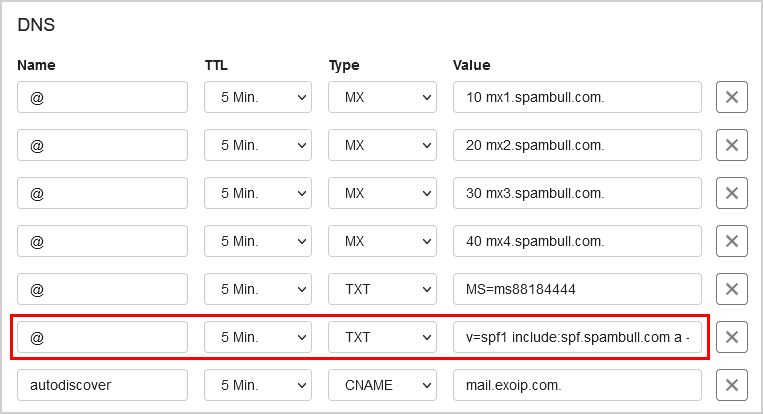
Sign in to the domain’s registrar and open the domain DNS settings. In our example, the domain exoip.com.

The TXT record value for SPF looks like v=spf1 include:spf.spambull.com a -all.

Configure SPF record for Office 365 DNS before

Edit the existing SPF record and paste the include statement include:spf.protection.outlook.com. The effect is that it will also authorize Exchange Online servers to send emails for the exoip.com domain name.

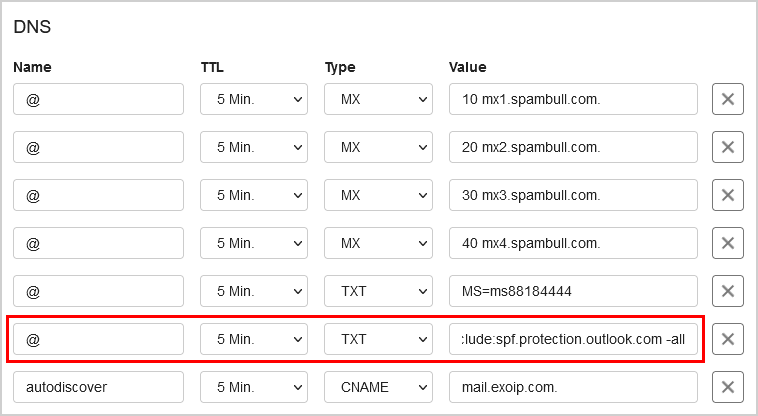
The TXT record value for SPF looks like v=spf1 include:spf.spambull.com a include:spf.protection.outlook.com -all.

Configure SPF record for Office 365 DNS after

The change can take up to 24 hours, but most of the time, this will resolve within 5-15 minutes.

Verify Office 365 SPF record

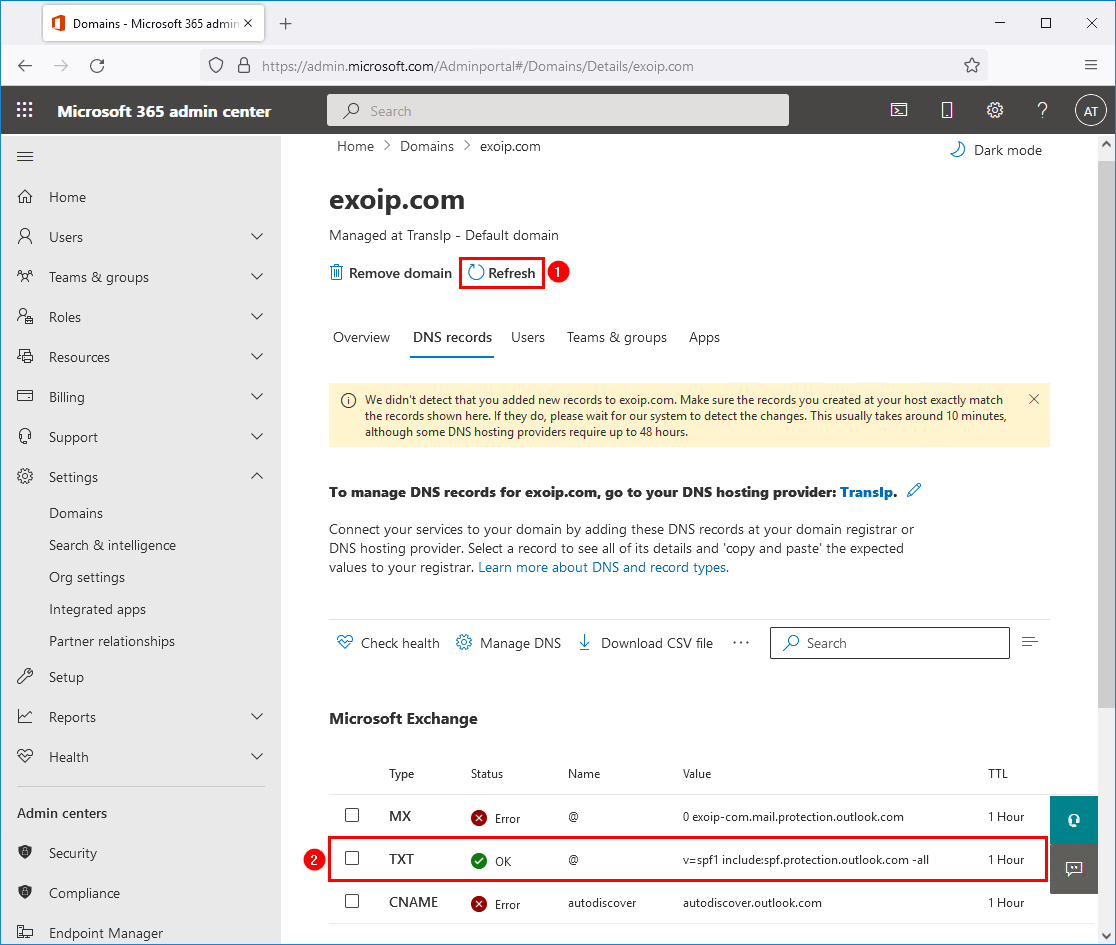
Click on Refresh to refresh the page. The TXT status changed from Error to OK. Click on the TXT record.

Configure SPF record for Office 365 TXT record status OK


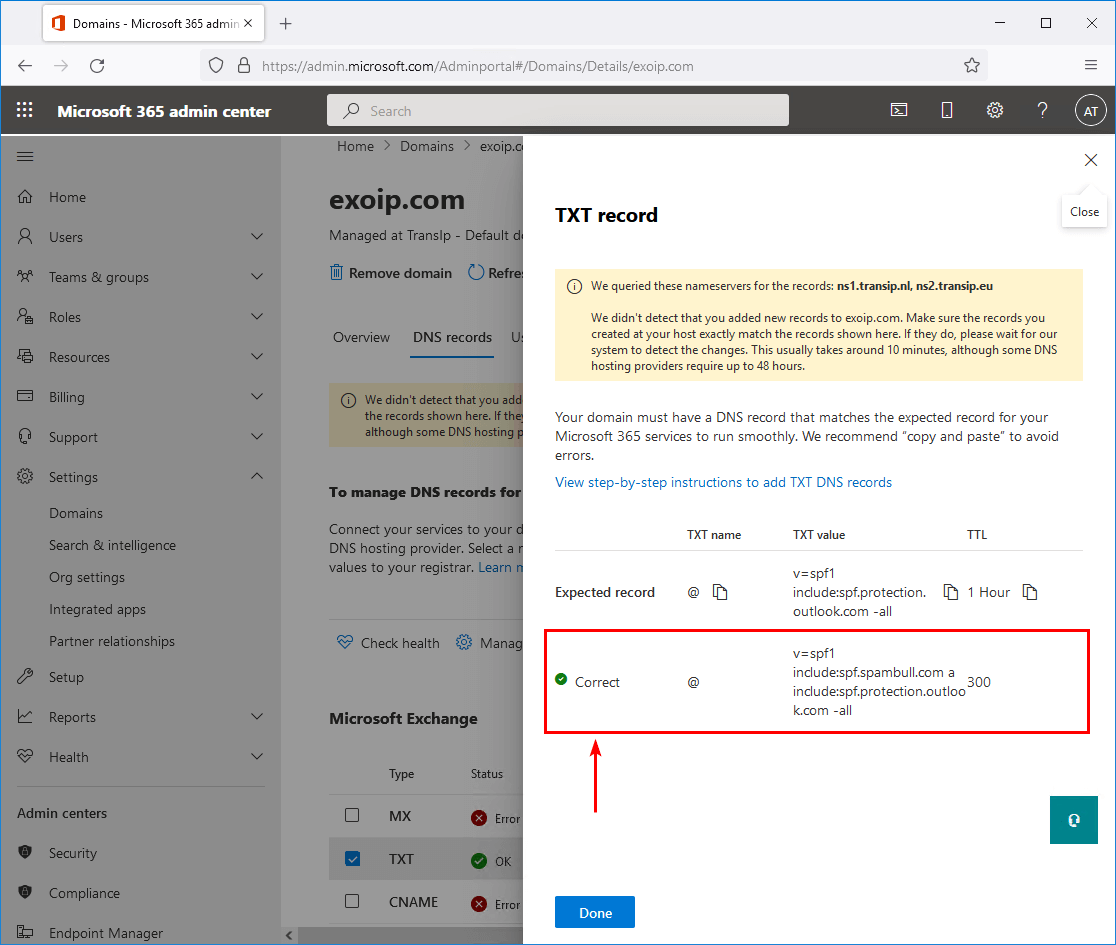
It shows that the record is Correct.

Configure SPF record for Office 365 TXT record correct

We did configure the SPF record for Office 365 successfully. Exchange on-premises and Exchange Online are both authorized to send emails from the domain.

Office 365 URLs / IP Address Ranges and Ports


Exchange Online

ID Category ER Addresses Ports
1 Optimize
Required
Yes outlook.office.com, outlook.office365.com
13.107.6.152/31, 13.107.18.10/31, 13.107.128.0/22, 23.103.160.0/20, 40.96.0.0/13, 40.104.0.0/15, 52.96.0.0/14, 131.253.33.215/32, 132.245.0.0/16, 150.171.32.0/22, 204.79.197.215/32, 2603:1006::/40, 2603:1016::/36, 2603:1026::/36, 2603:1036::/36, 2603:1046::/36, 2603:1056::/36, 2620:1ec:4::152/128, 2620:1ec:4::153/128, 2620:1ec:c::10/128, 2620:1ec:c::11/128, 2620:1ec:d::10/128, 2620:1ec:d::11/128, 2620:1ec:8f0::/46, 2620:1ec:900::/46, 2620:1ec:a92::152/128, 2620:1ec:a92::153/128, 2a01:111:f400::/48
TCP: 443, 80
2 Allow
Required
Yes smtp.office365.com
13.107.6.152/31, 13.107.18.10/31, 13.107.128.0/22, 23.103.160.0/20, 40.96.0.0/13, 40.104.0.0/15, 52.96.0.0/14, 131.253.33.215/32, 132.245.0.0/16, 150.171.32.0/22, 204.79.197.215/32, 2603:1006::/40, 2603:1016::/36, 2603:1026::/36, 2603:1036::/36, 2603:1046::/36, 2603:1056::/36, 2620:1ec:4::152/128, 2620:1ec:4::153/128, 2620:1ec:c::10/128, 2620:1ec:c::11/128, 2620:1ec:d::10/128, 2620:1ec:d::11/128, 2620:1ec:8f0::/46, 2620:1ec:900::/46, 2620:1ec:a92::152/128, 2620:1ec:a92::153/128, 2a01:111:f400::/48
TCP: 587
3 Default
Required
No r1.res.office365.com, r3.res.office365.com, r4.res.office365.com TCP: 443, 80
5 Allow
Optional
Notes: Exchange Online IMAP4 migration
Yes *.outlook.office.com, outlook.office365.com
13.107.6.152/31, 13.107.18.10/31, 13.107.128.0/22, 23.103.160.0/20, 40.96.0.0/13, 40.104.0.0/15, 52.96.0.0/14, 131.253.33.215/32, 132.245.0.0/16, 150.171.32.0/22, 204.79.197.215/32, 2603:1006::/40, 2603:1016::/36, 2603:1026::/36, 2603:1036::/36, 2603:1046::/36, 2603:1056::/36, 2620:1ec:4::152/128, 2620:1ec:4::153/128, 2620:1ec:c::10/128, 2620:1ec:c::11/128, 2620:1ec:d::10/128, 2620:1ec:d::11/128, 2620:1ec:8f0::/46, 2620:1ec:900::/46, 2620:1ec:a92::152/128, 2620:1ec:a92::153/128, 2a01:111:f400::/48
TCP: 143, 993
6 Allow
Optional
Notes: Exchange Online POP3 migration
Yes *.outlook.office.com, outlook.office365.com
13.107.6.152/31, 13.107.18.10/31, 13.107.128.0/22, 23.103.160.0/20, 40.96.0.0/13, 40.104.0.0/15, 52.96.0.0/14, 131.253.33.215/32, 132.245.0.0/16, 150.171.32.0/22, 204.79.197.215/32, 2603:1006::/40, 2603:1016::/36, 2603:1026::/36, 2603:1036::/36, 2603:1046::/36, 2603:1056::/36, 2620:1ec:4::152/128, 2620:1ec:4::153/128, 2620:1ec:c::10/128, 2620:1ec:c::11/128, 2620:1ec:d::10/128, 2620:1ec:d::11/128, 2620:1ec:8f0::/46, 2620:1ec:900::/46, 2620:1ec:a92::152/128, 2620:1ec:a92::153/128, 2a01:111:f400::/48
TCP: 995
8 Default
Required
No *.outlook.com, attachments.office.net TCP: 443, 80
9 Allow
Required
Yes *.protection.outlook.com
40.92.0.0/15, 40.107.0.0/16, 52.100.0.0/14, 52.238.78.88/32, 104.47.0.0/17, 2a01:111:f403::/48
TCP: 443
10 Allow
Required
Yes *.mail.protection.outlook.com
40.92.0.0/15, 40.107.0.0/16, 52.100.0.0/14, 104.47.0.0/17, 2a01:111:f400::/48, 2a01:111:f403::/48
TCP: 25
154 Default
Required
No autodiscover.<tenant>.onmicrosoft.com TCP: 443, 80

SharePoint Online and OneDrive for Business

ID Category ER Addresses Ports
31 Optimize
Required
Yes <tenant>.sharepoint.com, <tenant>-my.sharepoint.com
13.107.136.0/22, 40.108.128.0/17, 52.104.0.0/14, 104.146.128.0/17, 150.171.40.0/22, 2603:1061:1300::/40, 2620:1ec:8f8::/46, 2620:1ec:908::/46, 2a01:111:f402::/48
TCP: 443, 80
32 Default
Optional
Notes: OneDrive for Business: supportability, telemetry, APIs, and embedded email links
No ssw.live.com, storage.live.com TCP: 443
33 Default
Optional
Notes: SharePoint Hybrid Search - Endpoint to SearchContentService where the hybrid crawler feeds documents
No *.search.production.apac.trafficmanager.net, *.search.production.emea.trafficmanager.net, *.search.production.us.trafficmanager.net TCP: 443
35 Default
Required
No *.wns.windows.com, admin.onedrive.com, officeclient.microsoft.com TCP: 443, 80
36 Default
Required
No g.live.com, oneclient.sfx.ms TCP: 443, 80
37 Default
Required
No *.sharepointonline.com, spoprod-a.akamaihd.net TCP: 443, 80
39 Default
Required
No *.gr.global.aa-rt.sharepoint.com, *.svc.ms, <tenant>-admin.sharepoint.com, <tenant>-files.sharepoint.com, <tenant>-myfiles.sharepoint.com TCP: 443, 80

Skype for Business Online and Microsoft Teams

ID Category ER Addresses Ports
11 Optimize
Required
Yes 13.107.64.0/18, 52.112.0.0/14, 52.120.0.0/14, 2603:1063::/38 UDP: 3478, 3479, 3480, 3481
12 Allow
Required
Yes *.lync.com, *.teams.microsoft.com, teams.microsoft.com
13.107.64.0/18, 52.112.0.0/14, 52.120.0.0/14, 52.238.119.141/32, 52.244.160.207/32, 2603:1027::/48, 2603:1037::/48, 2603:1047::/48, 2603:1057::/48, 2603:1063::/38, 2620:1ec:6::/48, 2620:1ec:40::/42
TCP: 443, 80
13 Allow
Required
Yes *.broadcast.skype.com, broadcast.skype.com
13.107.64.0/18, 52.112.0.0/14, 52.120.0.0/14, 52.238.119.141/32, 52.244.160.207/32, 2603:1027::/48, 2603:1037::/48, 2603:1047::/48, 2603:1057::/48, 2603:1063::/38, 2620:1ec:6::/48, 2620:1ec:40::/42
TCP: 443
15 Default
Required
No *.sfbassets.com TCP: 443, 80
16 Default
Required
No *.keydelivery.mediaservices.windows.net, *.streaming.mediaservices.windows.net, mlccdn.blob.core.windows.net TCP: 443
17 Default
Required
No aka.ms TCP: 443
18 Default
Optional
Notes: Federation with Skype and public IM connectivity: Contact picture retrieval
No *.users.storage.live.com TCP: 443
19 Default
Optional
Notes: Applies only to those who deploy the Conference Room Systems
No *.adl.windows.com TCP: 443, 80
22 Allow
Optional
Notes: Teams: Messaging interop with Skype for Business
Yes *.skypeforbusiness.com
13.107.64.0/18, 52.112.0.0/14, 52.120.0.0/14, 52.238.119.141/32, 52.244.160.207/32, 2603:1027::/48, 2603:1037::/48, 2603:1047::/48, 2603:1057::/48, 2603:1063::/38, 2620:1ec:6::/48, 2620:1ec:40::/42
TCP: 443
26 Default
Required
No *.msedge.net, compass-ssl.microsoft.com TCP: 443
27 Default
Required
No *.mstea.ms, *.secure.skypeassets.com, mlccdnprod.azureedge.net TCP: 443
127 Default
Required
No *.skype.com TCP: 443, 80

Microsoft 365 Common and Office Online

ID Category ER Addresses Ports
41 Default
Optional
Notes: Microsoft Stream
No *.microsoftstream.com TCP: 443
43 Default
Optional
Notes: Microsoft Stream 3rd party integration (including CDNs)
No nps.onyx.azure.net TCP: 443
44 Default
Optional
Notes: Microsoft Stream - unauthenticated
No *.azureedge.net, *.media.azure.net, *.streaming.mediaservices.windows.net TCP: 443
45 Default
Optional
Notes: Microsoft Stream
No *.keydelivery.mediaservices.windows.net TCP: 443
46 Allow
Required
Yes *.officeapps.live.com, *.online.office.com, office.live.com
13.107.6.171/32, 13.107.18.15/32, 13.107.140.6/32, 52.108.0.0/14, 52.238.106.116/32, 52.244.37.168/32, 52.244.203.72/32, 52.244.207.172/32, 52.244.223.198/32, 52.247.150.191/32, 2603:1010:2::cb/128, 2603:1010:200::c7/128, 2603:1020:200::682f:a0fd/128, 2603:1020:201:9::c6/128, 2603:1020:600::a1/128, 2603:1020:700::a2/128, 2603:1020:800:2::6/128, 2603:1020:900::8/128, 2603:1030:7::749/128, 2603:1030:800:5::bfee:ad3c/128, 2603:1030:f00::17/128, 2603:1030:1000::21a/128, 2603:1040:200::4f3/128, 2603:1040:401::762/128, 2603:1040:601::60f/128, 2603:1040:a01::1e/128, 2603:1040:c01::28/128, 2603:1040:e00:1::2f/128, 2603:1040:f00::1f/128, 2603:1050:1::cd/128, 2620:1ec:c::15/128, 2620:1ec:8fc::6/128, 2620:1ec:a92::171/128, 2a01:111:f100:2000::a83e:3019/128, 2a01:111:f100:2002::8975:2d79/128, 2a01:111:f100:2002::8975:2da8/128, 2a01:111:f100:7000::6fdd:6cd5/128, 2a01:111:f100:a004::bfeb:88cf/128
TCP: 443, 80
47 Default
Required
No *.cdn.office.net, contentstorage.osi.office.net TCP: 443
49 Default
Required
No *.onenote.com TCP: 443
50 Default
Optional
Notes: OneNote notebooks (wildcards)
No *.microsoft.com, *.office.net TCP: 443
51 Default
Required
No *cdn.onenote.net TCP: 443
53 Default
Required
No ajax.aspnetcdn.com, apis.live.net, officeapps.live.com, www.onedrive.com TCP: 443
56 Allow
Required
Yes *.auth.microsoft.com, *.msftidentity.com, *.msidentity.com, account.activedirectory.windowsazure.com, accounts.accesscontrol.windows.net, adminwebservice.microsoftonline.com, api.passwordreset.microsoftonline.com, autologon.microsoftazuread-sso.com, becws.microsoftonline.com, ccs.login.microsoftonline.com, clientconfig.microsoftonline-p.net, companymanager.microsoftonline.com, device.login.microsoftonline.com, graph.microsoft.com, graph.windows.net, login.microsoft.com, login.microsoftonline.com, login.microsoftonline-p.com, login.windows.net, logincert.microsoftonline.com, loginex.microsoftonline.com, login-us.microsoftonline.com, nexus.microsoftonline-p.com, passwordreset.microsoftonline.com, provisioningapi.microsoftonline.com
20.190.128.0/18, 40.126.0.0/18, 2603:1006:2000::/48, 2603:1007:200::/48, 2603:1016:1400::/48, 2603:1017::/48, 2603:1026:3000::/48, 2603:1027:1::/48, 2603:1036:3000::/48, 2603:1037:1::/48, 2603:1046:2000::/48, 2603:1047:1::/48, 2603:1056:2000::/48, 2603:1057:2::/48
TCP: 443, 80
59 Default
Required
No *.hip.live.com, *.microsoftonline.com, *.microsoftonline-p.com, *.msauth.net, *.msauthimages.net, *.msecnd.net, *.msftauth.net, *.msftauthimages.net, *.phonefactor.net, enterpriseregistration.windows.net, management.azure.com, policykeyservice.dc.ad.msft.net TCP: 443, 80
64 Allow
Required
Yes *.compliance.microsoft.com, *.protection.office.com, *.security.microsoft.com, compliance.microsoft.com, defender.microsoft.com, protection.office.com, security.microsoft.com
52.108.0.0/14, 2603:1006:1400::/40, 2603:1016:2400::/40, 2603:1026:2400::/40, 2603:1036:2400::/40, 2603:1046:1400::/40, 2603:1056:1400::/40, 2a01:111:200a:a::/64, 2a01:111:2035:8::/64, 2a01:111:f406:1::/64, 2a01:111:f406:c00::/64, 2a01:111:f406:1004::/64, 2a01:111:f406:1805::/64, 2a01:111:f406:3404::/64, 2a01:111:f406:8000::/64, 2a01:111:f406:8801::/64, 2a01:111:f406:a003::/64
TCP: 443
65 Allow
Required
Yes account.office.net
52.108.0.0/14, 2603:1006:1400::/40, 2603:1016:2400::/40, 2603:1026:2400::/40, 2603:1036:2400::/40, 2603:1046:1400::/40, 2603:1056:1400::/40, 2a01:111:200a:a::/64, 2a01:111:2035:8::/64, 2a01:111:f406:1::/64, 2a01:111:f406:c00::/64, 2a01:111:f406:1004::/64, 2a01:111:f406:1805::/64, 2a01:111:f406:3404::/64, 2a01:111:f406:8000::/64, 2a01:111:f406:8801::/64, 2a01:111:f406:a003::/64
TCP: 443, 80
66 Default
Required
No *.portal.cloudappsecurity.com, suite.office.net TCP: 443
67 Default
Optional
Notes: Security and Compliance Center eDiscovery export
No *.blob.core.windows.net TCP: 443
68 Default
Optional
Notes: Portal and shared: 3rd party office integration. (including CDNs)
No firstpartyapps.oaspapps.com, prod.firstpartyapps.oaspapps.com.akadns.net, telemetryservice.firstpartyapps.oaspapps.com, wus-firstpartyapps.oaspapps.com TCP: 443
69 Default
Required
No *.aria.microsoft.com, *.events.data.microsoft.com TCP: 443
70 Default
Required
No *.o365weve.com, amp.azure.net, appsforoffice.microsoft.com, assets.onestore.ms, auth.gfx.ms, c1.microsoft.com, dgps.support.microsoft.com, docs.microsoft.com, msdn.microsoft.com, platform.linkedin.com, prod.msocdn.com, shellprod.msocdn.com, support.content.office.net, support.microsoft.com, technet.microsoft.com, videocontent.osi.office.net, videoplayercdn.osi.office.net TCP: 443
71 Default
Required
No *.office365.com TCP: 443
72 Default
Optional
Notes: Azure Rights Management (RMS) with Office 2010 clients
No *.cloudapp.net TCP: 443
73 Default
Required
No *.aadrm.com, *.azurerms.com, *.informationprotection.azure.com, ecn.dev.virtualearth.net, informationprotection.hosting.portal.azure.net TCP: 443
75 Default
Optional
Notes: Graph.windows.net, Office 365 Management Pack for Operations Manager, SecureScore, Azure AD Device Registration, Forms, StaffHub, Application Insights, captcha services
No *.sharepointonline.com, dc.services.visualstudio.com, mem.gfx.ms, staffhub.ms TCP: 443
78 Default
Optional
Notes: Some Office 365 features require endpoints within these domains (including CDNs). Many specific FQDNs within these wildcards have been published recently as we work to either remove or better explain our guidance relating to these wildcards.
No *.microsoft.com, *.msocdn.com, *.office.net, *.onmicrosoft.com TCP: 443, 80
79 Default
Required
No o15.officeredir.microsoft.com, officepreviewredir.microsoft.com, officeredir.microsoft.com, r.office.microsoft.com TCP: 443, 80
83 Default
Required
No activation.sls.microsoft.com TCP: 443
84 Default
Required
No crl.microsoft.com TCP: 443, 80
86 Default
Required
No office15client.microsoft.com, officeclient.microsoft.com TCP: 443
88 Default
Required
No insertmedia.bing.office.net TCP: 443, 80
89 Default
Required
No go.microsoft.com TCP: 443, 80
91 Default
Required
No ajax.aspnetcdn.com, cdn.odc.officeapps.live.com TCP: 443, 80
92 Default
Required
No officecdn.microsoft.com, officecdn.microsoft.com.edgesuite.net TCP: 443, 80
93 Default
Optional
Notes: ProPlus: auxiliary URLs
No *.virtualearth.net, c.bing.net, excelbingmap.firstpartyapps.oaspapps.com, ocos-office365-s2s.msedge.net, peoplegraph.firstpartyapps.oaspapps.com, tse1.mm.bing.net, wikipedia.firstpartyapps.oaspapps.com, www.bing.com TCP: 443, 80
95 Default
Optional
Notes: Outlook for Android and iOS
No *.acompli.net, *.outlookmobile.com TCP: 443
96 Default
Optional
Notes: Outlook for Android and iOS: Authentication
No login.windows-ppe.net TCP: 443
97 Default
Optional
Notes: Outlook for Android and iOS: Consumer Outlook.com and OneDrive integration
No account.live.com, login.live.com TCP: 443
105 Default
Optional
Notes: Outlook for Android and iOS: Outlook Privacy
No www.acompli.com TCP: 443
114 Default
Optional
Notes: Office Mobile URLs
No *.appex.bing.com, *.appex-rf.msn.com, c.bing.com, c.live.com, d.docs.live.net, directory.services.live.com, docs.live.net, partnerservices.getmicrosoftkey.com, signup.live.com TCP: 443, 80
116 Default
Optional
Notes: Office for iPad URLs
No account.live.com, auth.gfx.ms, login.live.com TCP: 443, 80
117 Default
Optional
Notes: Yammer
No *.yammer.com, *.yammerusercontent.com TCP: 443
118 Default
Optional
Notes: Yammer CDN
No *.assets-yammer.com TCP: 443
121 Default
Optional
Notes: Planner: auxiliary URLs
No www.outlook.com TCP: 443, 80
122 Default
Optional
Notes: Sway CDNs
No eus-www.sway-cdn.com, eus-www.sway-extensions.com, wus-www.sway-cdn.com, wus-www.sway-extensions.com TCP: 443
124 Default
Optional
Notes: Sway
No sway.com, www.sway.com TCP: 443
125 Default
Required
No *.entrust.net, *.geotrust.com, *.omniroot.com, *.public-trust.com, *.symcb.com, *.symcd.com, *.verisign.com, *.verisign.net, apps.identrust.com, cacerts.digicert.com, cert.int-x3.letsencrypt.org, crl.globalsign.com, crl.globalsign.net, crl.identrust.com, crl3.digicert.com, crl4.digicert.com, isrg.trustid.ocsp.identrust.com, mscrl.microsoft.com, ocsp.digicert.com, ocsp.globalsign.com, ocsp.msocsp.com, ocsp2.globalsign.com, ocspx.digicert.com, secure.globalsign.com, www.digicert.com, www.microsoft.com TCP: 443, 80
126 Default
Optional
Notes: Connection to the speech service is required for Office Dictation features. If connectivity is not allowed, Dictation will be disabled.
No officespeech.platform.bing.com TCP: 443
128 Default
Required
No *.config.office.net, *.manage.microsoft.com TCP: 443
147 Default
Required
No *.office.com TCP: 443, 80
148 Default
Required
No cdnprod.myanalytics.microsoft.com, myanalytics.microsoft.com, myanalytics-gcc.microsoft.com TCP: 443, 80
149 Default
Required
No workplaceanalytics.cdn.office.net TCP: 443, 80
152 Default
Optional
Notes: These endpoints enables the Office Scripts functionality in Office clients available through the Automate tab. This feature can also be disabled through the Office 365 Admin portal.
No *.microsoftusercontent.com TCP: 443
153 Default
Required
No *.azure-apim.net, *.flow.microsoft.com, *.powerapps.com TCP: 443
156 Default
Required
No *.activity.windows.com, activity.windows.com TCP: 443
157 Default
Required
No ocsp.int-x3.letsencrypt.org TCP: 80
158 Default
Required
No *.cortana.ai TCP: 443
159 Default
Required
No admin.microsoft.com TCP: 443, 80
160 Default
Required
No cdn.odc.officeapps.live.com, cdn.uci.officeapps.live.com TCP: 443, 80

Sunday, April 25, 2021

How to set up a multifunction device or application to send email using Microsoft 365 or Office 365

 This article explains how you can send email from devices and business applications when all of your mailboxes are in Microsoft 365 or Office 365. For example:

  • You have a scanner, and you want to email scanned documents to yourself or someone else.

  • You have a line-of-business (LOB) application that manages appointments, and you want to email reminders to clients of their appointment time.

 Note

This option is not compatible with Microsoft Security Defaults or multi-factor authentication (MFA). If your environment uses Microsoft Security Defaults or MFA, we recommend using Option 2 or 3 below.

You must also verify that SMTP AUTH is enabled for the mailbox being used. For more information, see Enable or disable authenticated client SMTP submission (SMTP AUTH) in Exchange Online.

See Basic Authentication and Exchange Online for the latest announcements concerning this option..

This option supports most usage scenarios and it's the easiest to set up. Choose this option when:

  • You want to send email from a third-party hosted application, service, or device.

  • You want to send email to people inside and outside your organization.

To configure your device or application, connect directly to Microsoft 365 or Office 365 using the SMTP AUTH client submission endpoint smtp.office365.com.

Each device or application must be able to authenticate with Microsoft 365 or Office 365. The email address of the account that's used to authenticate with Microsoft 365 or Office 365 will appear as the sender of messages from the device or application.

How to set up SMTP AUTH client submission

Enter the following settings directly on your device or in the application as their guide instructs (it might use different terminology than this article). As long as your scenario meets the requirements for SMTP AUTH client submission, the following settings will enable you to send email from your device or application.


HOW TO SET UP SMTP AUTH CLIENT SUBMISSION
Device or Application settingValue
Server/smart hostsmtp.office365.com
PortPort 587 (recommended) or port 25
TLS/StartTLSEnabled
Username/email address and passwordEnter the sign in credentials of the hosted mailbox being used

TLS and other encryption options

Determine what version of TLS your device supports by checking the device guide or with the vendor. If your device or application does not support TLS 1.2 or above:

  • Use direct send (Option 2) or Microsoft 365 or Office 365 SMTP relay (Option 3) for sending mail instead (depending on your requirements).

  • Use an on-premises Exchange server (or another SMTP email server) if your device is unable to meet the previous requirements for connecting to Microsoft 365 or Office 365. In fact, you might find it easier to manage multiple devices and applications that send email messages in an on-premises Exchange server instead of connecting them all to Microsoft 365 or Office 365 directly. The Exchange server would relay messages in the same way that a device would use Microsoft 365 or Office 365 to relay messages using Option 3 below. You can find out more about configuring your own email server to send emails to Microsoft 365 or Office 365 here: Set up connectors to route mail between Microsoft 365 or Office 365 and your own email servers.

 Note

If your device recommends or defaults to port 465, it does not support SMTP AUTH client submission.

How SMTP AUTH client submission works

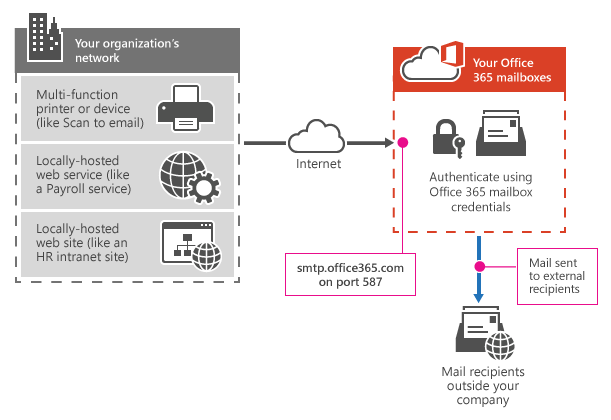
The following diagram gives you a conceptual overview of what your environment will look like.

Shows how a multifunction printer connects to Microsoft 365 or Office 365 using SMTP client submission.

Features of SMTP AUTH client submission

  • SMTP AUTH client submission allows you to send email to people in your organization and outside your company.

  • This method bypasses most spam checks for email sent to people in your organization. This can help protect your company IP addresses from being blocked by a spam list.

  • With this method, you can send email from any location or IP address, including your (on-premises) organization's network, or a third-party cloud hosting service, like Microsoft Azure.

Requirements for SMTP AUTH client submission

  • Authentication: You must be able to configure a username and password to send email on the device. You cannot use Microsoft Security Defaults or multi-factor authentication (MFA), which disable basic authentication and are designed to protect your users from compromise. If your environment uses Microsoft Security Defaults or MFA, we recommend using Option 2 or 3 below.

  • Mailbox: You must have a licensed Microsoft 365 or Office 365 mailbox to send email from.

  • Transport Layer Security (TLS): Your device must be able to use TLS version 1.2 and above.

  • Port: Port 587 (recommended) or port 25 is required and must be unblocked on your network. Some network firewalls or ISPs block ports, especially port 25.

  • DNS: You must use the DNS name smtp.office365.com. Do not use an IP address for the Microsoft 365 or Office 365 server, as IP Addresses are not supported.

 Note

For information about TLS, see How Exchange Online uses TLS to secure email connections and for detailed technical information about how Exchange Online uses TLS with cipher suite ordering, see Enhancing mail flow security for Exchange Online.

Limitations of SMTP AUTH client submission

You can only send from one email address unless your device can store login credentials for multiple Microsoft 365 or Office 365 mailboxes. Microsoft 365 or Office 365 imposes a limit of 30 messages sent per minute, and a limit of 10,000 recipients per day.

Option 2: Send mail directly from your printer or application to Microsoft 365 or Office 365 (direct send)

Choose this option when:

  • Your environment uses Microsoft Security Defaults or multi-factor authentication (MFA).

  • SMTP client submission (Option 1) is not compatible with your business needs or with your device.

  • You only need to send messages to recipients in your own organization who have mailboxes in Microsoft 365 or Office 365; you don't need to send email to people outside of your organization.

Other scenarios when direct send may be your best choice:

  • You want your device or application to send from each user's email address and do not want each user's mailbox credentials configured to use SMTP client submission. Direct send allows each user in your organization to send email using their own address.

    Avoid using a single mailbox with Send As permissions for all your users. This method is not supported because of complexity and potential issues.

  • You want to send bulk email or newsletters. Microsoft 365 or Office 365 does not allow you to do this via SMTP client submission. Direct send allows you to send a high volume of messages.

    Note that there is a risk of your email being marked as spam by Microsoft 365 or Office 365. You might want to enlist the help of a bulk email provider to assist you. For example, they'll help you adhere to best practices, and can help ensure that your domains and IP addresses are not blocked by others on the internet.

Settings for direct send

Enter the following settings on the device or in the application directly.


SETTINGS FOR DIRECT SEND
Device or application settingValue
Server/smart hostYour MX endpoint, for example, contoso-com.mail.protection.outlook.com
PortPort 25
TLS/StartTLSEnabled
Email addressAny email address for one of your Microsoft 365 or Office 365 accepted domains. This email address does not need to have a mailbox.

We recommend adding an SPF record to avoid having messages flagged as spam. If you are sending from a static IP address, add it to your SPF record in your domain registrar's DNS settings as follows:


TABLE 3
DNS entryValue
SPFv=spf1 ip4:<Static IP Address> include:spf.protection.outlook.com ~all

Step-by-step instructions for direct send

  1. If your device or application can send from a static public IP address, obtain this IP address and make a note of it. You can share your static IP address with other devices and users, but don't share the IP address with anyone outside of your company. Your device or application can send from a dynamic or shared IP address but messages are more prone to antispam filtering.

  2. Sign in to the Microsoft 365 admin center.

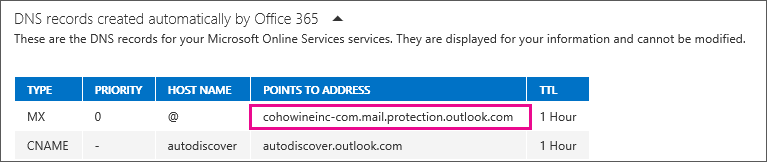
  3. Go to Settings > Domains, select your domain (for example, contoso.com), and find the MX record.

    The MX record will have a Points to address or value value that looks similar to contoso-com.mail.protection.outlook.com.

  4. Make a note of the MX record Points to address or value value, which we refer to as your MX endpoint.

    Make a note of the MX record Points to address value.

  5. Go back to the device, and in the settings, under what would normally be called Server or Smart Host, enter the MX record POINTS TO ADDRESS value you recorded in step 4.

     Note

    Do NOT use an IP address for the Microsoft 365 or Office 365 server connection, as IP addresses are not supported.

  6. Now that you are done configuring your device settings, go to your domain registrar's website to update your DNS records. Edit your sender policy framework (SPF) record. In the entry, include the IP address that you noted in step 1. The finished string looks similar to this:

    v=spf1 ip4:10.5.3.2 include:spf.protection.outlook.com ~all

    where 10.5.3.2 is your public IP address.

     Note

    Skipping this step might cause email to be sent to recipients' junk mail folders.

  7. To test the configuration, send a test email from your device or application, and confirm that the recipient received it.

How direct send works

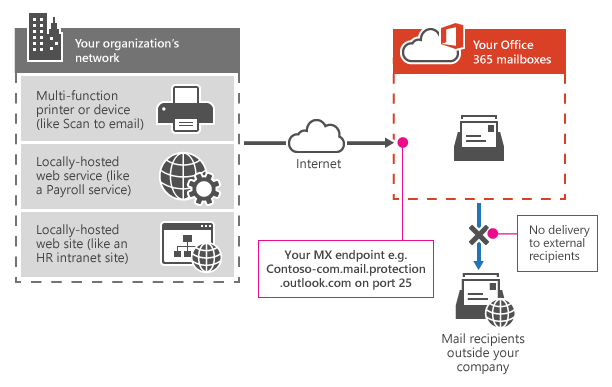
In the following diagram, the application or device in your organization's network uses direct send and your Microsoft 365 or Office 365 mail exchange (MX) endpoint to email recipients in your organization. It's easy to find your MX endpoint in Microsoft 365 or Office 365 if you need to look it up.

Shows how a multifunction printer uses your Microsoft 365 or Office 365 MX endpoint to send email directly to recipients in your organization only.

You can configure your device to send email direct to Microsoft 365 or Office 365. Use direct send to relay email to recipients with Microsoft 365 or Office 365 mailboxes in your organization. Direct send also works for external recipients with mailboxes in Microsoft 365 or Office 365. If your device uses direct send to try to relay an email for a recipient who doesn't have a Microsoft 365 or Office 365 mailbox, the email will be rejected.

 Note

If your device or application has the ability to act as a email server to deliver messages to Microsoft 365 or Microsoft 365 or Office 365 as well as other email providers, there are no Microsoft 365 or Office 365 settings needed for this scenario. Consult your device or application instructions for more information.

Features of direct send

  • Uses Microsoft 365 or Office 365 to send emails, but does not require a dedicated Microsoft 365 or Office 365 mailbox.

  • Doesn't require your device or application to have a static IP address. However, this is recommended if possible.

  • Doesn't work with a connector; never configure a device to use a connector with direct send, this can cause problems.

  • Doesn't require your device to support TLS.

Direct send has higher sending limits than SMTP client submission. Senders are not bound by the 30 messages per minute or 10,000 recipients per day limit.

Requirements for direct send

  • Port: Port 25 is required and must be unblocked on your network.

  • Static IP address is recommended: A static IP address is recommended so that an SPF record can be created for your domain. This helps avoid your messages being flagged as spam.

  • Does not require a Microsoft 365 or Office 365 mailbox with a license.

Limitations of direct send

  • Direct send cannot be used to deliver email to external recipients, for example, recipients with Yahoo or Gmail addresses.

  • Your messages will be subject to antispam checks.

  • Sent mail might be disrupted if your IP addresses are blocked by a spam list.

  • Microsoft 365 and Office 365 use throttling policies to protect the performance of the service.

Option 3: Configure a connector to send mail using Microsoft 365 or Office 365 SMTP relay

This option is more difficult to implement than the others. Only choose this option when:

  • Your environment uses Microsoft Security Defaults or multi-factor authentication (MFA).

  • SMTP client submission (Option 1) is not compatible with your business needs or with your device

  • You can't use direct send (Option 2) because you must send email to external recipients.

SMTP relay lets Microsoft 365 or Office 365 relay emails on your behalf by using a connector that's configured with your public IP address or a TLS certificate. Setting up a connector makes this a more complicated option.

Settings for Microsoft 365 or Office 365 SMTP relay


SETTINGS FOR MICROSOFT 365 OR OFFICE 365 SMTP RELAY
Device or application settingValue
Server/smart hostYour MX endpoint, for example, yourdomain-com.mail.protection.outlook.com
PortPort 25
TLS/StartTLSEnabled
Email addressAny email address in one of your Microsoft 365 or Office 365 verified domains. This email address does not need a mailbox.

If you already have a connector that's configured to deliver messages from your on-premises organization to Microsoft 365 or Office 365 (for example, a hybrid environment), you probably don't need to create a dedicated connector for Microsoft 365 or Office 365 SMTP relay. If you need to create a connector, use the following settings to support this scenario:


SETTINGS FOR MICROSOFT 365 OR OFFICE 365 SMTP RELAY
Connector settingValue
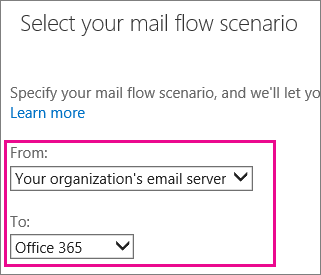
FromYour organization's email server
ToMicrosoft 365 or Office 365
Domain restrictions: IP address/rangeYour on-premises IP address or address range that the device or application will use to connect to Microsoft 365 or Office 365

We recommend adding an SPF record to avoid having messages flagged as spam. If you are sending from a static IP address, add it to your SPF record in your domain registrar's DNS settings as follows:


TABLE 6
DNS entryValue
SPFv=spf1 ip4:<Static IP Address> include:spf.protection.outlook.com ~all

Step-by-step configuration instructions for SMTP relay

  1. Obtain the public (static) IP address that the device or application with send from. A dynamic IP address isn't supported or allowed. You can share your static IP address with other devices and users, but don't share the IP address with anyone outside of your company. Make a note of this IP address for later.

  2. Sign in to the Microsoft 365 admin center.

  3. Go to Settings > Domains, select your domain (for example, contoso.com), and find the MX record.

    The MX record will have a Points to address or value value that looks similar to contoso-com.mail.protection.outlook.com.

  4. Make a note of the MX record Points to address or value value, which we refer to as your MX endpoint.

    Make a note of the MX record Points to address value.

  5. Check that the domains that the application or device will send to have been verified. If the domain is not verified, emails could be lost, and you won't be able to track them with the Exchange Online message trace tool.

  6. In Microsoft 365 or Office 365, select Admin and then Exchange to go to the Exchange admin center.

  7. In the Exchange admin center, go to Mail flow > Connectors.

  8. Check the list of connectors set up for your organization. If there is no connector listed from your organization's email server to Microsoft 365 or Office 365, create one:

    a. To start the wizard, click the plus symbol +.

    b. On the first screen, choose the options that are depicted in the following screenshot:

    Choose from your organization's email server to Microsoft 365 or Office 365

    c. Click Next, and give the connector a name.

    d. On the next screen, choose the option By verifying that the IP address of the sending server matches one of these IP addresses that belong to your organization, and add the IP address from step 1.

    e. Leave all the other fields with their default values, and select Save.

  9. Now that you are done with configuring your Microsoft 365 or Office 365 settings, go to your domain registrar's website to update your DNS records. Edit your SPF record. Include the IP address that you noted in step 1. The finished string should look similar to this v=spf1 ip4:10.5.3.2 include:spf.protection.outlook.com ~all, where 10.5.3.2 is your public IP address. Skipping this step can cause email to be sent to recipients' junk mail folders.

  10. Now, go back to the device, and in the settings, find the entry for Server or Smart Host, and enter the MX record POINTS TO ADDRESS value that you recorded in step 3.

  11. To test the configuration, send a test email from your device or application, and confirm that it was received by the recipient.

Configure a certificate-based connector to relay email through Microsoft 365 or Office 365

If your devices or applications are capable of using a certificate for mail flow, you can configure a certificate-based connector to relay email through Microsoft 365 or Office 365.

To do this, verify the subject name on the certificate used by the sending device or application. The common name (CN) or subject alternative name (SAN) in the certificate should contain a domain name that you have registered in Microsoft 365 or Office 365. Also, you must create a certificate-based connector in Microsoft 365 or Office 365 with this same domain name to accept and relay emails coming from these devices, applications, or any other on-premises server. For more information about this method, see important notice for email customers who have configured connectors.

How Microsoft 365 or Office 365 SMTP relay works

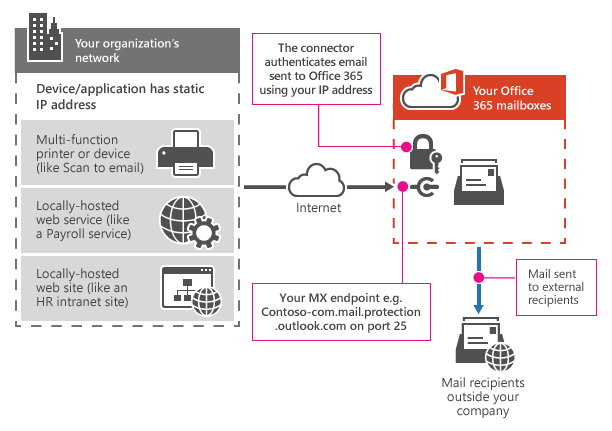
In the following diagram, the application or device in your organization's network uses a connector for SMTP relay to email recipients in your organization.

Shows how a multifunction printer connects to Microsoft 365 or Office 365 using SMTP relay.

  • The Microsoft 365 or Office 365 connector that you configure authenticates your device or application with Microsoft 365 or Office 365 using an IP address. Your device or application can send email using any address (including ones that can't receive mail), as long as the address uses one of your domains. The email address doesn't need to be associated with an actual mailbox. For example, if your domain is contoso.com, you could send from an address like do_not_reply@contoso.com.

  • Microsoft 365 or Office 365 SMTP relay uses a connector to authenticate the mail sent from your device or application. This allows Microsoft 365 or Office 365 to relay those messages to your own mailboxes and external recipients. Microsoft 365 or Office 365 SMTP relay is similar to direct send except that it can send mail to external recipients.

  • Due to the added complexity of configuring a connector, direct send is recommended over Microsoft 365 or Office 365 SMTP relay, unless you must send email to external recipients. To send email using Microsoft 365 or Office 365 SMTP relay, your device or application server must have a static IP address or address range. You can't use SMTP relay to send email directly to Microsoft 365 or Office 365 from a third-party hosted service, such as Microsoft Azure. For more information, see Troubleshoot outbound SMTP connectivity issues in Azure.

Features of Microsoft 365 or Office 365 SMTP relay

  • Microsoft 365 or Office 365 SMTP relay does not require the use of a licensed Microsoft 365 or Office 365 mailbox to send emails.

  • Microsoft 365 or Office 365 SMTP relay has higher sending limits than SMTP client submission; senders are not bound by the 30 messages per minute or 10,000 recipients per day limits.

Requirements for Microsoft 365 or Office 365 SMTP relay

  • Static IP address or address range: Most devices or applications are unable to use a certificate for authentication. To authenticate your device or application, use one or more static IP addresses that are not shared with another organization.

  • Connector: You must set up a connector in Exchange Online for email sent from your device or application.

  • Port: Port 25 is required and must not be blocked on your network or by your ISP.

  • Licensing: SMTP relay doesn't use a specific Microsoft 365 or Office 365 mailbox to send email. This means that users must have their own licenses if they send email from devices or applications that are configured for SMTP relay. If you have senders who use a device or LOB application and those senders do not have Microsoft 365 or Office 365 mailbox licenses, obtain and assign an Exchange Online Protection license to each unlicensed sender. This is the least expensive license that allows you to send email via Microsoft 365 or Office 365.

Limitations of Microsoft 365 or Office 365 SMTP relay

  • Sent mail can be disrupted if your IP addresses are blocked by a spam list.

  • Reasonable limits are imposed for sending. For more information, see High-risk delivery pool for outbound messages.

  • Requires static unshared IP addresses (unless a certificate is used).

Compare the options

Here's a comparison of each configuration option and the features they support.

COMPARE THE OPTIONS
FeaturesSMTP client submissionDirect sendSMTP relay
Send to recipients in your domain(s)YesYesYes
Relay to internet via Microsoft 365 or Office 365YesNo. Direct delivery only.Yes
Bypasses antispamYes, if the mail is destined for one of your Microsoft 365 or Office 365 mailboxes.No. Suspicious emails might be filtered. We recommend a custom Sender Policy Framework (SPF) record.No. Suspicious emails might be filtered. We recommend a custom SPF record.
Supports mail sent from applications hosted by a third partyYesYes. We recommend updating your SPF record to allow the third party to send as your domain.No
Saves to Sent Items folderYesNoNo
Requirements
Open network portPort 587 or port 25Port 25Port 25
Device or application server must support TLSRequiredOptionalOptional
Requires authenticationMicrosoft 365 or Office 365 username and password requiredNoneOne or more static IP addresses. Your printer or the server running your LOB app must have a static IP address to use for authentication with Microsoft 365 or Office 365.

COMPARE THE OPTIONS
LimitationsSMTP client submissionDirect sendSMTP relay
Throttling limits10,000 recipients per day. 30 messages per minute.Standard throttling is in place to protect Microsoft 365 or Office 365.Reasonable limits are imposed. The service can't be used to send spam or bulk mail. For more information about reasonable limits, see High-risk delivery pool for outbound messages.