Showing posts with label Dlink. Show all posts

Thursday, August 15, 2019

How do I configure MAC address filtering on my DIR-850L router?

How do I configure MAC address filtering on my router?
Note: MAC Address filtering is used to control network access based on the MAC Address of the network adapter. This feature can be configured to ALLOW or DENY network/Internet access.
________________________________________
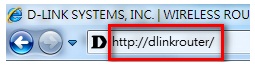
Step 1: Open your Internet browser and enter http://dlinkrouter, http://dlinkrouter.local, or http://192.168.0.1 into the address bar.
1
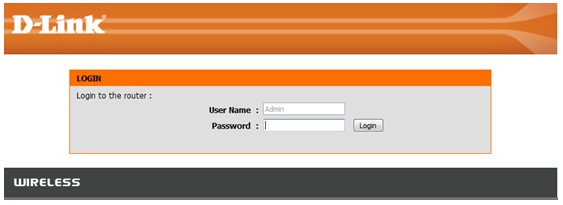
Step 2: Enter your login information in the fields provided. The default username is Admin. Enter your administrator password. If you have not changed the default password, leave this field blank. Clink Login.
2
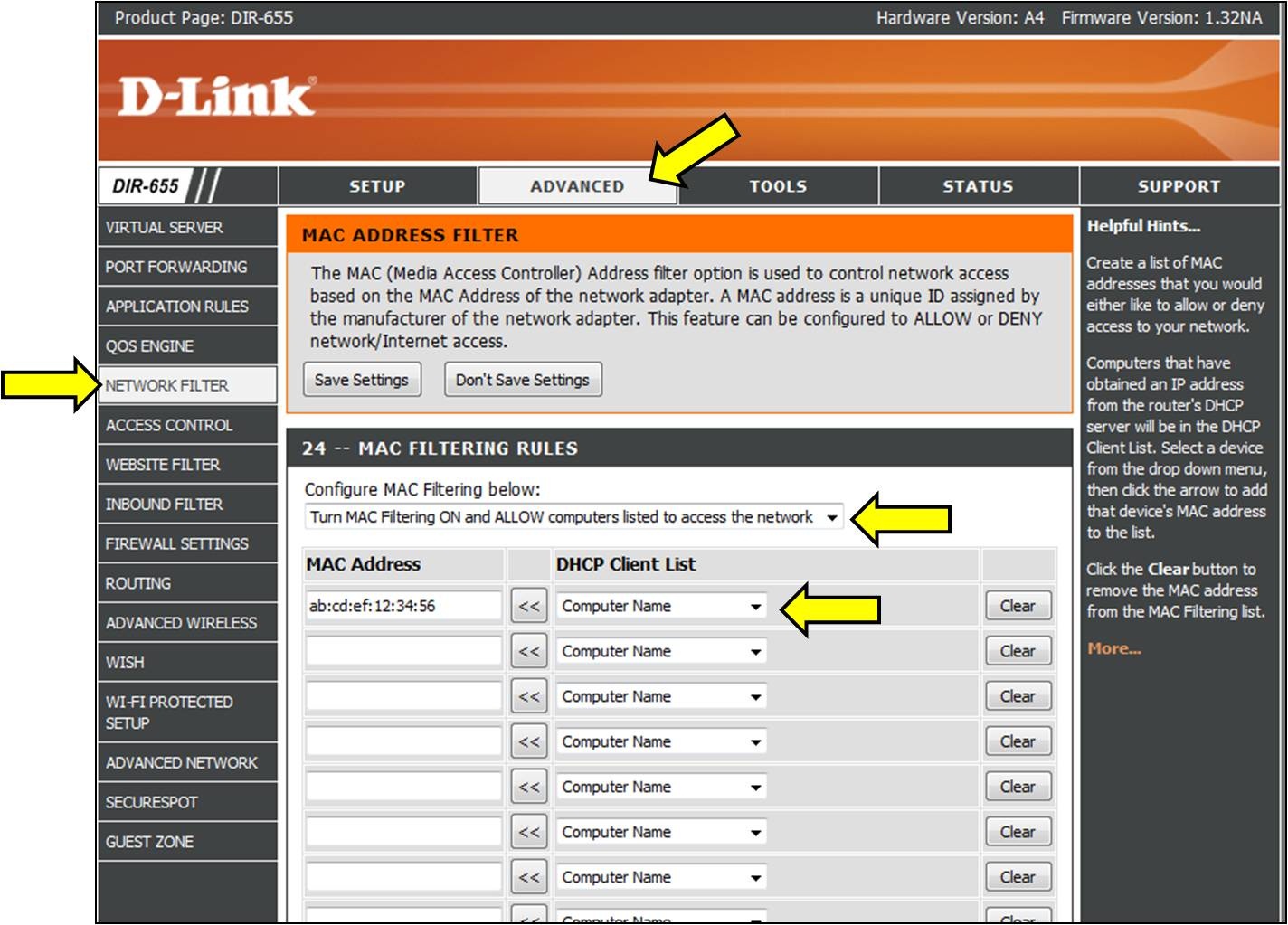
Step 3: Click on Advanced tab and then Network Filter on the left-hand side.
3
Step 4: From the Configure MAC Filtering drop down, select your method of MAC filtering.
•    Turn MAC Filtering OFF
•    MAC Filtering ON and ALLOW computers listed to access the
network.
•    MAC Filtering ON and DENY computers listed to access the network
Step 5: Select your computer from the List or enter the MAC addresses manually.
Click Save Settings

Monday, August 13, 2018

How to Reset the Dlink DIR-850L

On this page I will be showing you how to reset the Dlink DIR-850L router back to how it was straight out of the factory. Before I do that however I need to differentiate between two very commonly confused words. The first is a reboot. When I use the word reboot I am referring to a cycle in the power to the device. The other term is a reset. This word is referring to a complete factory restore of all settings.
Warning: This reset erases all settings you have ever changed in the lifetime of this device. Things you may not have thought about:

  1. The router's main username and password are erased and restored to the original factory ones.
  2. The Internet name and password are also erased and brought back to the original factory settings.
  3. If you have a DSL connection you might lose Internet connection. To regain the use of the Internet you need to re-enter the ISP (Internet Service Provider) username and password. For these details call your local ISP.
  4. Write down any other changes you have made. These include any port forwards you have done or IP address

Reset the Dlink DIR-850L

Now that I have sufficiently warned you of the potential dangers in resetting a router. Go ahead and find the reset button. For the Dlink DIR-850L router you can find it on the bottom panel of the unit. See the image below.


Take the tip of an unfolded paperclip and press down on the button for about 10 seconds. If you don't hold the button down for the entire amount of time you end up only rebooting the router instead of resetting it like you wanted.
Remember resetting this device is going to erase every single setting you have ever changed on the unit. To avoid this you need to think of other ways to fix this problem.

Login to the Dlink DIR-850L

Once you've successfully reset the Dlink DIR-850L router you'll need to log into it. This is done by using the factory default username and password. Not sure where to find these? We have them listed for you in our Login Guide.
Tip: If the defaults don't seem to be working for you it could be because the reset button wasn't held down for long enough.

Change Your Password

Now that you've logged into your router you should set a new password for it. Remember that this password will only protect your router settings, not your wireless network. All the same, setting a strong password is always a good idea.
Tip: Avoid losing your new password by writing it on a note and attaching it to the underside of your router.

How do I change the Wi‑Fi Password on my Dlink router?

Method 1
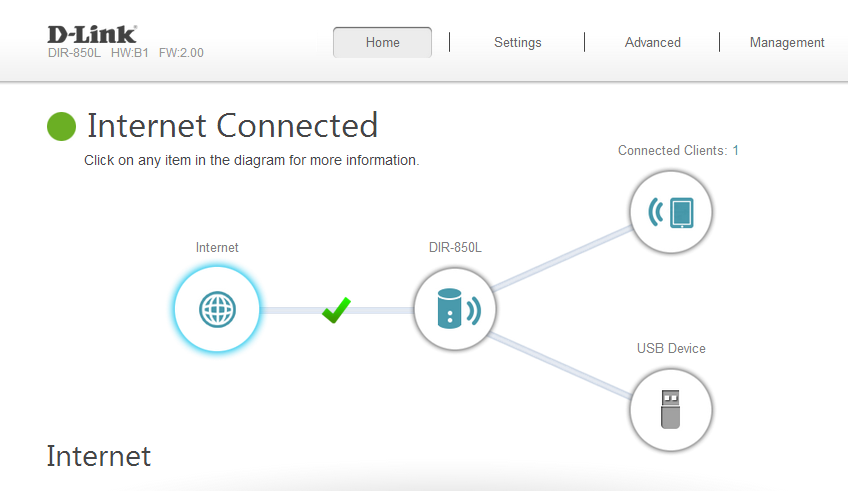
Step 1: Open an Internet browser (such as Internet Explorer) and enter http://dlinkrouter.local or http://192.168.0.1 into the address bar. Press Enter.
picture
Step 2: Enter the password for your Admin account in the field provided. If you have not changed this password from the default, leave the field blank. Click Log In.
picture
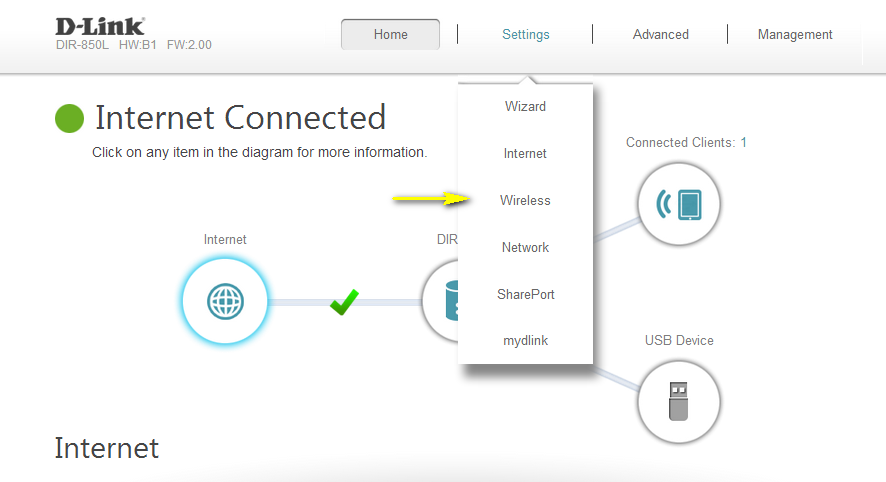
Step 3:  Move the cursor to the Settings tab and then click Wireless from the drop-down menu.
picture
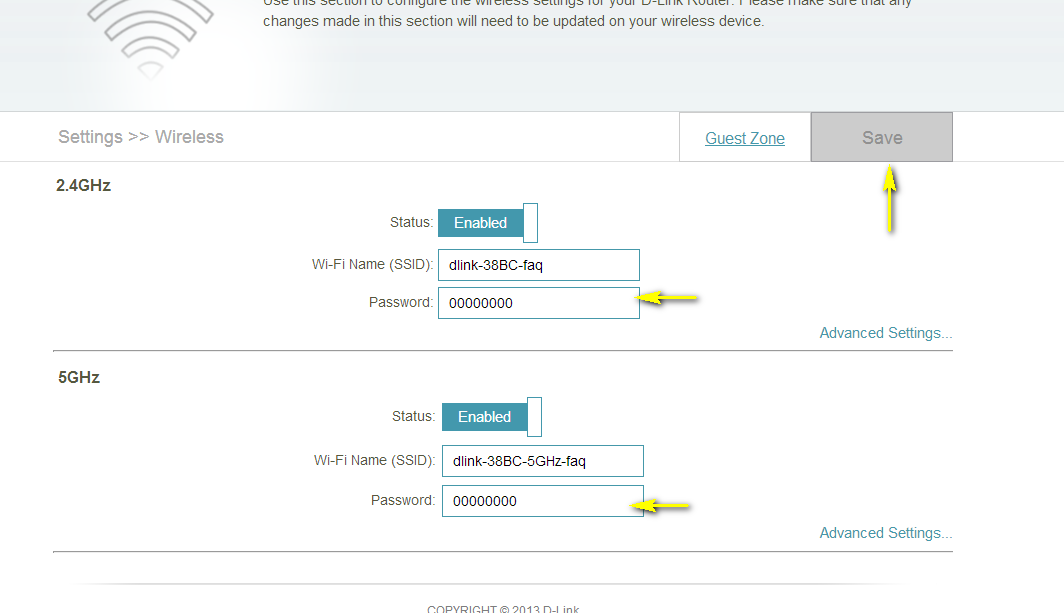
Step 4: In the Password field, specify the new wireless password for the desired wireless band. The password should be different for the 2.4 GHz and 5 GHz bands. Wireless clients will need this password in order to access your wireless network. This may require you to update your wireless clients’ configuration.
picture
Step 5: Click Save to save your configuration.
Method 2
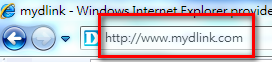
If you’ve registered your router with mydlink, you may log in to the mydlink web portal at www.mydlink.com to modify your router’s settings.
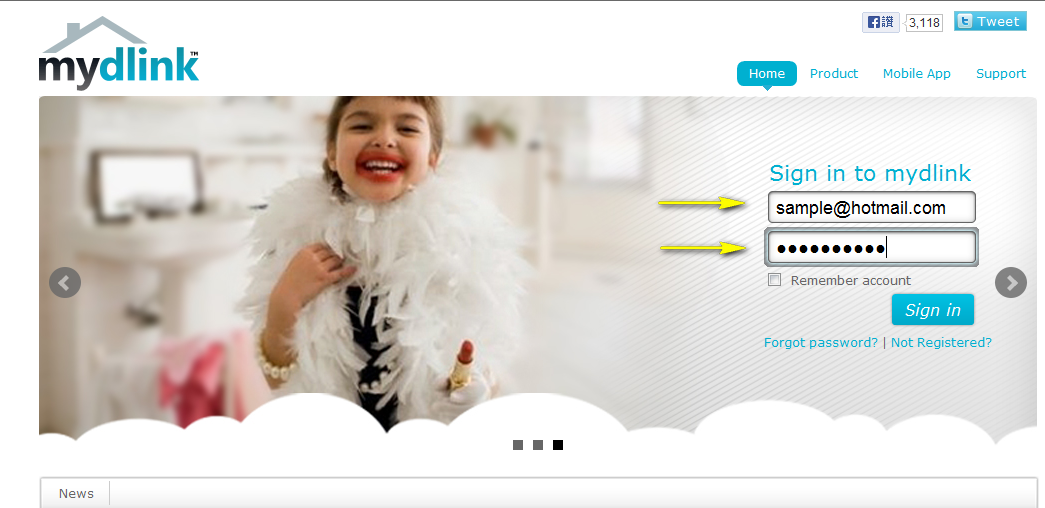
Step 1: Go to https://www.mydlink.com
picture
Step 2: Log in to mydlink with your existing mydlink account and password.
picture
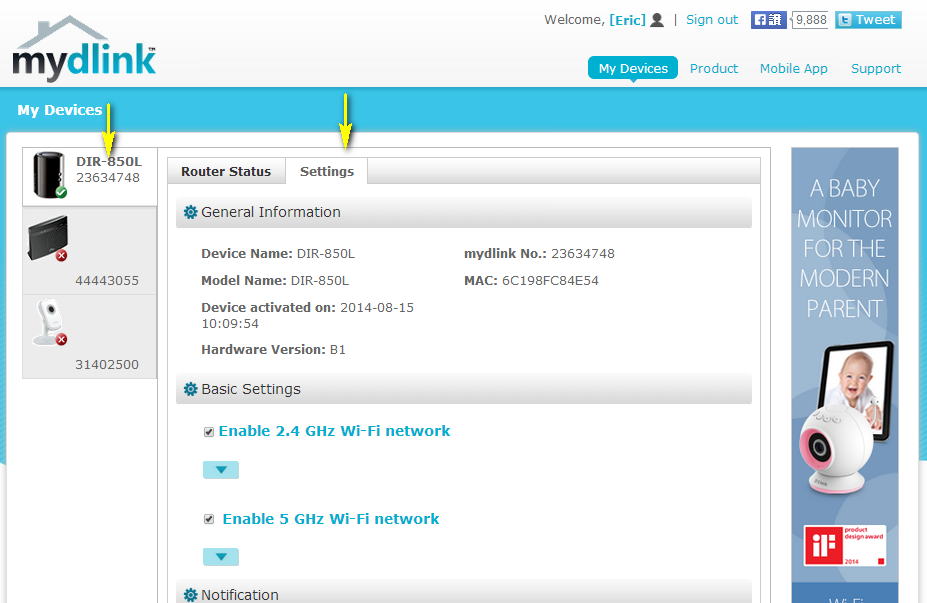
Step 3: Choose the router from My Devices. Go to Settings.
picture
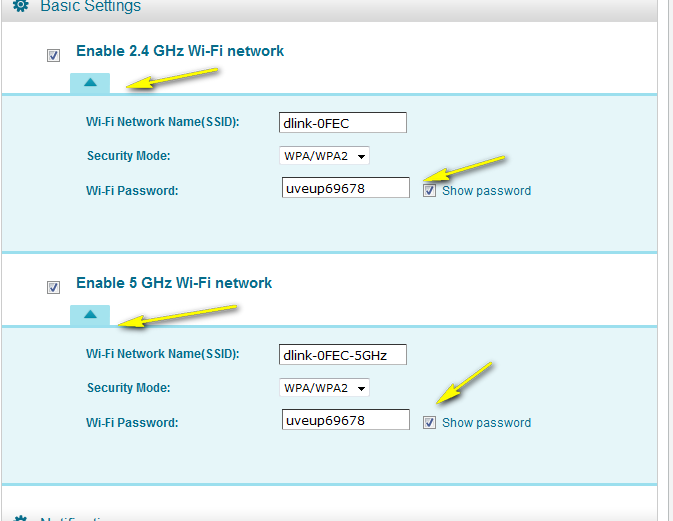
Step 4: Go to Basic Settings to modify your password. Check the Show Password to display the password on your screen. You can enter a new password in this field.
picture
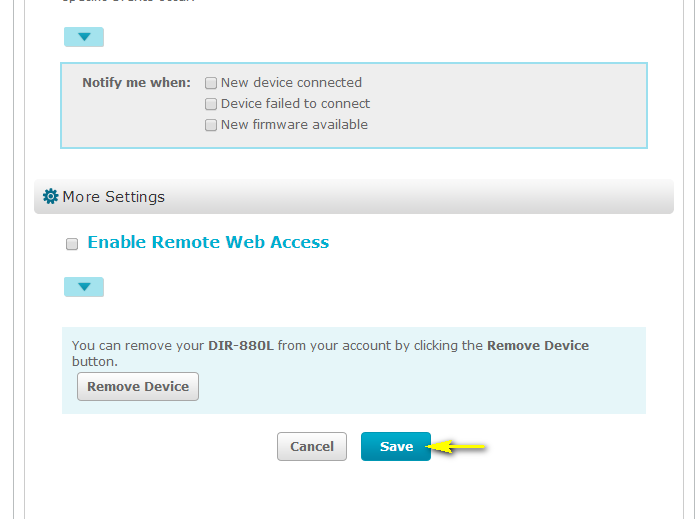
Step 5: Click Save if you have made changes.
picture
Step 6: Click Yes to confirm the new settings on the router. It will take at least 80 seconds to save the changes and reboot the router.
picture