Wednesday, October 2, 2019

How to verify that SRV DNS records have been created for a domain controller

The SRV record is a Domain Name System (DNS) resource record that is used to identify computers that host specific services. SRV resource records are used to locate domain controllers for Active Directory. To verify SRV locator resource records for a domain controller, use one of the following methods.

DNS Manager

After you install Active Directory on a server running the Microsoft DNS service, you can use the DNS Management Console to verify that the appropriate zones and resource records are created for each DNS zone.


Active Directory creates its SRV records in the following folders, where Domain_Name is the name of your domain:
Forward Lookup Zones/Domain_Name/_msdcs/dc/_sites/Default-First-Site-Name/_tcp Forward Lookup Zones/Domain_Name/_msdcs/dc/_tcp

In these locations, an SRV record should appear for the following services:
_kerberos

_ldap

Netlogon.dns

If you are using non-Microsoft DNS servers to support Active Directory, you can verify SRV locator resource records by viewing Netlogon.dns. Netlogon.dns is located in the %systemroot%\System32\Config folder. You can use a text editor, such as Microsoft Notepad, to view this file.

The first record in the file is the domain controller's Lightweight Directory Access Protocol (LDAP) SRV record. This record should appear similar to the following:
_ldap._tcp.Domain_Name

Nslookup

Nslookup is a command-line tool that displays information you can use to diagnose Domain Name System (DNS) infrastructure.
To use Nslookup to verify the SRV records, follow these steps:
  1. On your DNS, click Start, and then click Run.
  2. In the Open box, type cmd.
  3. Type nslookup, and then press ENTER.
  4. Type set type=all, and then press ENTER.
  5. Type_ldap._tcp.dc._msdcs.Domain_Name, where Domain_Name is the name of your domain, and then press ENTER.
Nslookup returns one or more SRV service location records that appear in the following format, where Server_Name is the host name of a domain controller, and where
Domain_Name is the domain the domain controller belongs to, and Server_IP_Address is the domain controller's Internet Protocol (IP) address:
Server: localhost
Address:  127.0.0.1
_ldap._tcp.dc._msdcs. Domain_Name 
SRV service location:
priority= 0
weight= 100
port= 389
srv hostname=  Server_Name . Domain_Name Server_Name . Domain_Name internet address =  Server_IP_Address 


Friday, September 27, 2019

What Is the Global Catalog?

The global catalog is a distributed data repository that contains a searchable, partial representation of every object in every domain in a multidomain Active Directory Domain Services (AD DS) forest. The global catalog is stored on domain controllers that have been designated as global catalog servers and is distributed through multimaster replication. Searches that are directed to the global catalog are faster because they do not involve referrals to different domain controllers.
Note
In Windows Server® 2003 and Microsoft Windows® 2000 Server, the directory service is named Active Directory. In Windows Server 2008 R2 and Windows Server 2008, the directory service is named Active Directory Domain Services. The rest of this topic refers to AD DS, but the information is also applicable to Active Directory.
In addition to configuration and schema directory partition replicas, every domain controller in a forest stores a full, writable replica of a single domain directory partition. Therefore, a domain controller can locate only the objects in its domain. Locating an object in a different domain would require the user or application to provide the domain of the requested object.
The global catalog provides the ability to locate objects from any domain without having to know the domain name. A global catalog server is a domain controller that, in addition to its full, writable domain directory partition replica, also stores a partial, read-only replica of all other domain directory partitions in the forest. The additional domain directory partitions are partial because only a limited set of attributes is included for each object. By including only the attributes that are most used for searching, every object in every domain in even the largest forest can be represented in the database of a single global catalog server.
Note
A global catalog server can also store a full, writable replica of an application directory partition, but objects in application directory partitions are not replicated to the global catalog as partial, read-only directory partitions.
The global catalog is built and updated automatically by the AD DS replication system. The attributes that are replicated to the global catalog are identified in the schema as the partial attribute set (PAS) and are defined by default by Microsoft. However, to optimize searching, you can edit the schema by adding or removing attributes that are stored in the global catalog.
In Windows 2000 Server environments, any change to the PAS results in full synchronization (update of all attributes) of the global catalog. Later versions of Windows Server reduce the impact of updating the global catalog by replicating only the attributes that change.
In a single-domain forest, a global catalog server stores a full, writable replica of the domain and does not store any partial replica. A global catalog server in a single-domain forest functions in the same manner as a non-global-catalog server except for the processing of forest-wide searches.

Common Global Catalog Scenarios

The following events require a global catalog server:
  • Forest-wide searches. The global catalog provides a resource for searching an AD DS forest. Forest-wide searches are identified by the LDAP port that they use. If the search query uses port 3268, the query is sent to a global catalog server.
  • User logon. In a forest that has more than one domain, two conditions require the global catalog during user authentication:
    • In a domain that operates at the Windows 2000 native domain functional level or higher, domain controllers must request universal group membership enumeration from a global catalog server.
    • When a user principal name (UPN) is used at logon and the forest has more than one domain, a global catalog server is required to resolve the name.
  • Universal Group Membership Caching: In a forest that has more than one domain, in sites that have domain users but no global catalog server, Universal Group Membership Caching can be used to enable caching of logon credentials so that the global catalog does not have to be contacted for subsequent user logons. This feature eliminates the need to retrieve universal group memberships across a WAN link from a global catalog server in a different site.
    Note
    Universal groups are available only in a domain that operates at the Windows 2000 native domain functional level or higher.
  • Exchange Address Book lookups. Servers running Microsoft Exchange Server rely on access to the global catalog for address information. Users use global catalog servers to access the global address list (GAL).

Search Requests

Because a domain controller that acts as a global catalog server stores objects for all domains in the forest, users and applications can use the global catalog to locate objects in any domain within a multidomain forest without a referral to a different server.
When a forest consists of a single domain, every domain controller has a full, writable copy of every object in the domain and forest. However, it is important to retain the global catalog on at least one domain controller because many applications use port 3268 for searching. For example, if you do not have any global catalog servers, the Search command on the Start menu cannot locate objects in AD DS.
The replicas that are replicated to the global catalog also include the access permissions for each object and attribute. If you are searching for an object that you do not have permission to access, you do not see the object in the list of search results. Users can find only objects to which they are allowed access.

User Logon Support

In addition to its role as a search provider, in a forest that has more than one domain, the global catalog has a role as an identity source during the user logon process. Universal groups can provide access to resources outside of the user’s domain. User principal names (UPNs) can specify a domain other than the domain of the user. By making universal group membership and UPN domain-user mapping information available on all global catalog servers, the global catalog provides the definitive source for groups that are capable of providing access in more than one domain and names that do not unequivocally identify the domain of the user.

Universal Group Membership

During the domain logon process, the user must be authenticated. During the authentication process, the user is validated (the domain controller verifies the identity of the user) and the user receives authorization data for access to resources. To provide authorization data of a user, the authenticating domain controller retrieves the security identifiers (SIDs) for all security groups of which the user is a member and adds these SIDs to the user’s access token. In a forest that has more than one domain, the global catalog is the only location where memberships of all universal groups in that forest can be ascertained. For this reason, access to a global catalog server is required for successful authentication in a domain that can have universal groups.
The global catalog stores the membership (the member attribute) of only universal groups. The membership of other groups can be ascertained at the domain level.
Because a universal group can have members from domains other than the domain where the group object is stored and can be used to provide access to resources in any domain, only a global catalog server is guaranteed to have all universal group memberships that are required for authentication.
For example, a user might be a member of a universal group that has its group object stored in a different domain but provides access to resources in the user’s domain. To ensure that the user can be authorized to access resources appropriately in this domain, the domain controller must have access to the membership of all universal groups in the forest.
If a global catalog server is not available, the user logon fails.

User Principal Name

A user principal name (UPN) is a logon name that takes the form of an e-mail address. A UPN specifies the user ID followed by a DNS domain name, separated by an "@" character (for example, jsmith@contoso.com). UPNs allow administrative management of the UPN suffix to provide logon names that:
  • Match the user’s e-mail name.
  • Do not reveal the domain structure of the forest.
When a user account is created, the UPN suffix is generated by default as userName@ DnsDomainName, but it can be changed administratively. For example, in a forest that has four domains, the UPN suffix might be configured to map to the external DNS name for the organization. The userPrincipalName attribute of the user account identifies the UPN and is replicated to the global catalog.
When you use a UPN to log on to a domain, your workstation contacts a global catalog server to resolve the name because the UPN suffix is not necessarily the domain for which the contacted domain controller is authoritative. If the DNS domain name in the UPN suffix is not a valid DNS domain, the logon fails. Assuming the UPN suffix is a valid DNS name, the global catalog server returns the name of the AD DS domain to your workstation, which then queries DNS for a domain controller in that domain.
If a company has more than one forest and uses trust relationships between the domains in the different forests, a UPN cannot be used to log on to a domain that is outside the user’s forest because the UPN is resolved in the global catalog of the user’s forest.

Universal Group Membership Caching

Universal Group Membership Caching eliminates the need for a domain controller in a multidomain forest to contact a global catalog server during the logon process in domains where universal groups are available. Caching group membership reduces WAN traffic, which helps in sites where updating the cached group membership of security principals, including user and computer accounts, generates less traffic than replicating the global catalog to the site.
Use the following criteria to determine if a site is a good candidate for Universal Group Membership Caching:
  • Number of users and computers in the site: The site has less than 500 combined users and computers, including transient users who log on occasionally but not on a regular basis. The cache of a user who logs on once continues to be updated periodically for 180 days after the first logon. A general limit of 500 membership caches can be updated at a time. If greater than 500 security principals have cached group memberships, some caches might not be updated.
  • Number of domain controllers: Each domain controller performs a refresh on every user in its site once every eight hours. Depending on the number of domains in the forest, 500 security principals and two domain controllers could generate more WAN traffic than placing a global catalog server in the site. Therefore, you need to rationalize the WAN costs when exceeding 500 security principals and two domain controllers.
  • Tolerance for high latency in group updates. Because domain controllers in the site where Universal Group Membership Caching is enabled update the membership caches every eight hours, and because credentials are always taken from the cache, updates to group memberships are not reflected in the security principal’s credentials for up to eight hours.

Address Book Lookups

Exchange Server uses the global catalog to store mail recipient data that enables clients in a forest to send and receive e-mail messages.

Global Catalog Dependencies and Interactions

Global catalog servers have the following dependencies and interactions with other Windows Server technologies:
  • AD DS installation. When AD DS is installed on the first domain controller in a forest, the installation application creates that domain controller as a global catalog server.
  • AD DS replication. The global catalog is built and maintained by AD DS replication:
    • Subsequent to forest creation, when a domain controller is designated as a global catalog server, AD DS replication automatically transfers PAS replicas to the domain controller, including the partial replica of every domain in the forest other than the local domain.
    • To facilitate intersite replication of global catalog server updates, AD DS replication selects global catalog servers as bridgehead servers whenever a global catalog server is present in a site and domains that are not present in the site exist in other sites in the forest.
  • Domain Name System (DNS). Global catalog server clients depend on DNS to provide the IP address of global catalog servers. DNS is required to advertise global catalog servers for domain controller location.
  • Net Logon service. Global catalog advertisement in DNS depends on the Net Logon service to perform DNS registrations. When replication of the global catalog is complete, or when a global catalog server starts, the Net Logon service publishes service (SRV) resource records in DNS that specifically advertise the domain controller as a global catalog server.
  • Domain controller Locator: When a global catalog server is requested (by a user or application that launches a search over port 3268, or by a domain controller that is authenticating a user logon), the domain controller Locator queries DNS for a global catalog server.
In the following diagram, global catalog interactions include tracking a global catalog server through the following interactions, which are indicated by boxes:
  • Active Directory installation of a new forest: Global catalog creation occurs during AD DS installation of the first domain controller in the forest.
  • Net Logon registration: Resource records are registered in DNS to advertise the domain controller as a global catalog server.
  • AD DS replication:
    • When a new domain controller (DC2) is created and an administrator designates it as a global catalog server, replication of the PAS from DC1 occurs.
    • DC1 in DomainA replicates changes for DomainA to DC2, and DC2 replicates updates to data for DomainB to DC1.
  • DC location: The dotted lines enclose the processes whereby two clients locate a global catalog server by querying DNS:
    • A through C: (A) ClientX sends a query to the global catalog, which prompts (B) a DNS query to locate the closest global catalog server, and then (C) the client contacts the returned global catalog server DC2 to resolve the query.
    • 1 through 5: (1) ClientY logs on to the domain, which prompts (2) a DNS query for the closest domain controllers. (3) ClientY contacts the returned domain controller DC3 for authentication. (4) DC3 queries DNS to find the closest global catalog server and then (5) contacts the returned global catalog server DC2 to retrieve the universal groups for the user.
Interactions with Other Windows Technologies

The global catalog solves the problem of how to locate domain data that is not stored on a domain controller in the domain of the client that requires the information. By using different ports for standard LDAP queries (port 389) and global catalog queries (port 3268), AD DS effectively separates forest-wide queries that require a global catalog server from local, domainwide queries that can be serviced by the domain controller in the user’s domain.

Thursday, September 19, 2019

OS X Active Directory Integration – How to Bind a Mac to AD

OS X Active Directory Integration – The Process

Minimum Requirements:

  • Server hardware running Windows Server 2000-2012 Standard
  • Active Directory Domain Services (ADDS) setup and configured
  • Domain Administrator-level account
  • Apple desktop or laptop running OS X 10.5 or newer

Step 1: Bind OS X to a Windows Domain

  1. Login to the Mac as an Administrator
  2. Open ‘System Preferences’ and select ‘Users & Groups’
  3. Select the ‘Login Options’ menu in the sidebar and use the “Join” button
  4. Enter the fully-qualified domain name of the AD domain being bound
  5. AD Domain level credentials will be needed

Step 2: Modify Directory Services Settings

  1. From the ‘Login Options’ menu again, edit the ‘Network Account Server’ settings
  2. Configure the “Force Local home directory on startup” option
  3. Configure the “Use UNC path from Active Directory to derive network home location”
  4. Select ‘Mapping’ which specifies unique IDs for certain attributes that server to identify a computer account
  5. Finally, there will be three optional settings to choose from, “Prefer this domain server”, “Allow administration by” and “Allow authentication from any domain in the forest.” Select whichever option is most applicable.

Now for the good news. Once your Mac clients have been joined to your AD domain, other software services that rely on AD will be able to perform necessary functions for both security and convenience.  For example, with a Mac that is bound to an AD domain, the PortalGuard Desktop Client can be installed and your end users will be able to enjoy the same Self-service Password Reset and Recovery feature that Windows users appreciate.

Tuesday, September 10, 2019

How to use the Remote Desktop app to connect to a PC on Windows 10

How to allow remote connections on your PC

Using the Remote Desktop app is a straightforward process, but the setup you'll need will depend if you're trying to initiate a remote desktop connection over the local network or the internet.

How to enable remote connections on your PC

If you're trying to start a remote connection inside your local network, you only need to make sure the computer you're trying to access is configured to allow to handle remote desktop.
Important: Windows 10 Home doesn't include support for remote desktop connections, you can only enable this feature on Windows 10 Pro and business variants of the operating system.
To allow a remote PC to accept remote connections, do the following:
  1. Open Control Panel.
  2. Click on System and Security.
  3. Click on Allow remote access.
  4. Under Remote Desktop make sure to select Allow remote connections to this computer.

  5. Click OK.
  6. Click Apply.
  7. Click OK to complete the task.
After you completed the steps, your computer will allow remote desktop connections, and Windows 10 will even add the necessary rules in the firewall.
If you're setting up a remote desktop using an internet connection, you can continue with the steps below.

How to set up remote access over the internet

If you're planning to access your computer remotely over the internet, in addition to configuring the system properties, you'll need to set up your local router to allow remote connections to past through. And you will need to know your public IP address to contact your device over the internet.

How to set a static IP address for your PC

Most computers inside a private network are assigned dynamic IP addresses, which can change at any time. If you'll be using remote desktop regularly, it's recommended to configure your computer with a static IP address, so you don't have to reconfigure the port forwarding settings every time your device gets a new IP address.
  1. Open Control Panel.
  2. Click on Network and Internet.
  3. Click on Network and Sharing Center.
  4. On the left page, click the Change adapter settings link.
  5. Right-click your network adapter and select Properties.
  6. Select Internet Protocol Version 4 (TCP/IPv4).
  7. Click the Properties button.
  8. On the General tab, select the Use the following IP address.
  9. Enter a valid local IP address that is outside of the DHCP scope to prevent IP address conflicts in the network. For example, 10.1.2.150. (You can find this information in the DHCP settings section on your router).
  10. Enter a subnet mask for the network. On most home networks, the subnet mask usually is 255.255.255.0.
  11. Enter the default gateway information, which is the IP address of your router. For example, 10.1.2.1.
  12. Under "Use the following DNS server addresses", remember to enter the IP address of your DNS server, which in most cases is the IP address of your router. (If you can't connect to the internet, you may want to try using Google Public DNS addresses: 8.8.4.4 and 8.8.8.8.)

  13. Click OK.
  14. Click Close to complete the task.
Quick Tip: You can find your IP address information using the ipconfig command in Command Prompt.

How to find your public IP address

If you're trying to access your computer remotely over the internet, you'll need to know your public IP address in order to contact your device.
The easiest way to find your public IP address is by opening your web browser, and while in Bing.com or Google.com, do a search for "What's my IP". Your public IP address should be the first result.
Keep in mind that most internet providers offer dynamic public IP addresses for residential customers, which means that your public IP address may change from time to time.
Of course, there are many services out there that offer DDNS (Dynamic Domain Name System) services that can help you track when your public IP address changes, such as NoIP and DynDNS. Alternatively, you can contact your internet service provider to get a static IP address for an additional fee to your internet bill.

How to forward a port on a local router

To allow remote connections over the internet to a particular computer within a private network, you'll need to forward the TCP port 3389 on your router.
  1. Open Command Prompt.
  2. Type the following command and press Enter:
    ipconfig
  3. Note the IPv4 Address information, which is the address that identifies your computer on the local network. Also, note the Default Gateway, which is the IPv4 address of your router.

  4. Open your web browser.
  5. Type the IPv4 address of your router and press Enter.
  6. Sign in to your router with your username and password.
  7. Browse through the available settings and find the Port Forwarding section.
  8. Make sure Port Forwarding is enabled.
  9. Under the port forwarding list add the required information, including:
    • Service name: This mane is only for reference, you can use any name you want.
    • Port Range: Enter the TCP port number 3389.
    • Local IP: Enter the IPv4 address of your computer. For example, 10.1.2.150.
    • Local Port: Enter the same TCP port number 3389.
    • Protocol: Select TCP.
  10. Make sure to add the new rule to the router.

  11. Save the configuration to apply the new settings.
It's important to note that most routers their own interface; check your router's user manual to find out where to change the Port Forwarding settings.

How to start a remote desktop connection

Once your computer and network are configured properly to allow remote connections, starting a remote desktop session is a piece of cake.
  1. On the device you'll be using to connect to your computer remotely, open the Remote Desktop app. (If you don't have the app, you can get it from the Window Store
  2. Click the add (+) button in the top-right corner.
  3. Click the Desktop option.

  4. Enter the IP address (recommended) or the name of the PC you're trying to connect:
    • If you're trying to connect to a PC inside a private network, then enter the local IP address of the PC you're trying to connect.
    • If you're trying to connect to a PC over the internet, then enter the public IP address of the PC you're trying to connect.
  5. Click Add account.

  6. Enter the information to sign-in on the remote computer:
    • If the remote computer is using a Microsoft account, then enter that Microsoft account sign-in information.
    • If the remote computer is using a local account, then enter the local username and password to sign-in.
  7. Click the Save button.

  8. Click the Save button again to add the connection to your list.
  9. On the list of available connections, click the computer to which you want to connect to start a remote desktop connection.

  10. If you get a certificate warning from a trusted computer, check the Don't ask about this certificate again option.

  11. Click Connect to complete the task.
If everything is working correctly, you will now be connected remotely to your computer inside a private network or over the internet.
You can also click the gear button in the top right corner to access additional settings, including account and session settings, such as options to start a new connection in full-screen mode, change the size of the display, and keyboard options.
When you need to change settings for a particular connection, you can right-click the computer from the list, and click on Edit.
On Edit a Desktop, you can update the IP address and user account. If you click More, you'll be able to configure additional options, including display name for the connection, gateway information, and you can choose whether the audio from the remote computer plays on your device. Additionally, you will get the option to connect to an admin section and switch mouse buttons.

How to troubleshoot a remote desktop connection

In most cases, after everything has been configured, you'll be able to start a remote desktop connection without problems. However, if you can't connect, below you'll find some troubleshooting steps that may help you to resolve the connection issue.
While enabling remote connections to you computer also configures the Windows Firewall automatically, you want to make Remote Desktop is allowed to pass through the firewall. You can check this setting on Control Panel\System and Security\Windows Firewall\Allowed apps.
If you have a third-party firewall or antivirus, you may want to disable these applications to see if you can connect.
It's unlikely, but if you're trying to connect over the internet, it's possible that your internet service provider is blocking the port to allow remote desktop. If this is the case, you may want to contact your provider to see how you can open the specified port.
Stick to IP address and don't use computer name, as it could cause problems if not configured correctly. When adding a new computer to the list on Remote Desktop, make sure you enter the correct IP address: Local IP address to connect inside a private network or public IP address to connect over the internet.

Remote Desktop Connection vs. Remote Desktop app

If you've used remote desktop in the past, you may also be familiar with the Remote Desktop Connection utility built in Windows 10, and now you're probably wondering if there is any difference with the Microsoft Remote Desktop app you get from the Windows Store.
While both applications have the same functionality, the new Remote Desktop app offers an entirely new interface that matches the new app design language on Windows 10, and it's available across platforms, including Windows 10 PCs, Windows 10 Mobile, Android, iPhone, iPad, and Mac.
Remote Desktop Connection utility (left), Remote Desktop app (right)
You can also save your remote connections for faster access to a device, and you get options to quickly connect to Azure RemoteApp and Remote Resources.
In addition, unlike the Remote Desktop Connection utility, you can't manually adjust the connection speed experience and certain resources, but most of these features are handled automatically using the Remote Desktop app. And if you used remote desktop in the past, you'll notice that the image quality in the new app isn't the same as the old utility. However, it's good enough to remote in a PC and get your work done.

Thursday, August 15, 2019

Upgrade ESXi 6.x to 6.7 via CLI – Two methods

Upgrade ESXi 6.x to 6.7 via CLI – from VMware OnLine depot

Step 0: Enable swap on local datastore – connect to your ESXi host via HTML5 host client by typing https://IP_or_FQDN/ui and going to the Manage > System > Swap > Edit Settings > Drop Down and Select your local datastore.
Note: If you don’t do that, you’ll end up with an installation error saying “Failed updating the bootloader: Execution of command /usr/lib/vmware/bootloader-installer/install-bootloader failed: non-zero code returned…. return code: 1”

Step 1: Connect to your ESXi host via host client and enable SSH (if you haven’t already done yet), then enter a maintenance mode and enable one firewall rule for web traffic (disabled by default) with this command:
esxcli network firewall ruleset set -e true -r httpClient
Step 2: Enter this command to list all available profiles. We filter only those which are relevant to our case – upgrade to ESXi 6.7
esxcli software sources profile list -d https://hostupdate.vmware.com/software/VUM/PRODUCTION/main/vmw-depot-index.xml | grep -i ESXi-6.7
You’ll see two profiles. We pick the “ESXi-6.7.0-8169922-standard” one for our situation.

Step 3: The upgrade – Execute this command which will use the profile to upgrade the ESXi 6.x host
Note: The -p stands for “profile” and the -d stands for “depot”.
And you should see the message saying that the upgrade was successful.

Reboot the host to complete the upgrade process and you are done.

Upgrade ESXi 6.x to 6.7 via CLI – via “Offline Bundle”

The offline bundle is a file which is available for paid customers only. Free ESXi users do not have an access to this download.

Step 0: The same as for the method above. You have to enable swap on the local datastore.
Step 1: After downloading the “VMware-ESXi-6.7.0-8169922-depot.zip” file, place it (upload it) to a datastore which is visible by your ESXi host. Best would be a local datastore, if this host has some. If not, it can also be a shared datastore too.
Put your host into maintenance mode, enable SSH if you haven’t done yet.
Step 2: Execute this command to upgrade your ESXi 6.x to 6.7
esxcli software profile update -p ESXi-6.7.0-8169922-standard -d /vmfs/volumes/your_datastore/VMware-ESXi-6.7.0-8169922-depot.zip
Where “your_datastore” is the name of the datastore where you have uploaded the Offline bundle file.
After checking that your upgrade was successful, reboot your host. You should see a message saying that the upgrade completed successfully.

Wrap Up:

As you can see, both methods are similar where the first one uses VMware Online depot (accessible to anyone) and the second one supports environments without an Internet access. Both methods are supported upgrade methods.
You can use those upgrade possibilities if you do not use VMware vCenter server. However If you have vCenter server license, it’s pretty much easier to use VMware Update Manager (VUM) whcih is the tool to conduct those upgrades, especially for clustered environments.

How do I configure MAC address filtering on my DIR-850L router?

How do I configure MAC address filtering on my router?
Note: MAC Address filtering is used to control network access based on the MAC Address of the network adapter. This feature can be configured to ALLOW or DENY network/Internet access.
________________________________________
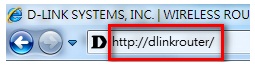
Step 1: Open your Internet browser and enter http://dlinkrouter, http://dlinkrouter.local, or http://192.168.0.1 into the address bar.
1
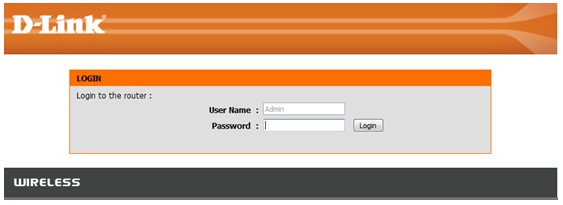
Step 2: Enter your login information in the fields provided. The default username is Admin. Enter your administrator password. If you have not changed the default password, leave this field blank. Clink Login.
2
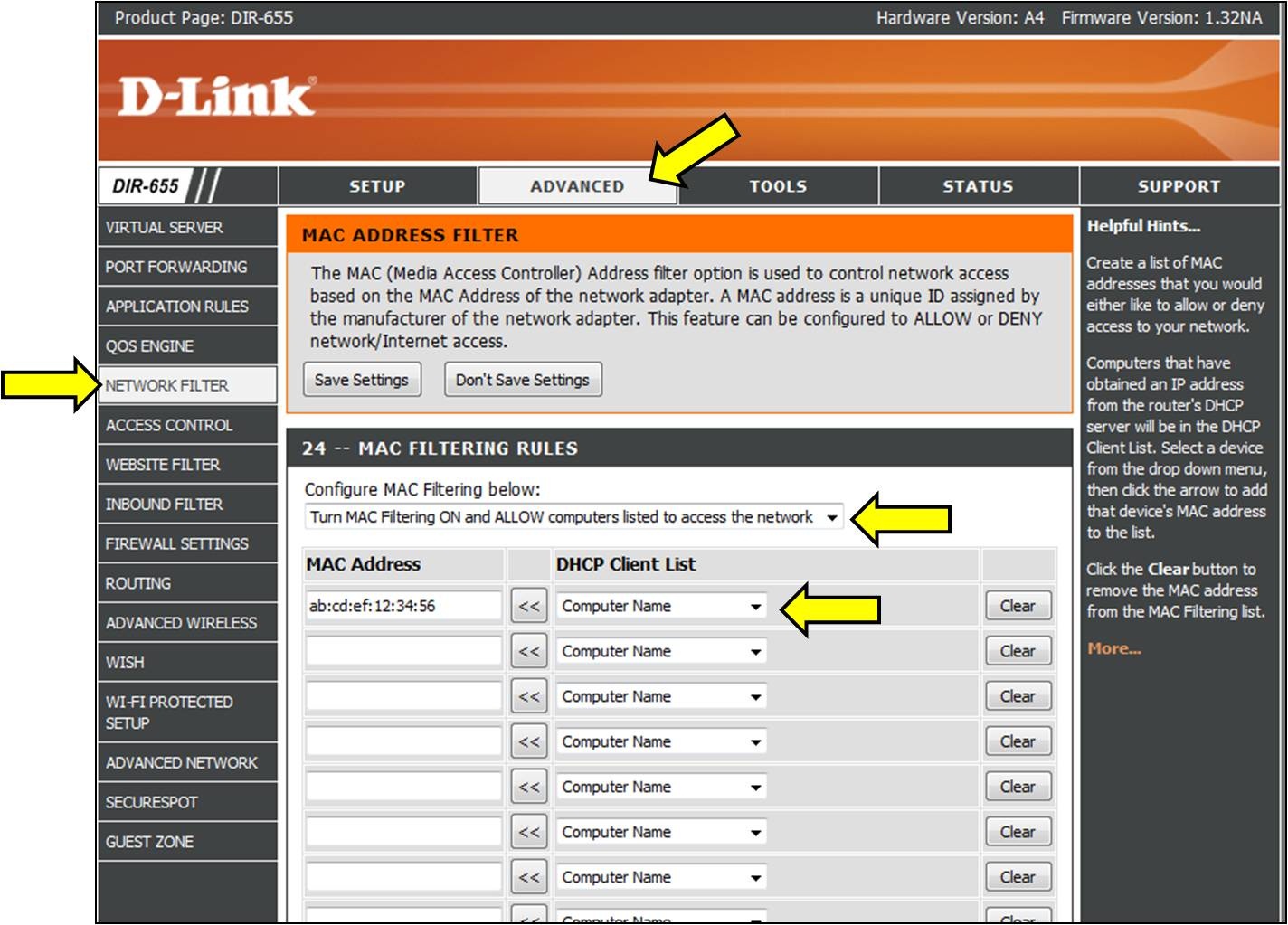
Step 3: Click on Advanced tab and then Network Filter on the left-hand side.
3
Step 4: From the Configure MAC Filtering drop down, select your method of MAC filtering.
•    Turn MAC Filtering OFF
•    MAC Filtering ON and ALLOW computers listed to access the
network.
•    MAC Filtering ON and DENY computers listed to access the network
Step 5: Select your computer from the List or enter the MAC addresses manually.
Click Save Settings

Monday, August 12, 2019

How To Upgrade ESXi 6.x to 6.7 via ISO

This is to upgrade VMware ESXi 6.x to 6.7 via ISO image. There are several ways of upgrading standalone ESXi hosts, and via the ISO image it’s just so simple that I wanted to show this for the newcomers and people who just starting with VMware technology.
VMware ESXi is one of the most popular hypervisors around. You don’t have to fear of upgrades, especially when you know that you can revert back an upgrade. Yes, in case you having problems after upgrading, you can simply hold SHIFT + R and chose to roll back.
Here is a screenshot from the UI. 

Upgrade ESXi 6.x to 6.7 via ISO – The steps

Step 1 – Download the ESXi 6.7 Installation ISO from VMware and use clean CD-ROM to burn the ISO to the media and prepare ESXi 6.7 CD-ROM.
Note: If you have a server which supports remote connections such as ILO, iDrak or iPMI, you don’t have to use physical CD-ROM. You can attach the ISO image directly and boot up your host.
Step 2 – Go to the BIOS of your ESXi host and set the boot sequence to boot from CD-ROM first. Like this, the server will boot from the CD-ROM. Boot up your server, follow the installer’s instructions.

NOTE: You’ll need to know the root password of the previous ESXi installation. If not, you won’t be able to upgrade. I mean, it’s quite logical, but we had some questions like “what if we do not have root password”…..
The installer continues, and then, when you’ll be at the page where the installer founds an existing VMFS partition, leave the first option selected. It’s the “Upgrade ESXi, preserve VMFS datastore”. This is the option we need.

Hit OK and let the installer to upgrade your host.
After, you’ll get a prompt to remove the ISO and reboot to finish the upgrade process. The ESXi will now boot and the new ESXi 6.7 will get loaded.

The whole process is very straightforward and simple to use.
For installation where you have managed ESXi hosts by a vCenter server, you might want to use other methods of an upgrade, but we will detail them in another post. This method is useful when you have a single or just a few standalone ESXi hosts to upgrade. Not dozens or hundreds.
After the upgrade finished you can test the new HTML5 host client which brought significant improvements for VM and host management. I’m sure you know, but folks coming from earlier versions of ESXi and still perhaps using the old vSphere Windows client, might not know.
Simply connect to your host via IP address or FQDN, like this:
https://IP_or_FQDN/ui
To get to the login screen and the version of the ESXi.

Wrap Up:
This method is simple and effective for upgrading standalone ESXi hosts. You still keep a possibility to revert back in case something goes wrong. For standalone ESXi, you obviously have to shut down your running VMs before an upgrade.
Note that at the moment, VMware does not supports upgrades from ESXi 6.5U2 so if you’re on ESXi 6.5 do not install the U2 which has been released recently, but rather wait for an upcoming patch.