Monday, May 20, 2019

How to join ESXi to Active Directory for Improved Management and Security

ESXi implements the PAM or Pluggable Authentication Module framework which supports several authentication methods one of them being Active Directory (AD). This means that you can include AD as an authentication mechanism within your vSphere environments. The benefits are many but the ones that sticks out the most is being able to authenticate using an AD user account and using the same, including AD security groups, to grant permissions on vSphere objects. This voids the need to maintain and replicate local ESXi users and groups across multiples instances of ESXi. Single sign-on using Windows credentials is also a cool feature to have.
User management is also a breeze once AD authentication is enabled. Consider the case of a vSphere admin leaving for pastures green. With AD, it’s a simple matter of disabling his or her user account and you’re done. If on the other hand admins are sharing and using local root or similarly privileged accounts, this insecure practice would call for a password change across the board assuming security is something you cherish.
So, in today’s post, I’ll go over the process of joining ESXi 6.5 to Active Directory. My test setup consists of a single unmanaged ESXi 6.5 host and a Windows 2012 Domain Controller (DC) running DNS, a single forest / domain setup and hosting all FSMO roles.

Requirements


Time synchronization: The time on the ESXi host and the DC must be in sync. To do this, configure both to use the same NTP source or simply configure the NTP service on ESXi to use the DC as a time source. By default, a DC holding the PDC Emulator role is also responsible for keeping time for the whole forest.
DNS Resolution: The ESXi host must be able to resolve the domain and domain controller(s) DNS names. The easiest solution to this is to add the IP address of a DC which is configured as a DNS server for that domain.
Root access: Create a group called ESX Admins on Active Directory. AD users accounts assigned to it are automatically granted root access on ESXi.
Firewall access: Make sure that there is no firewall blocking the following ports both UDP and TCP:
  • 88 – Kerberos authentication
  • 123 – NTP
  • 135 – RPC
  • 137 – NetBIOS Name Service
  • 139 – NetBIOS Session Service (SMB)
  • 389 – LDAP
  • 445 – Microsoft-DS Active Directory, Windows shares (SMB over TCP)
  • 464 – Kerberos – change/password changes
  • 3268- Global Catalog search

Configuring Active Directory


There’s little work to be done here. Just add A and PTR records for the ESXi host to the domain’s DNS zone as shown in Figure 1.
Figure 1 - Creating DNS records for ESXi on a Microsoft DNS server
Figure 1 – Creating DNS records for ESXi on a Microsoft DNS server

Using the ADUC MMC console, create a security group called ESX Admins and add the AD users whom you want ESXi root privileges assigned to.
Figure 2 - Creating the ESX Admins security groups in AD
Figure 2 – Creating the ESX Admins security groups in AD

In reality, you can specify any AD group of your liking provided you amend the Config.HostAgent.plugins.hostsvc.esxAdminsGroup advanced setting as shown in Fig. 3.
Figure 3 - Specifying an alternative AD ESXi root user group using the embedded ESXi host client
Figure 3 – Specifying an alternative AD ESXi root user group from the embedded ESXi host client

Configuring ESXi


You can configure ESXi 6.5 several ways. These include the DCUI, the ESXi command line, PowerCLI or via the embedded ESXi host or thick client.

Enable the Active Directory Firewall Rule
While writing this post, I learned that the Active Directory All firewall rule on ESXi is disabled by default. This, of course, plays havoc with the AD integration process since ESXi won’t be able to reach the DC. Using the host client, enable the firewall rule as shown in Figure 4. Highlight the rule, right-click on it and select Enable.
Figure 4 - Enabling the Active Directory All firewall rule on ESXi
Figure 4 – Enabling the Active Directory All firewall rule on ESXi

DNS Settings
The easy way to configure DNS settings on ESXi is via the DCUI or the thick client. This is shown respectively in Figures 5 and 6. From the DCUI, log in as root, press F2 and navigate to the DNS Configuration menu option and press Enter.
On the DNS Configuration window, add the IP address of a DC running the DNS service as a primary or alternate DNS server. The Hostname value must match the DNS A record created for the ESXi host in the domain DNS zone.
Figure 5 - Configuring the DNS settings on ESXi using the DCUI
Figure 5 – Configuring the DNS settings on ESXi using the DCUI
Figure 6 - Configuring the DNS settings on ESXi via the thick client
Figure 6 – Configuring the DNS settings on ESXi via the thick client

NTP Configuration
As per the requirements, ESXi must be time synced to the domain. One way of achieving this, is to add the IP address of the DC holding the PDC role to the list of NTP servers on ESXi. Figure 7 outlines how to do this using the thick (C#) client. Make sure that the NTP Client Enabled option is ticked on.
Figure 7 - Managing the NTP service on ESXi via the thick client
Figure 7 – Managing the NTP service on ESXi via the thick client

Alternatively, SSH to ESXi, log in as root and edit /etc/ntp.conf using vi. Add the line server x.x.x.x as shown in Fig.8 where x.x.x.x corresponds to the IP address of the NTP server you wish to use, which in my case happens to be the DC itself. When you’re done, restart the ntp service by running /etc/init.d/ntpd restart as shown in Fig. 8.
Figure 8 - Adding an NTP time source via the command line and restarting the NTP daemon
Figure 8 – Adding an NTP time source via the command line and restarting the NTP daemon

Once SSH’ed to ESXi, carry out an nslookup test to see if the AD domain name can be resolved. As per my example, the AD domain name is gojira.local which correctly resolves as shown in Fig. 9.
Figure 9 - Running nslookup to check if the AD domain name resolves correctly
Figure 9 – Running nslookup to check if the AD domain name resolves correctly

Joining Active Directory


Now that the pieces are all in place, it’s just a matter of joining ESXi to the domain. To do this, I’ve used the embedded host client to make things a little bit interesting. If you wish, however, you can do the same via the ESXi command line or the thick client.

Using the embedded host client
  • As per Figure 10, log in as root and select Manage from Navigator.
  • Select Authentication (3) from the Security & Users tab (2).
  • Next, click on the Join Domain button (4) and enter the AD domain name (5) and credentials (6) with the required rights to join computers to a domain. Make sure to abide by the formatting shown in the screenshot.
  • Click Join Domain (7) from the Join Domain window. ESXi is added to Active Directory as per the highlighted fields in green.
Figure 10 - Use the host client to join ESXi to Active Directory
Figure 10 – Use the host client to join ESXi to Active Directory

You can leave the domain any time by clicking on the Leave domain option.

Using the ESXi command line
Later versions of ESXi include the domainjoin-cli cmdlet from the likewise-open package which is also included with many Linux distros.
On ESXi 6.5, the command is executed from /usr/lib/likewise/bin. If you haven’t enabled the AD firewall rule mentioned earlier, you must temporarily unload the ESXi firewall – assuming it is enabled – for this to work. Failing this, you will get an Error: NERR_DCNotFound [code 0x00000995] error.
The cmdlet syntax is this: domainjoin-cli join administrator password. You can omit the password and type it in instead. Figure 11 shows how the first join attempt failed because of the firewall while a second attempt succeeded when the firewall was temporarily disabled.
Figure 11 - Joining ESXi to AD using domainjoin-cli
Figure 11 – Joining ESXi to AD using domainjoin-cli

As per Fig. 12, you can run domainjoin-cli query to verify that the DC is reachable.
Figure 12 - Running domainjoin-cli query to verify correct AD functionality
Figure 12 – Running domainjoin-cli query to verify correct AD functionality

From the AD side of things, you should see a new computer account created for ESXi under Computers.
Figure 13 - A computer account for ESXi is created in AD on joining the domain
Figure 13 – A computer account for ESXi is created in AD on joining the domain

Time to test!


Single sign-on using Windows credentials
The thick (C#) vSphere client gives you the option to log in with the currently logged on Windows user provided you’re on the same domain as ESXi. Sadly, the embedded ESXi host client does not offer the same functionality, at least not for the time being.
Next up is a video that shows SSO in action when using the old vSphere client. In addition, I also show where from ESXi is be joined to and removed from an AD domain.


Granting permissions on vSphere objects
Since ESXi is now an AD resource, permissions using AD security principals can be assigned to it and the vSphere objects it holds. In this next video, I demonstrate how to grant administrator access on a single VM to a user called gojira\jason. Access to any other vSphere object or view is denied.

The same can be carried out using the embedded host client. The caveat here is that you must explicitly type in the AD user account or group as AD resources are not exposed by the client, unlike the thick client which lists them in a drop-down box. This is something else the VMware development team are currently looking into and will implement if possible.
Figure 14 - Granting permissions using AD security principles via the embedded ESXi host client
Figure 14 – Granting permissions using AD security principles via the embedded ESXi host client


Outlook: Increase the maximum attachment size limit

he attachment size limit, or actually message size limit as it includes all your attachments and the message itself, is determined by the sending size limit configuration of the mail server that you are using.
However, when you are using Outlook with a POP3 or IMAP account, Outlook could also nag about exceeding the allowable limit set by the server, even though you didn’t.
By setting a Registry value, you configure when Outlook starts reminding you about the total message size or disable the nag screen completely.
The file you're attaching is bigger than the server allows. Try putting the file in a shared location and sending a link instead.
Outlook might not actually be checking with the server for the limit at all.

Outlook 2007 and previous

Non Delivery Report buttonBasically any error or notification that you are getting in Outlook 2007 and previous about the message file size is either coming from the mail server you are using or the mail server of the recipient of the message.
When the message is too big for the recipient, you usually get a bounce message in return. This message is also known as a Non Delivery Report or NDR. The text within this message will tell you more about why it bounced.
When you try to send a message that is too large for your mail server, you could also get a NDR back but the message could also get stuck in the Outbox and you’ll start getting Send/Receive Errors.
For Outlook 2007 and previous, you can prevent yourself from sending messages with attachments that are too large by using this this workaround.

Outlook 2010’s, Outlook 2013’s and Outlook 2016’s attachment limit

Attachments buttonOutlook 2010 and later have a built-in warning system for attachments that are too big to be sent.
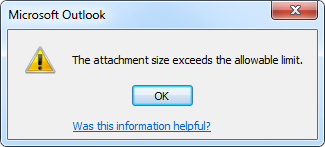
Upon attaching a file or multiple files that will make you go over the message size limit, you’ll get an error and Outlook will not allow you to add the attachment(s). This is in order to prevent the message from becoming stuck in the Outbox and to prevent you from needlessly uploading such a large attachment.
When you use an Exchange or Outlook.com account, the information about the maximum allowed size is obtained directly from the Exchange server. Contact your Exchange administrator about the possibilities of increasing your sending size limit if needed.
When you are using a POP3 or IMAP account to send your message, then this information can’t be retrieved from the mail server. Instead, Outlook assumes a default maximum combined size of all attachment of 20MB for these mail account types.
The attachment size exceeds the allowable limit.
Attachment size warning in Outlook 2010
Bug for picture attachments
Sadly, this warning is also being given when you add more than 20MB worth of pictures but have the option to “
Resize Image Attachments” enabled. This would of course have reduced the attachment size to less than 20MB so the warning should not been shown. Workarounds are to either resize the pictures before attaching them or to increase or disable the limit as indicated below.

Increasing the attachment size limit for Outlook 2010, Outlook 2013 or Outlook 2016

Regedit buttonIf your ISP allows for a larger or smaller message size and you want Outlook to match this limit, then you can increase or decrease this limit via a Registry tweak.
If you are connecting to an Exchange server, then you do not need to modify anything as Outlook automatically retrieves the limit from the Exchange server.
To configure the limit, add or modify the following value in the Registry:
Key: HKEY_CURRENT_USER\Software\Microsoft\Office\\Outlook\Preferences
Value name: MaximumAttachmentSize
Value type: REG_DWORD
The value that you need to use is in KB. So if you know the amount of MB supported by your ISP, then you need to multiply that by 1024 to get the value that you need to enter. To allow for an unlimited size, you can set the value to 0.
Examples;
2MB-> 2048
5MB-> 5120
10MB-> 10240
50MB-> 51200
Note 1: Increasing the limit in Outlook does not increase the limit set by your ISP or administrator on the mail server. If their limit is set to 5MB and you send a file larger than that, you’ll still get sending errors about the message being too big. In that case, you can break down the large attachment, share it via Cloud storage such as OneDrive or DropBox, or use a (secure) file upload service.
Note 2: When setting the limit, you might want to account for the message size and some overhead as well. Typically, deducting about 100KB should do the trick unless you also directly embed pictures in your message or signature.

Increase maximum size for pst-files and ost-files

In Outlook 2003 and Outlook 2007, the maximum recommended size of a Unicode pst-file and ost-file has been limited to 20GB.
In Outlook 2010, 2013 and 2016, this recommended  limit has been set to 50GB.
You can increase (but also decrease) this limit via the Registry or via Group Policies.
Note: This tip does not apply to pst-files and ost-files which are in the Outlook 97-2002 format (ANSI formatted pst-files).

Via the Registry

To increase the maximum size of pst-files and ost-files in Outlook, you’ll need to create and set 2 values in the following location in the Registry;
  • Outlook 2003
    HKEY_CURRENT_USER\Software\Microsoft\Office\11.0\Outlook\PST
  • Outlook 2007
    HKEY_CURRENT_USER\Software\Microsoft\Office\12.0\Outlook\PST
  • Outlook 2010
    HKEY_CURRENT_USER\Software\Microsoft\Office\14.0\Outlook\PST
  • Outlook 2013
    HKEY_CURRENT_USER\Software\Microsoft\Office\15.0\Outlook\PST
  • Outlook 2016
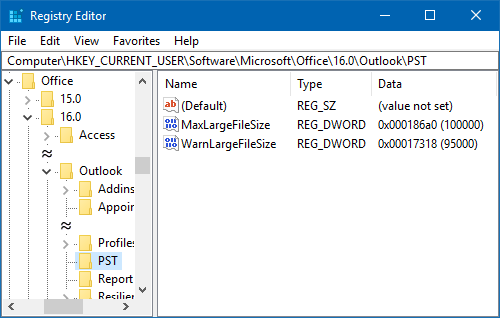
    HKEY_CURRENT_USER\Software\Microsoft\Office\16.0\Outlook\PST
The following 2 new DWORD values must be created or set;
  • WarnLargeFileSize
    Don’t set this higher than 4090445042 (decimal) or f3cf3cf2 (hexadecimal)
  • MaxLargeFileSize
    Don’t set this higher than 4294967295 (decimal) or ffffffff (hexadecimal)
The first value is how many MB a user can write to a pst-file or ost-file before receiving a warning that the file is full. The second value is how many MB the system can write to a pst-file or ost-file. This difference has to be at least 5% since there is more written to a pst-file and ost-file than just user data.
Registry Editor - Increase the maximum size of your pst-file via the MaxLargeSize key.
In this example the maximum size of pst-files and ost-files has been set to 100GB with a warning at 95GB.
Note: Although the Registry path says “PST”, it also applies to ost-files.

Via Group Policies

If you are a corporate administrator and want to adjust the maximum allowed sizes of pst-files and ost-files, then you can use Group Policies as well. For detailed instructions on how to use and deploy Group Policies see this guide.
The settings for adjusting the maximum file size for pst-files and ost-files can be found in the section;
  • User Configuration-> Administrative Templates-> Microsoft Outlook -> Miscellaneous-> PST Settings.
The following 2 settings need to be modified;
  • Large PST: Absolute maximum size
    Don’t set this higher than 4294967295
  • Large PST: Size to disable adding new content
    Don’t set this higher than 4090445042

Monday, April 8, 2019

.Net framework 3.5 installation fails with error code: 0x800F0954


You may receive this error when trying to install DotNet3.5 (.net) on Windows 10 and you are using a WSUS server. This error may occur of the .net installer is not approved in WSUS.
As a temporary workaround, change the registry key “UseWUServer” to 0. It is located at:
HKEY_LOCAL_MACHINE\SOFTWARE\Policies\Microsoft\Windows\WindowsUpdate\AU

After the registry change, restart the Windows Update service. You should be able to install .net at this time. Once done you should change this key back to its original value (or wait and allow Group Policy to do it for you.)

Thursday, March 21, 2019

Configure Static IP Address on a Network Adapter using PowerShell

Configure Static IP using PowerShell

So let us dive right in. To start, make sure you open an administrator PowerShell window, otherwise you will get an Access is Denied error when trying to run the command below.
We will be using two PowerShell commands, New-NetIPAddress and Set-DNSClientServerAddress.
On the server that we want to configure, we open PowerShell and type the below command:
New-NetIPAddress –IPAddress  -DefaultGateway  -PrefixLength  -InterfaceIndex (Get-NetAdapter).InterfaceIndex
Here is an example below:

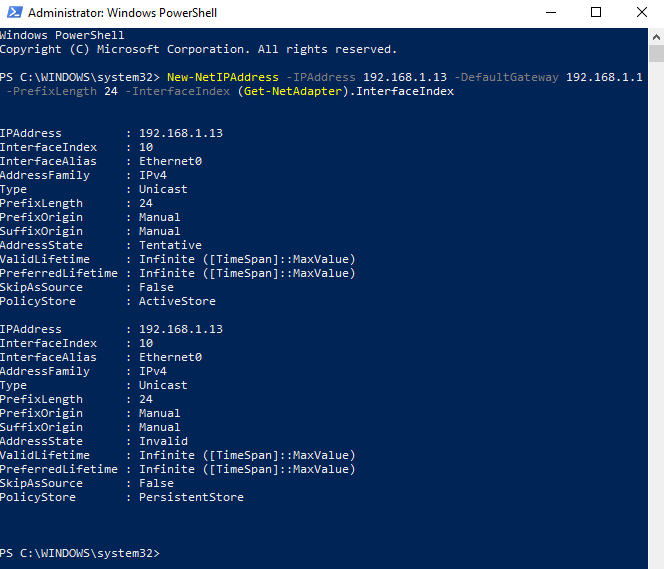
New-NetIPAddress –IPAddress 192.168.1.13 -DefaultGateway 192.168.1.1 -PrefixLength 24 -InterfaceIndex (Get-NetAdapter).InterfaceIndex
All the arguments are self-explanatory, apart from the InterfaceIndex one. Over here instead of putting in the numerical value of the Interface Index, I just ran the Get-NetAdapter command inside my current command with filtering to output only the integer value of the Interface Index.
If you have multiple network adapters on your system, you can remove the function and simply enter the numerical value corresponding to the desired interface.
If the command completes successfully, we should get the result as shown below:

Now we have our IP Address, Subnet Mask and Default Gateway configured. However, one thing is missing. These are the DNS Server addresses.
To configure the DNS Server addresses, we run the following command:
Set-DNSClientServerAddress –InterfaceIndex (Get-NetAdapter).InterfaceIndex –ServerAddresses ,, etc.
IP1 is the primary DNS Server, IP2 is the secondary and all the others are the third and so forth.
Here is an example:

Set-DNSClientServerAdress –InterfaceIndex (Get-NetAdapter).InterfaceIndex –ServerAddresses 192.1.68.1.1


Wednesday, February 20, 2019

How To Fix Outlook 2013 Search Problems

Has your Outlook 2013 search suddenly stopped working? You keep typing different words and phrases, but it does not make a difference. Everything you type in Outlook search comes up with zero results.

You’ll probably see a message that says “We couldn’t find what you were looking for.”  There’s also a chance that you can see very few results, and if you take a look at the indexing status dialog in Outlook, you will possibly see the following message: “Search results may be incomplete because items are still being indexed.”

What Causes Outlook 2013 Search Problems?

When it comes to Outlook 2013 Search not working, you will quickly discover that this is a common issue across the board with Outlook users, so don’t blame yourself. Of course there are some preventative measures you could take to help keep away any Outlook 2013 search problem, but with constant use, there’s a chance something will go wrong down the line. When you rebuild a PST file, add more mailboxes, or even just migrate emails, your search index may not update and that will kick off an Outlook 2013 search problem. Not to worry, there are things you can do to fix those issues.

Step 1: Verify that indexing is working

Outlook 2013 search indexing status
To verify that indexing in Outlook 2013 is working properly, use the following steps:
  • Click in the Search box
  • In the Search tab, select Search Tools and then click Indexing Status
  • When the indexing status dialog emerges, you might see the following:
Outlook 2013 indexing status
If you see this message, it means that the index is complete, and Outlook can’t find your item for some other reason.
If Outlook has not finished indexing all of your items, you’ll see a message that says:
Search results may be incomplete because items are still being indexed.
If you see this message, take note of the number of files remaining to be indexed, wait five to ten minutes and then check again. If you still can’t find your files, try removing then adding your Outlook files to the Windows index.

Step 2: Remove Outlook from the Windows Index:

  • Go to File > Options
  • In Search settings, click Indexing Options…
  • Click Modify
  • Un-check Microsoft Outlook from the list of Indexed Locations
  • Close Outlook completely and check the Task Manager (ctrl+alt+del) to see if no Outlook processes are running
Remove Outlook from Windows Indexing

Step 3: Make Sure Outlook Files can be Indexed

Outlook PST and OST files are indexed by Windows by default, but it may be that something strange happened during an update to either Windows or Outlook that caused this not to be the case. In order for Outlook to be able to search your emails, the contents of those emails must be allowed to be indexed by Windows. Here’s how to check:
  • Find the location of your PST or OST files
    • Go to File > Account Settings > Account Settings
    • Click on the Data Files tab
    • Select your Outlook file from the list and click Open File Location…
Outlook 2013 account settings
  • Right click on the .pst or .ost file and click Properties
  • Click Advanced
  • Make sure that the box next to ‘Allow this file to have contents indexed in addition to file’ is checked.
  • Click OK
Allow Outlook contents to be indexed

Step 4: Add Outlook to the Windows Index

Follow the steps outlined in step 2. Make sure this time that the box next to Microsoft Outlook is checked.
Give Outlook a little time to check the state of the indexing. It may be that it needs to add new items to the index. After a few minutes, you can try searching again.

Last Resort: Rebuild the Index in Outlook 2013

If you still can’t find the email you’re looking for, there may be a problem with your index. Rebuilding the index in Outlook 2013 isn’t too difficult, only time consuming. Here’s how to rebuild:
  • In Outlook 2013 click on the File tab, then click Options > Search
  • Click Indexing Options
  • You should now see what locations are being indexed. Click Advanced
  • Under Troubleshooting, click Rebuild
  • Rebuilding will take some time so make sure to leave your PC running for a while, preferably when you don’t need to work with it since indexing can impact the speed of your computer.
Outlook 2013 rebuild index
Often when you move emails around a lot, or just generally use Outlook for a long time, you’re likely to run into indexing issues. These few steps will help you get Outlook 2013 search back into shape.