Tuesday, July 26, 2022

Configure SPF Record for Office 365


SPF record information

SPF is a protocol that helps to reduce spam via email. An SPF record is set in the DNS zone of the domain name. Receiving mail servers can check for the presence of an SPF record. This check verifies that the server from which an email is being sent has permission to do so. The server that has permission to send emails on behalf of the domain name is listed in the SPF record.

Find Office 365 SPF record

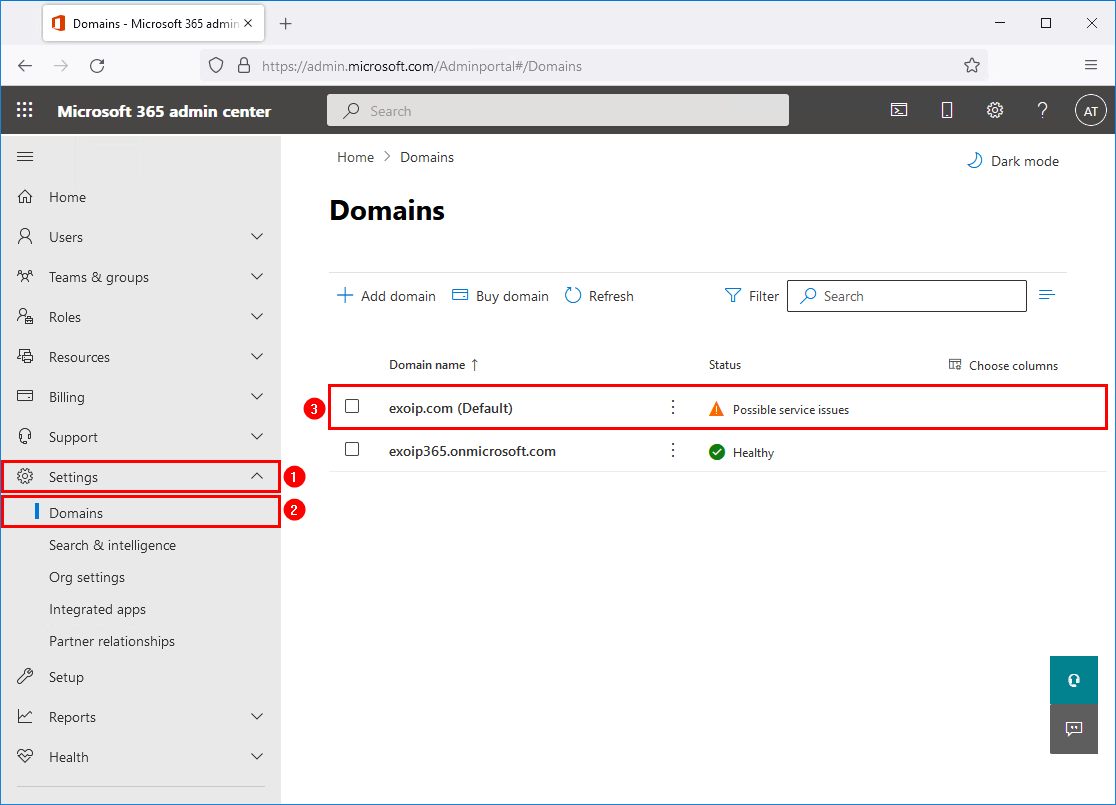
Sign in to Microsoft 365 admin center. Go to Settings > Domains. Click on the domain that you want to configure the SPF record for. In this example, it’s the domain exoip.com.

Edit domain in Microsoft 365 admin center

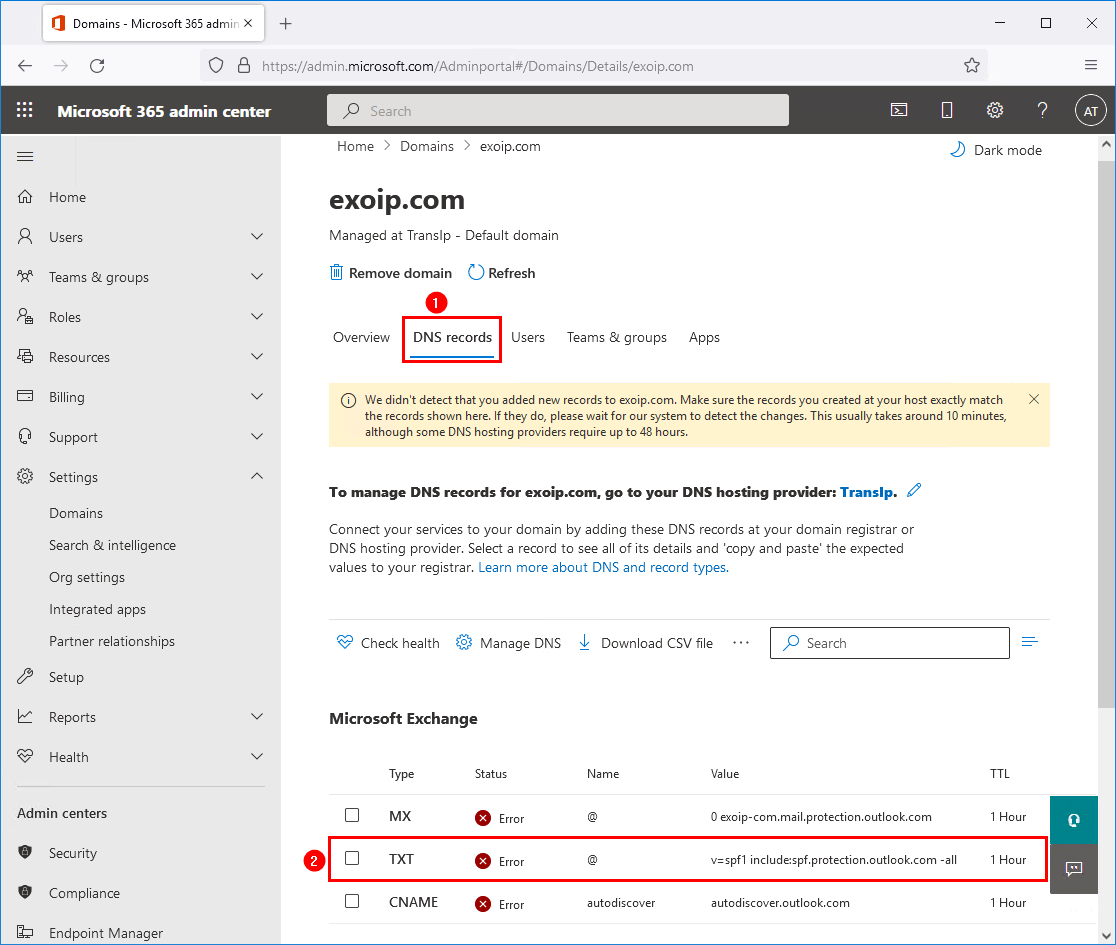
Click on the tab DNS records, and down below, there are three records for Exchange Online:

  1. MX
  2. TXT
  3. CNAME

The one that we are interested in for now is the TXT record, which is the SPF record for Exchange Online. Click on the TXT record.

Configure SPF record for Office 365 TXT record status error

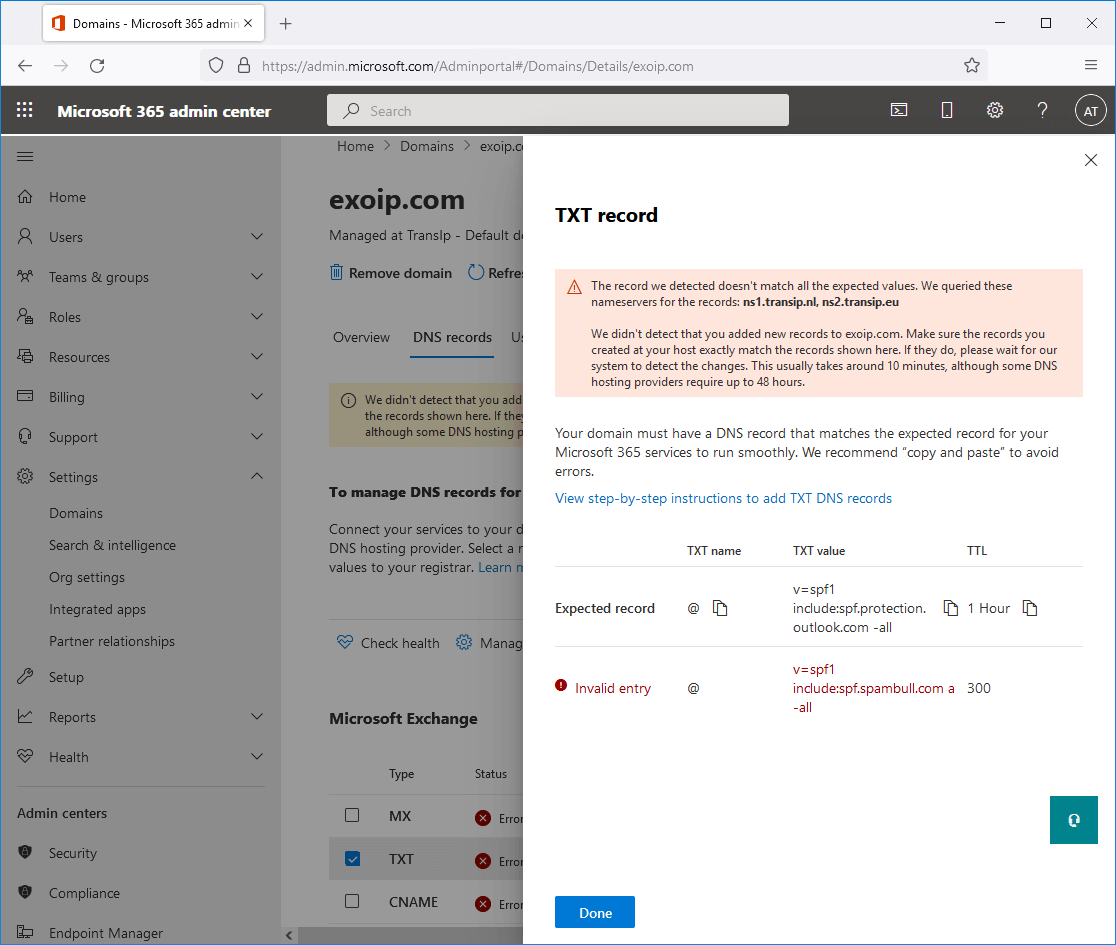
The domain already has an SPF record configured, v=spf1 include:spf.spambull.com a -all. The SPF record tells that the SpamBull spam filter and A record is an approved sender for the domain. Therefore, email coming from the SpamBull spam filter and A record is authorized, and everything else is not.

The message shows Invalid entry because we don’t have the include:spf.protection.outlook.com statement in our SPF record. We want to merge the Exchange Online SPF record into the existing exoip.com domain SPF record. That’s why we will only copy the include statement, include:spf.protection.outlook.com, to the clipboard.

Configure SPF record for Office 365 TXT record invalid entry

Add SPF record for Office 365

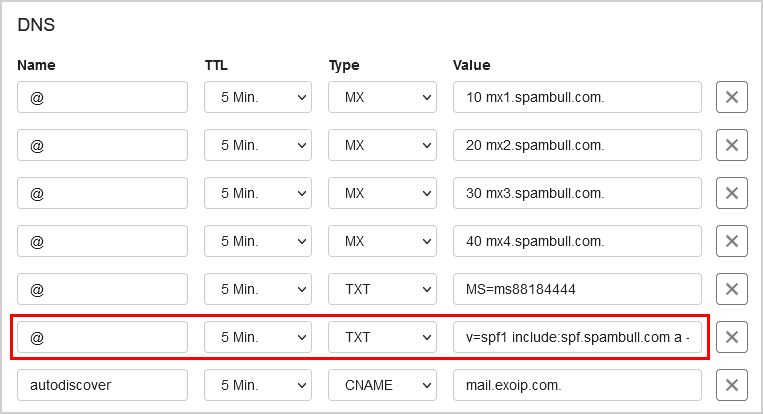
Sign in to the domain’s registrar and open the domain DNS settings. In our example, the domain exoip.com.

The TXT record value for SPF looks like v=spf1 include:spf.spambull.com a -all.

Configure SPF record for Office 365 DNS before

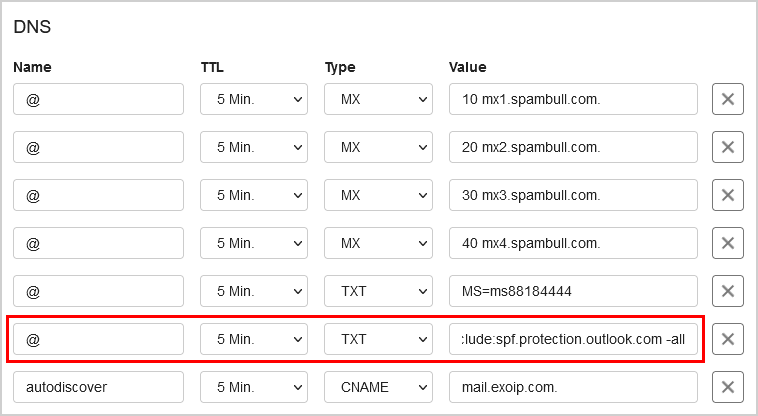
Edit the existing SPF record and paste the include statement include:spf.protection.outlook.com. The effect is that it will also authorize Exchange Online servers to send emails for the exoip.com domain name.

The TXT record value for SPF looks like v=spf1 include:spf.spambull.com a include:spf.protection.outlook.com -all.

Configure SPF record for Office 365 DNS after

The change can take up to 24 hours, but most of the time, this will resolve within 5-15 minutes.

Verify Office 365 SPF record

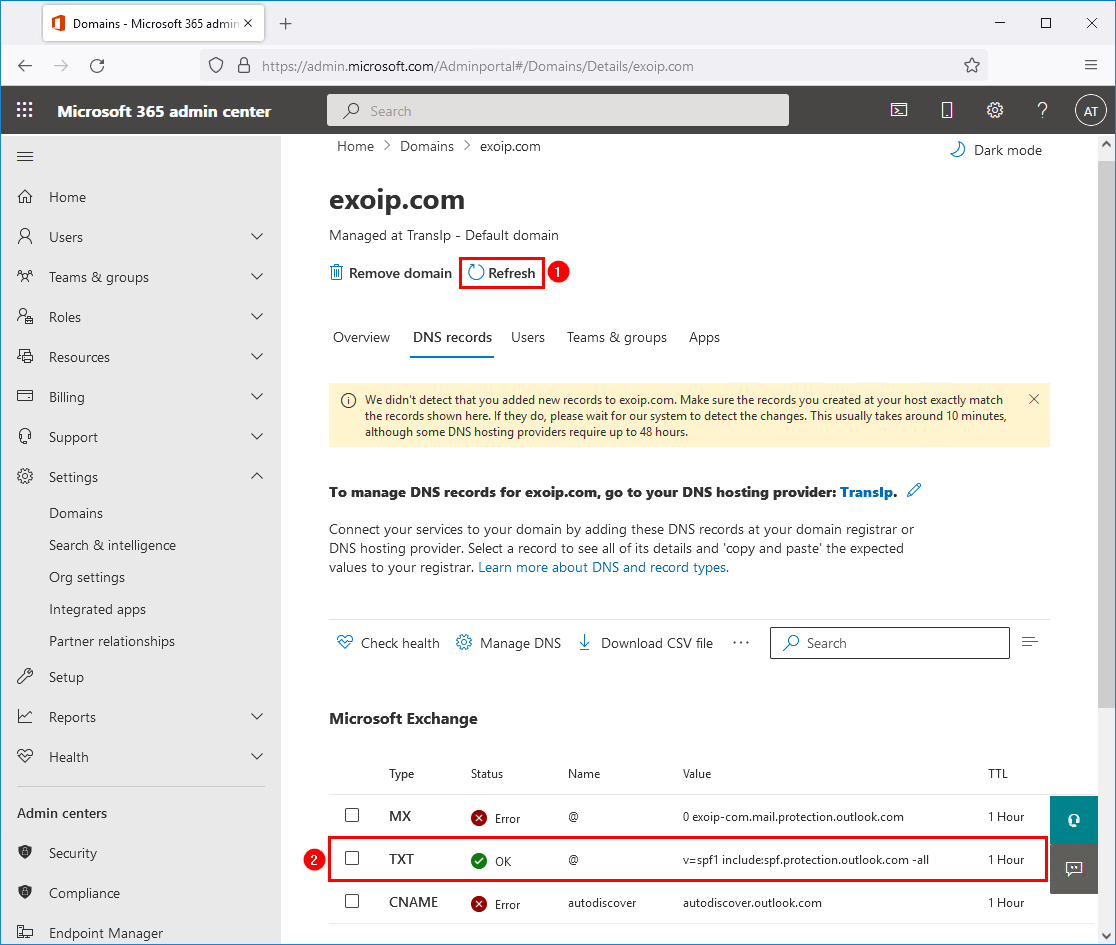
Click on Refresh to refresh the page. The TXT status changed from Error to OK. Click on the TXT record.

Configure SPF record for Office 365 TXT record status OK


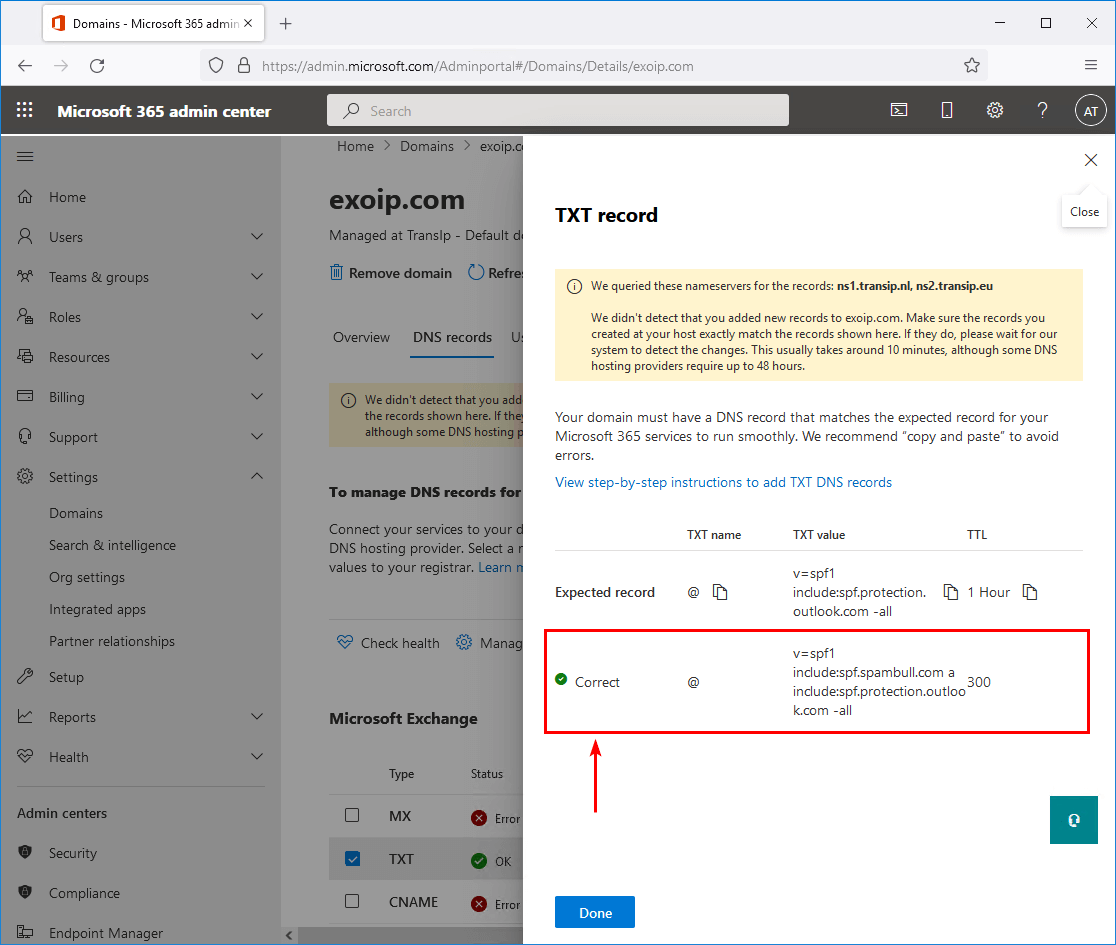
It shows that the record is Correct.

Configure SPF record for Office 365 TXT record correct

We did configure the SPF record for Office 365 successfully. Exchange on-premises and Exchange Online are both authorized to send emails from the domain.

Configure Office 365 SMTP relay


Introduction

Most IT environments have some applications or devices that need to send emails, such as:

  • Multifunction printers (scan to email)
  • UPS system
  • Backup applications
  • Monitoring applications
  • And a lot more

Let’s look at how to configure a connector in Exchange Online for on-premises devices and applications for SMTP relay.

Office 365 SMTP relay settings

When you set up Office 365 SMTP relay, you will need to:

  1. Find Public IP address from where it will send the emails
  2. Find Office 365 domain MX record
  3. Open port 25 on the organization firewall
  4. Add Public IP to domain’s SPF record

Find Public IP address

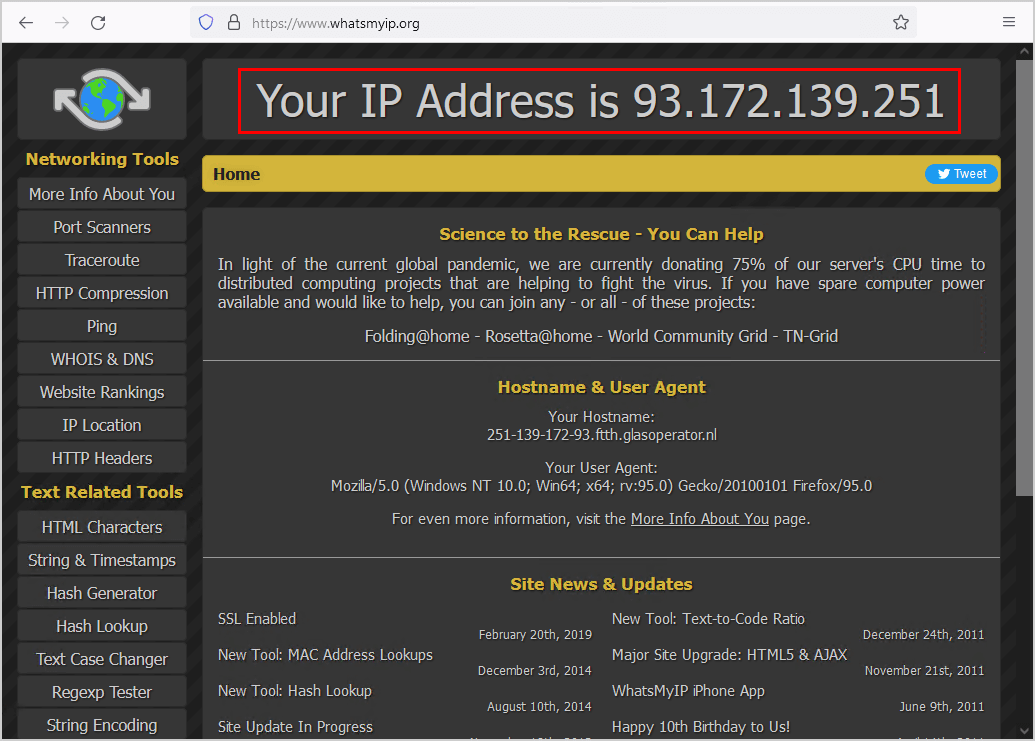
Go to www.whatsmyip.org or any other website that reveals your public IP address. Note down the Public IP address because you need it in the next step.

Note: Get the public IP address from the organization you want to send mail from. This can be multiple IP addresses.

In our example, it’s the Public IP address 93.172.139.251.

Find Public IP address

Find Office 365 MX record

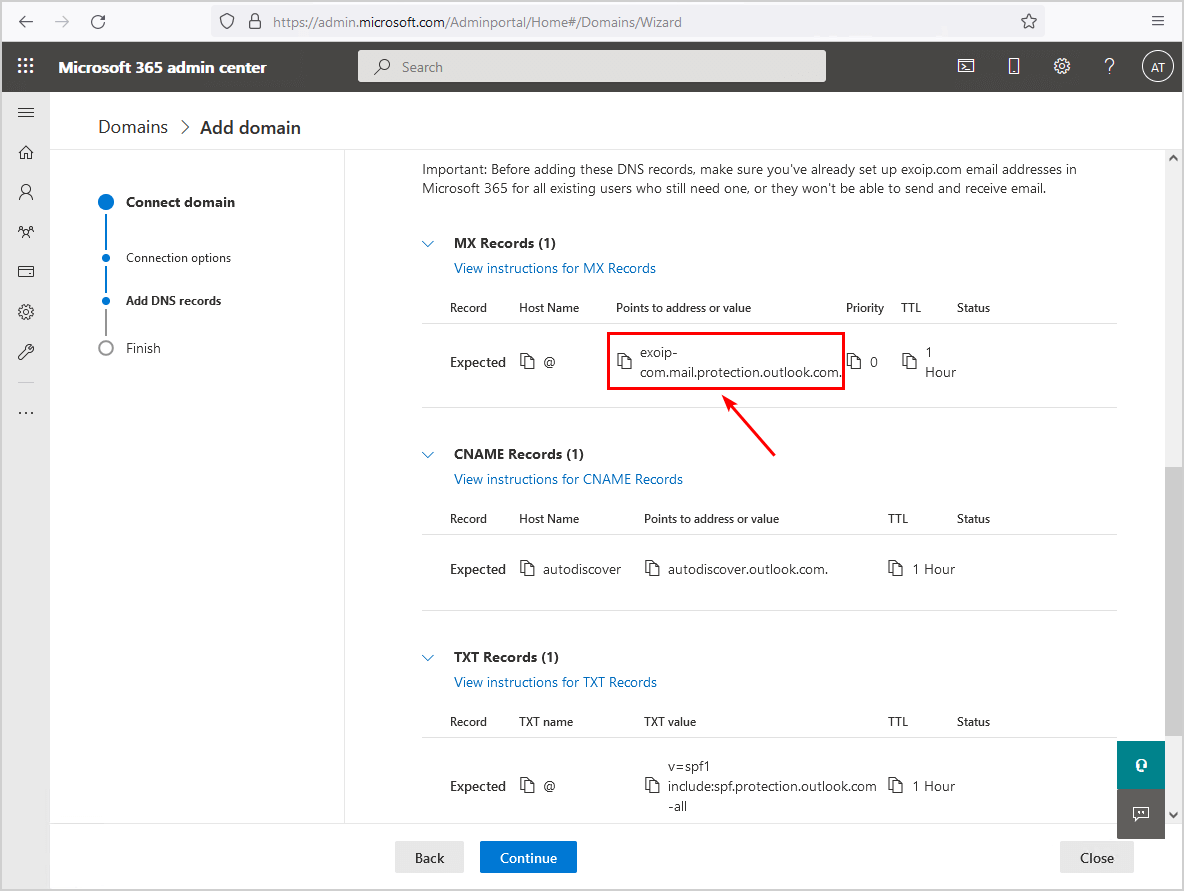
The MX record l is what you will add to the scanner or application that needs to relay SMTP using Office 365.

To find Office 365 MX record, follow these steps:

  • Sign in to Microsoft 365 portal
  • Expand Settings and click on Domains
  • Click on your domain
  • Go through the wizard and find the MX record
  • Copy the Points to address or value field

In our example, it’s the MX record exoip-com.mail.protection.outlook.com.

Configure Office 365 SMTP relay MX records

Open port 25 on firewall

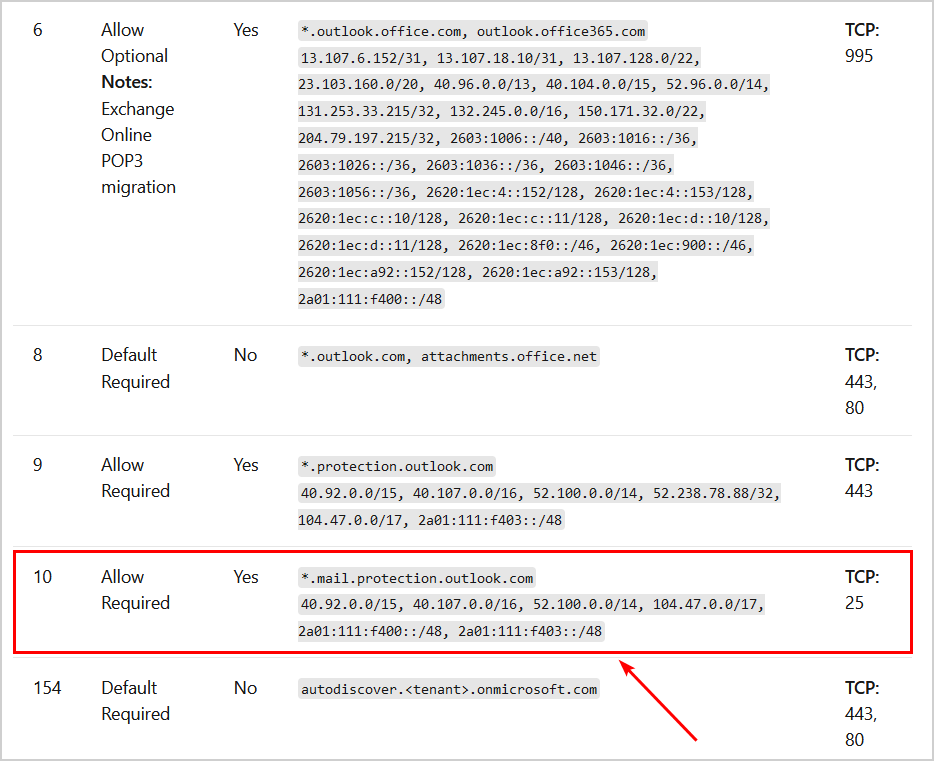
To relay through Office 365 SMTP, you need to open port 25 from the organization firewall to external. The most secure way is to only add the Exchange Online IP addresses in the destination address and not ALL (everyone).

Configure Office 365 SMTP relay IP address ranges

Add public IP to domain’s SPF record

Sign in to the domain’s registrar and open the domain DNS settings. In our example, the domain exoip.com.

The TXT record value for SPF looks like this:

v=spf1 mx include:spf.protection.outlook.com

Edit the existing SPF record and add the Public IP address. The effect is that it will also authorize the organization’s Public IP address servers to send emails for the exoip.com domain name.

The new TXT record value for SPF looks like this:

v=spf1 mx include:spf.protection.outlook.com ip4:93.172.139.251 -all

Note: The change can take up to 24 hours, but most of the time, this will resolve within 5-15 minutes.

Read more: Configure SPF record for Office 365 »

Now that you did all the steps, it’s time to configure Office 365 SMTP relay.

How to set up SMTP relay for Office 365

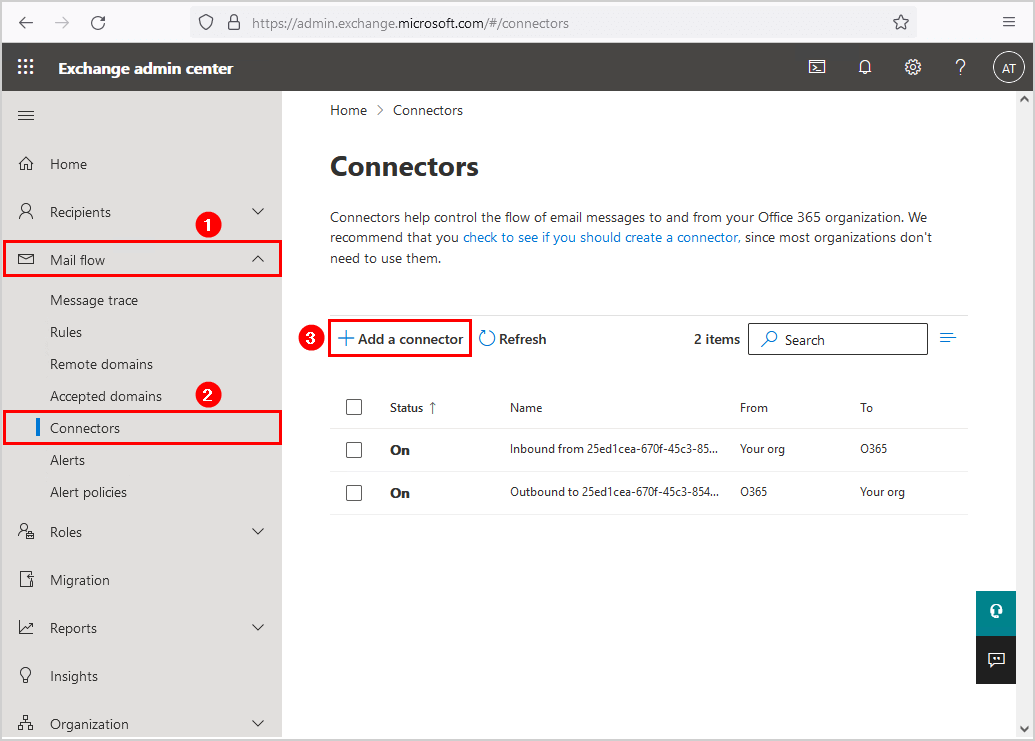
To set up SMTP relay for Office 365, follow these steps:

Configure Office 365 SMTP relay connectors

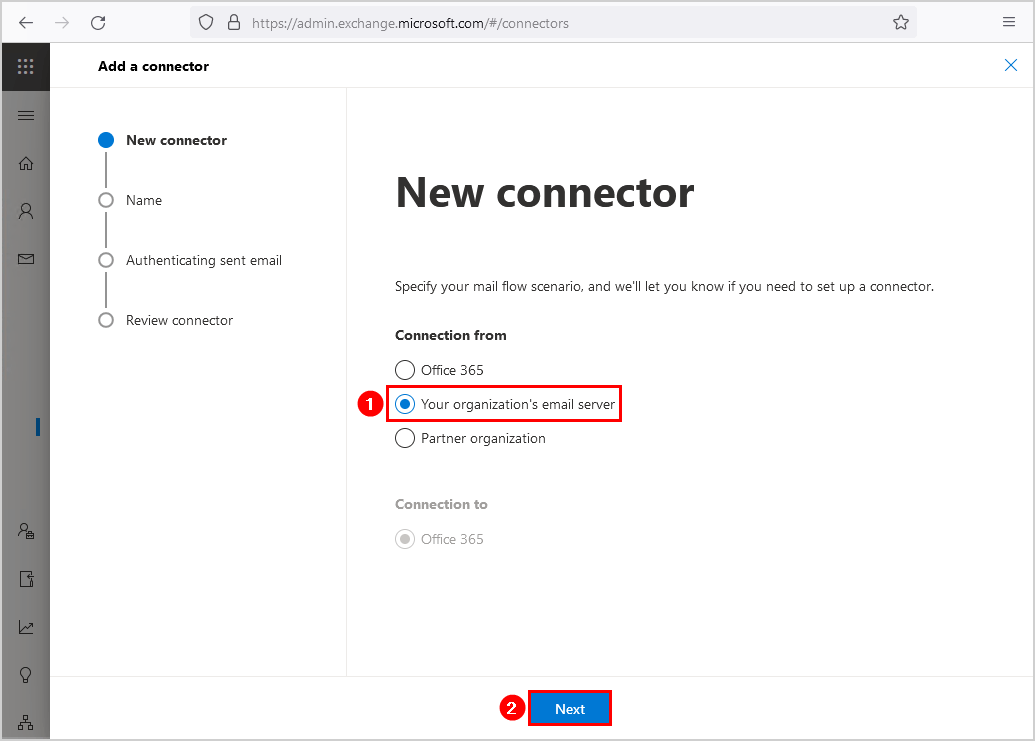
Select Your organization’s email server. Click Next.

Configure Office 365 SMTP relay new connector

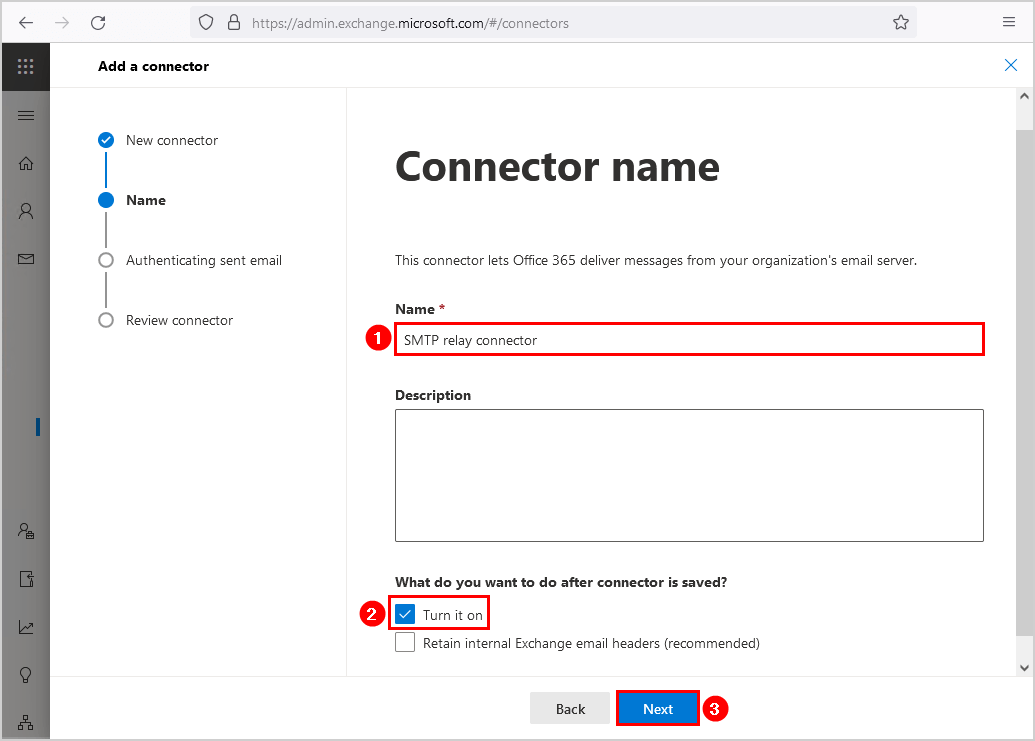
Fill in the connector name SMTP relay connector and Turn it on. Click Next.

Configure Office 365 SMTP relay connector name


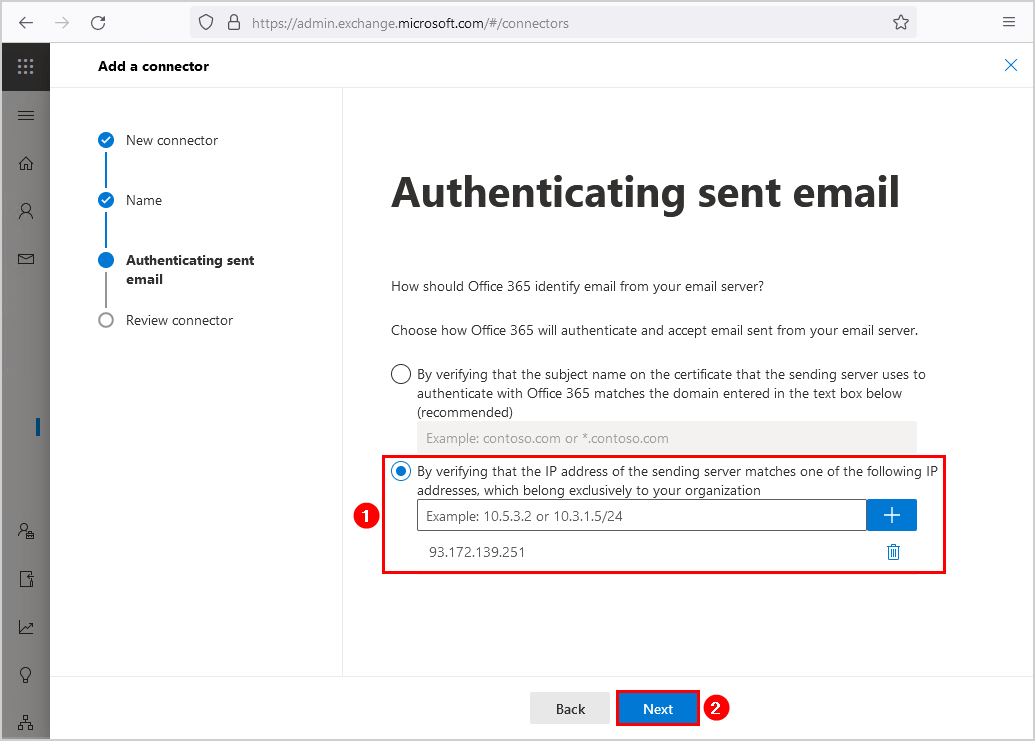
Select By verifying that the IP address of the sending server matches one of the following IP addresses, which belong exclusively to your organization.

Add the Public IP address which you copied from the previous step. Click Next.

Configure Office 365 SMTP relay authenticating sent email

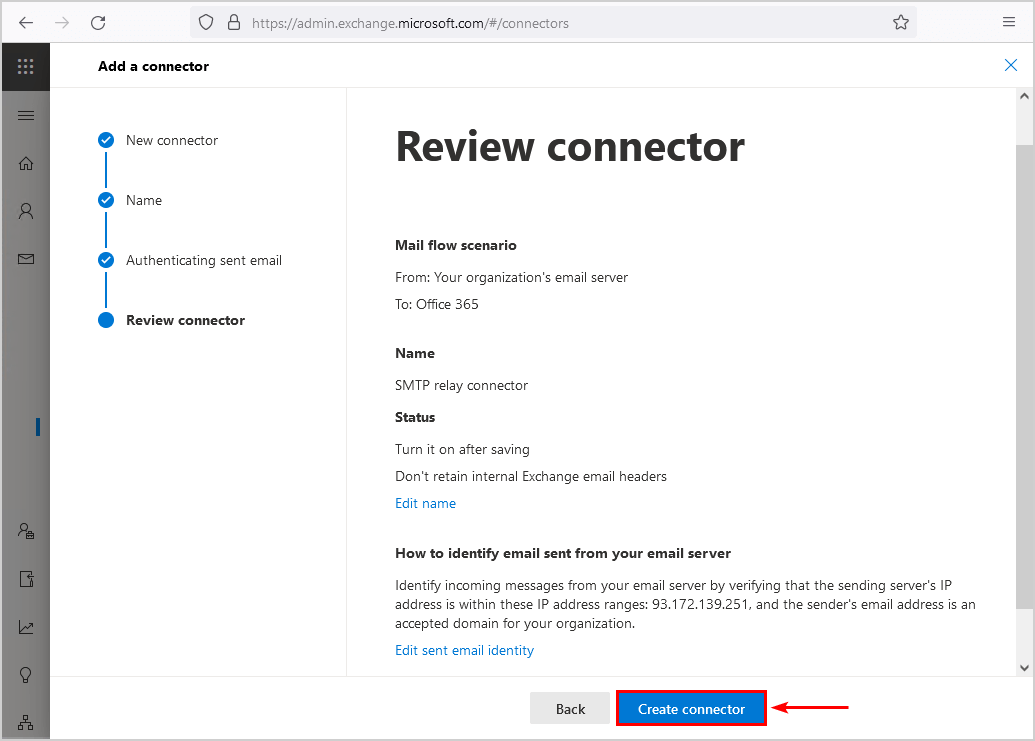
Review the connector and click on Create connector.

Configure Office 365 SMTP relay rewiew connector
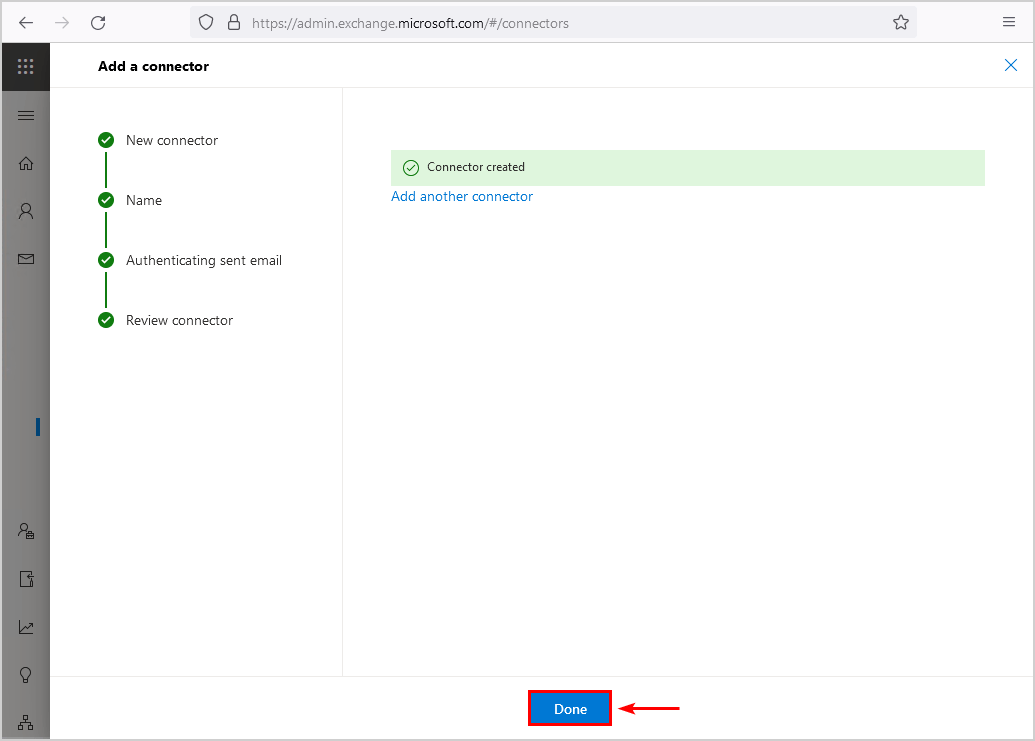
Exchange Online connector created

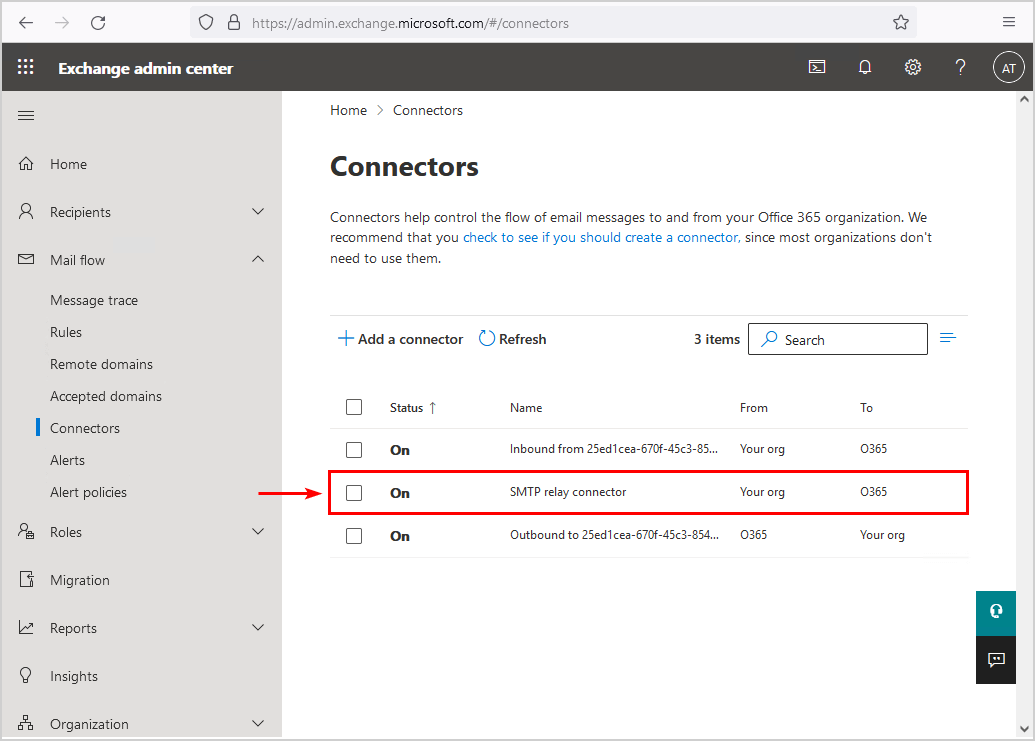
The connector shows up in the Connectors list.

Exchange Online admin center connectors

You successfully added an SMTP relay connector in Office 365. As a result, the organization is ready to send emails through Office 365.

Test Office 365 SMTP relay

Test that everything is set up correctly and that email relays through Office 365 successfully. An excellent way to test Office 365 SMTP relay is with the Send-EmailOffice365.ps1 PowerShell script.

Run PowerShell as administrator. Copy the below script or download the Send-EmailOffice365.ps1 PowerShell script. Before you run the script change the fields:

  • To
  • From
  • SmtpServer

$EmailMessage = @{
    To         = "exoip@gmail.com"
    From       = "scanner@exoip.com"
    Subject    = "Test email"
    Body       = "Test email sent using Office 365 SMTP relay"
    SmtpServer = "exoip-com.mail.protection.outlook.com"
    Port       = "25"
}

Send-MailMessage @EmailMessage

The output should not give you an error, and the email will arrive in the inbox you added in the To field.

Office 365 URLs / IP Address Ranges and Ports


Exchange Online

ID Category ER Addresses Ports
1 Optimize
Required
Yes outlook.office.com, outlook.office365.com
13.107.6.152/31, 13.107.18.10/31, 13.107.128.0/22, 23.103.160.0/20, 40.96.0.0/13, 40.104.0.0/15, 52.96.0.0/14, 131.253.33.215/32, 132.245.0.0/16, 150.171.32.0/22, 204.79.197.215/32, 2603:1006::/40, 2603:1016::/36, 2603:1026::/36, 2603:1036::/36, 2603:1046::/36, 2603:1056::/36, 2620:1ec:4::152/128, 2620:1ec:4::153/128, 2620:1ec:c::10/128, 2620:1ec:c::11/128, 2620:1ec:d::10/128, 2620:1ec:d::11/128, 2620:1ec:8f0::/46, 2620:1ec:900::/46, 2620:1ec:a92::152/128, 2620:1ec:a92::153/128, 2a01:111:f400::/48
TCP: 443, 80
2 Allow
Required
Yes smtp.office365.com
13.107.6.152/31, 13.107.18.10/31, 13.107.128.0/22, 23.103.160.0/20, 40.96.0.0/13, 40.104.0.0/15, 52.96.0.0/14, 131.253.33.215/32, 132.245.0.0/16, 150.171.32.0/22, 204.79.197.215/32, 2603:1006::/40, 2603:1016::/36, 2603:1026::/36, 2603:1036::/36, 2603:1046::/36, 2603:1056::/36, 2620:1ec:4::152/128, 2620:1ec:4::153/128, 2620:1ec:c::10/128, 2620:1ec:c::11/128, 2620:1ec:d::10/128, 2620:1ec:d::11/128, 2620:1ec:8f0::/46, 2620:1ec:900::/46, 2620:1ec:a92::152/128, 2620:1ec:a92::153/128, 2a01:111:f400::/48
TCP: 587
3 Default
Required
No r1.res.office365.com, r3.res.office365.com, r4.res.office365.com TCP: 443, 80
5 Allow
Optional
Notes: Exchange Online IMAP4 migration
Yes *.outlook.office.com, outlook.office365.com
13.107.6.152/31, 13.107.18.10/31, 13.107.128.0/22, 23.103.160.0/20, 40.96.0.0/13, 40.104.0.0/15, 52.96.0.0/14, 131.253.33.215/32, 132.245.0.0/16, 150.171.32.0/22, 204.79.197.215/32, 2603:1006::/40, 2603:1016::/36, 2603:1026::/36, 2603:1036::/36, 2603:1046::/36, 2603:1056::/36, 2620:1ec:4::152/128, 2620:1ec:4::153/128, 2620:1ec:c::10/128, 2620:1ec:c::11/128, 2620:1ec:d::10/128, 2620:1ec:d::11/128, 2620:1ec:8f0::/46, 2620:1ec:900::/46, 2620:1ec:a92::152/128, 2620:1ec:a92::153/128, 2a01:111:f400::/48
TCP: 143, 993
6 Allow
Optional
Notes: Exchange Online POP3 migration
Yes *.outlook.office.com, outlook.office365.com
13.107.6.152/31, 13.107.18.10/31, 13.107.128.0/22, 23.103.160.0/20, 40.96.0.0/13, 40.104.0.0/15, 52.96.0.0/14, 131.253.33.215/32, 132.245.0.0/16, 150.171.32.0/22, 204.79.197.215/32, 2603:1006::/40, 2603:1016::/36, 2603:1026::/36, 2603:1036::/36, 2603:1046::/36, 2603:1056::/36, 2620:1ec:4::152/128, 2620:1ec:4::153/128, 2620:1ec:c::10/128, 2620:1ec:c::11/128, 2620:1ec:d::10/128, 2620:1ec:d::11/128, 2620:1ec:8f0::/46, 2620:1ec:900::/46, 2620:1ec:a92::152/128, 2620:1ec:a92::153/128, 2a01:111:f400::/48
TCP: 995
8 Default
Required
No *.outlook.com, attachments.office.net TCP: 443, 80
9 Allow
Required
Yes *.protection.outlook.com
40.92.0.0/15, 40.107.0.0/16, 52.100.0.0/14, 52.238.78.88/32, 104.47.0.0/17, 2a01:111:f403::/48
TCP: 443
10 Allow
Required
Yes *.mail.protection.outlook.com
40.92.0.0/15, 40.107.0.0/16, 52.100.0.0/14, 104.47.0.0/17, 2a01:111:f400::/48, 2a01:111:f403::/48
TCP: 25
154 Default
Required
No autodiscover.<tenant>.onmicrosoft.com TCP: 443, 80

SharePoint Online and OneDrive for Business

ID Category ER Addresses Ports
31 Optimize
Required
Yes <tenant>.sharepoint.com, <tenant>-my.sharepoint.com
13.107.136.0/22, 40.108.128.0/17, 52.104.0.0/14, 104.146.128.0/17, 150.171.40.0/22, 2603:1061:1300::/40, 2620:1ec:8f8::/46, 2620:1ec:908::/46, 2a01:111:f402::/48
TCP: 443, 80
32 Default
Optional
Notes: OneDrive for Business: supportability, telemetry, APIs, and embedded email links
No ssw.live.com, storage.live.com TCP: 443
33 Default
Optional
Notes: SharePoint Hybrid Search - Endpoint to SearchContentService where the hybrid crawler feeds documents
No *.search.production.apac.trafficmanager.net, *.search.production.emea.trafficmanager.net, *.search.production.us.trafficmanager.net TCP: 443
35 Default
Required
No *.wns.windows.com, admin.onedrive.com, officeclient.microsoft.com TCP: 443, 80
36 Default
Required
No g.live.com, oneclient.sfx.ms TCP: 443, 80
37 Default
Required
No *.sharepointonline.com, spoprod-a.akamaihd.net TCP: 443, 80
39 Default
Required
No *.gr.global.aa-rt.sharepoint.com, *.svc.ms, <tenant>-admin.sharepoint.com, <tenant>-files.sharepoint.com, <tenant>-myfiles.sharepoint.com TCP: 443, 80

Skype for Business Online and Microsoft Teams

ID Category ER Addresses Ports
11 Optimize
Required
Yes 13.107.64.0/18, 52.112.0.0/14, 52.120.0.0/14, 2603:1063::/38 UDP: 3478, 3479, 3480, 3481
12 Allow
Required
Yes *.lync.com, *.teams.microsoft.com, teams.microsoft.com
13.107.64.0/18, 52.112.0.0/14, 52.120.0.0/14, 52.238.119.141/32, 52.244.160.207/32, 2603:1027::/48, 2603:1037::/48, 2603:1047::/48, 2603:1057::/48, 2603:1063::/38, 2620:1ec:6::/48, 2620:1ec:40::/42
TCP: 443, 80
13 Allow
Required
Yes *.broadcast.skype.com, broadcast.skype.com
13.107.64.0/18, 52.112.0.0/14, 52.120.0.0/14, 52.238.119.141/32, 52.244.160.207/32, 2603:1027::/48, 2603:1037::/48, 2603:1047::/48, 2603:1057::/48, 2603:1063::/38, 2620:1ec:6::/48, 2620:1ec:40::/42
TCP: 443
15 Default
Required
No *.sfbassets.com TCP: 443, 80
16 Default
Required
No *.keydelivery.mediaservices.windows.net, *.streaming.mediaservices.windows.net, mlccdn.blob.core.windows.net TCP: 443
17 Default
Required
No aka.ms TCP: 443
18 Default
Optional
Notes: Federation with Skype and public IM connectivity: Contact picture retrieval
No *.users.storage.live.com TCP: 443
19 Default
Optional
Notes: Applies only to those who deploy the Conference Room Systems
No *.adl.windows.com TCP: 443, 80
22 Allow
Optional
Notes: Teams: Messaging interop with Skype for Business
Yes *.skypeforbusiness.com
13.107.64.0/18, 52.112.0.0/14, 52.120.0.0/14, 52.238.119.141/32, 52.244.160.207/32, 2603:1027::/48, 2603:1037::/48, 2603:1047::/48, 2603:1057::/48, 2603:1063::/38, 2620:1ec:6::/48, 2620:1ec:40::/42
TCP: 443
26 Default
Required
No *.msedge.net, compass-ssl.microsoft.com TCP: 443
27 Default
Required
No *.mstea.ms, *.secure.skypeassets.com, mlccdnprod.azureedge.net TCP: 443
127 Default
Required
No *.skype.com TCP: 443, 80

Microsoft 365 Common and Office Online

ID Category ER Addresses Ports
41 Default
Optional
Notes: Microsoft Stream
No *.microsoftstream.com TCP: 443
43 Default
Optional
Notes: Microsoft Stream 3rd party integration (including CDNs)
No nps.onyx.azure.net TCP: 443
44 Default
Optional
Notes: Microsoft Stream - unauthenticated
No *.azureedge.net, *.media.azure.net, *.streaming.mediaservices.windows.net TCP: 443
45 Default
Optional
Notes: Microsoft Stream
No *.keydelivery.mediaservices.windows.net TCP: 443
46 Allow
Required
Yes *.officeapps.live.com, *.online.office.com, office.live.com
13.107.6.171/32, 13.107.18.15/32, 13.107.140.6/32, 52.108.0.0/14, 52.238.106.116/32, 52.244.37.168/32, 52.244.203.72/32, 52.244.207.172/32, 52.244.223.198/32, 52.247.150.191/32, 2603:1010:2::cb/128, 2603:1010:200::c7/128, 2603:1020:200::682f:a0fd/128, 2603:1020:201:9::c6/128, 2603:1020:600::a1/128, 2603:1020:700::a2/128, 2603:1020:800:2::6/128, 2603:1020:900::8/128, 2603:1030:7::749/128, 2603:1030:800:5::bfee:ad3c/128, 2603:1030:f00::17/128, 2603:1030:1000::21a/128, 2603:1040:200::4f3/128, 2603:1040:401::762/128, 2603:1040:601::60f/128, 2603:1040:a01::1e/128, 2603:1040:c01::28/128, 2603:1040:e00:1::2f/128, 2603:1040:f00::1f/128, 2603:1050:1::cd/128, 2620:1ec:c::15/128, 2620:1ec:8fc::6/128, 2620:1ec:a92::171/128, 2a01:111:f100:2000::a83e:3019/128, 2a01:111:f100:2002::8975:2d79/128, 2a01:111:f100:2002::8975:2da8/128, 2a01:111:f100:7000::6fdd:6cd5/128, 2a01:111:f100:a004::bfeb:88cf/128
TCP: 443, 80
47 Default
Required
No *.cdn.office.net, contentstorage.osi.office.net TCP: 443
49 Default
Required
No *.onenote.com TCP: 443
50 Default
Optional
Notes: OneNote notebooks (wildcards)
No *.microsoft.com, *.office.net TCP: 443
51 Default
Required
No *cdn.onenote.net TCP: 443
53 Default
Required
No ajax.aspnetcdn.com, apis.live.net, officeapps.live.com, www.onedrive.com TCP: 443
56 Allow
Required
Yes *.auth.microsoft.com, *.msftidentity.com, *.msidentity.com, account.activedirectory.windowsazure.com, accounts.accesscontrol.windows.net, adminwebservice.microsoftonline.com, api.passwordreset.microsoftonline.com, autologon.microsoftazuread-sso.com, becws.microsoftonline.com, ccs.login.microsoftonline.com, clientconfig.microsoftonline-p.net, companymanager.microsoftonline.com, device.login.microsoftonline.com, graph.microsoft.com, graph.windows.net, login.microsoft.com, login.microsoftonline.com, login.microsoftonline-p.com, login.windows.net, logincert.microsoftonline.com, loginex.microsoftonline.com, login-us.microsoftonline.com, nexus.microsoftonline-p.com, passwordreset.microsoftonline.com, provisioningapi.microsoftonline.com
20.190.128.0/18, 40.126.0.0/18, 2603:1006:2000::/48, 2603:1007:200::/48, 2603:1016:1400::/48, 2603:1017::/48, 2603:1026:3000::/48, 2603:1027:1::/48, 2603:1036:3000::/48, 2603:1037:1::/48, 2603:1046:2000::/48, 2603:1047:1::/48, 2603:1056:2000::/48, 2603:1057:2::/48
TCP: 443, 80
59 Default
Required
No *.hip.live.com, *.microsoftonline.com, *.microsoftonline-p.com, *.msauth.net, *.msauthimages.net, *.msecnd.net, *.msftauth.net, *.msftauthimages.net, *.phonefactor.net, enterpriseregistration.windows.net, management.azure.com, policykeyservice.dc.ad.msft.net TCP: 443, 80
64 Allow
Required
Yes *.compliance.microsoft.com, *.protection.office.com, *.security.microsoft.com, compliance.microsoft.com, defender.microsoft.com, protection.office.com, security.microsoft.com
52.108.0.0/14, 2603:1006:1400::/40, 2603:1016:2400::/40, 2603:1026:2400::/40, 2603:1036:2400::/40, 2603:1046:1400::/40, 2603:1056:1400::/40, 2a01:111:200a:a::/64, 2a01:111:2035:8::/64, 2a01:111:f406:1::/64, 2a01:111:f406:c00::/64, 2a01:111:f406:1004::/64, 2a01:111:f406:1805::/64, 2a01:111:f406:3404::/64, 2a01:111:f406:8000::/64, 2a01:111:f406:8801::/64, 2a01:111:f406:a003::/64
TCP: 443
65 Allow
Required
Yes account.office.net
52.108.0.0/14, 2603:1006:1400::/40, 2603:1016:2400::/40, 2603:1026:2400::/40, 2603:1036:2400::/40, 2603:1046:1400::/40, 2603:1056:1400::/40, 2a01:111:200a:a::/64, 2a01:111:2035:8::/64, 2a01:111:f406:1::/64, 2a01:111:f406:c00::/64, 2a01:111:f406:1004::/64, 2a01:111:f406:1805::/64, 2a01:111:f406:3404::/64, 2a01:111:f406:8000::/64, 2a01:111:f406:8801::/64, 2a01:111:f406:a003::/64
TCP: 443, 80
66 Default
Required
No *.portal.cloudappsecurity.com, suite.office.net TCP: 443
67 Default
Optional
Notes: Security and Compliance Center eDiscovery export
No *.blob.core.windows.net TCP: 443
68 Default
Optional
Notes: Portal and shared: 3rd party office integration. (including CDNs)
No firstpartyapps.oaspapps.com, prod.firstpartyapps.oaspapps.com.akadns.net, telemetryservice.firstpartyapps.oaspapps.com, wus-firstpartyapps.oaspapps.com TCP: 443
69 Default
Required
No *.aria.microsoft.com, *.events.data.microsoft.com TCP: 443
70 Default
Required
No *.o365weve.com, amp.azure.net, appsforoffice.microsoft.com, assets.onestore.ms, auth.gfx.ms, c1.microsoft.com, dgps.support.microsoft.com, docs.microsoft.com, msdn.microsoft.com, platform.linkedin.com, prod.msocdn.com, shellprod.msocdn.com, support.content.office.net, support.microsoft.com, technet.microsoft.com, videocontent.osi.office.net, videoplayercdn.osi.office.net TCP: 443
71 Default
Required
No *.office365.com TCP: 443
72 Default
Optional
Notes: Azure Rights Management (RMS) with Office 2010 clients
No *.cloudapp.net TCP: 443
73 Default
Required
No *.aadrm.com, *.azurerms.com, *.informationprotection.azure.com, ecn.dev.virtualearth.net, informationprotection.hosting.portal.azure.net TCP: 443
75 Default
Optional
Notes: Graph.windows.net, Office 365 Management Pack for Operations Manager, SecureScore, Azure AD Device Registration, Forms, StaffHub, Application Insights, captcha services
No *.sharepointonline.com, dc.services.visualstudio.com, mem.gfx.ms, staffhub.ms TCP: 443
78 Default
Optional
Notes: Some Office 365 features require endpoints within these domains (including CDNs). Many specific FQDNs within these wildcards have been published recently as we work to either remove or better explain our guidance relating to these wildcards.
No *.microsoft.com, *.msocdn.com, *.office.net, *.onmicrosoft.com TCP: 443, 80
79 Default
Required
No o15.officeredir.microsoft.com, officepreviewredir.microsoft.com, officeredir.microsoft.com, r.office.microsoft.com TCP: 443, 80
83 Default
Required
No activation.sls.microsoft.com TCP: 443
84 Default
Required
No crl.microsoft.com TCP: 443, 80
86 Default
Required
No office15client.microsoft.com, officeclient.microsoft.com TCP: 443
88 Default
Required
No insertmedia.bing.office.net TCP: 443, 80
89 Default
Required
No go.microsoft.com TCP: 443, 80
91 Default
Required
No ajax.aspnetcdn.com, cdn.odc.officeapps.live.com TCP: 443, 80
92 Default
Required
No officecdn.microsoft.com, officecdn.microsoft.com.edgesuite.net TCP: 443, 80
93 Default
Optional
Notes: ProPlus: auxiliary URLs
No *.virtualearth.net, c.bing.net, excelbingmap.firstpartyapps.oaspapps.com, ocos-office365-s2s.msedge.net, peoplegraph.firstpartyapps.oaspapps.com, tse1.mm.bing.net, wikipedia.firstpartyapps.oaspapps.com, www.bing.com TCP: 443, 80
95 Default
Optional
Notes: Outlook for Android and iOS
No *.acompli.net, *.outlookmobile.com TCP: 443
96 Default
Optional
Notes: Outlook for Android and iOS: Authentication
No login.windows-ppe.net TCP: 443
97 Default
Optional
Notes: Outlook for Android and iOS: Consumer Outlook.com and OneDrive integration
No account.live.com, login.live.com TCP: 443
105 Default
Optional
Notes: Outlook for Android and iOS: Outlook Privacy
No www.acompli.com TCP: 443
114 Default
Optional
Notes: Office Mobile URLs
No *.appex.bing.com, *.appex-rf.msn.com, c.bing.com, c.live.com, d.docs.live.net, directory.services.live.com, docs.live.net, partnerservices.getmicrosoftkey.com, signup.live.com TCP: 443, 80
116 Default
Optional
Notes: Office for iPad URLs
No account.live.com, auth.gfx.ms, login.live.com TCP: 443, 80
117 Default
Optional
Notes: Yammer
No *.yammer.com, *.yammerusercontent.com TCP: 443
118 Default
Optional
Notes: Yammer CDN
No *.assets-yammer.com TCP: 443
121 Default
Optional
Notes: Planner: auxiliary URLs
No www.outlook.com TCP: 443, 80
122 Default
Optional
Notes: Sway CDNs
No eus-www.sway-cdn.com, eus-www.sway-extensions.com, wus-www.sway-cdn.com, wus-www.sway-extensions.com TCP: 443
124 Default
Optional
Notes: Sway
No sway.com, www.sway.com TCP: 443
125 Default
Required
No *.entrust.net, *.geotrust.com, *.omniroot.com, *.public-trust.com, *.symcb.com, *.symcd.com, *.verisign.com, *.verisign.net, apps.identrust.com, cacerts.digicert.com, cert.int-x3.letsencrypt.org, crl.globalsign.com, crl.globalsign.net, crl.identrust.com, crl3.digicert.com, crl4.digicert.com, isrg.trustid.ocsp.identrust.com, mscrl.microsoft.com, ocsp.digicert.com, ocsp.globalsign.com, ocsp.msocsp.com, ocsp2.globalsign.com, ocspx.digicert.com, secure.globalsign.com, www.digicert.com, www.microsoft.com TCP: 443, 80
126 Default
Optional
Notes: Connection to the speech service is required for Office Dictation features. If connectivity is not allowed, Dictation will be disabled.
No officespeech.platform.bing.com TCP: 443
128 Default
Required
No *.config.office.net, *.manage.microsoft.com TCP: 443
147 Default
Required
No *.office.com TCP: 443, 80
148 Default
Required
No cdnprod.myanalytics.microsoft.com, myanalytics.microsoft.com, myanalytics-gcc.microsoft.com TCP: 443, 80
149 Default
Required
No workplaceanalytics.cdn.office.net TCP: 443, 80
152 Default
Optional
Notes: These endpoints enables the Office Scripts functionality in Office clients available through the Automate tab. This feature can also be disabled through the Office 365 Admin portal.
No *.microsoftusercontent.com TCP: 443
153 Default
Required
No *.azure-apim.net, *.flow.microsoft.com, *.powerapps.com TCP: 443
156 Default
Required
No *.activity.windows.com, activity.windows.com TCP: 443
157 Default
Required
No ocsp.int-x3.letsencrypt.org TCP: 80
158 Default
Required
No *.cortana.ai TCP: 443
159 Default
Required
No admin.microsoft.com TCP: 443, 80
160 Default
Required
No cdn.odc.officeapps.live.com, cdn.uci.officeapps.live.com TCP: 443, 80

Wednesday, July 6, 2022

2 Ways to Reset Forgotten Windows Server Password

 Method 1: Reset Windows Server 2016 Password with Installation Disk

If you have the original Windows installation disk, you can reset forgotten Windows Server 2016 password by following these steps:

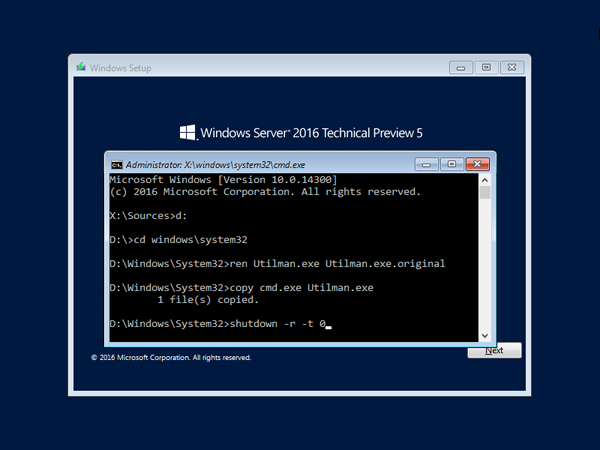
  1. Boot the server from the Windows Server 2016 Installation DVD. When the Setup screen appears, press SHIFT + F10 keys to open Command Prompt.
  2. At the Command Prompt, run the following commands:
    d:
    cd Windows\System32
    ren Utilman.exe Utilman.exe.original
    copy cmd.exe Utilman.exe
    shutdown -r -t 0

    replace-utilman-with-cmd

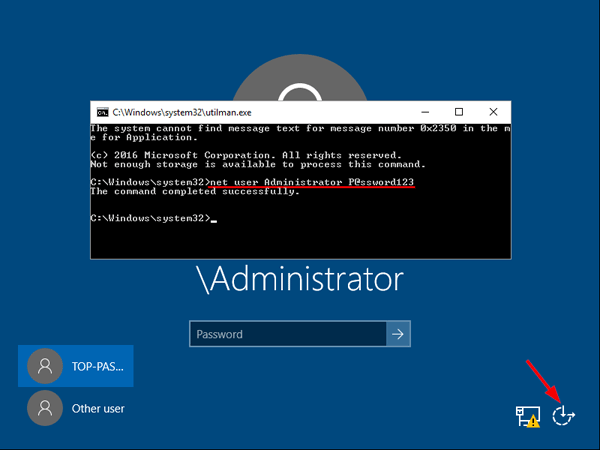
  3. The server should now reboot and present the logon screen. Press Windows Key + U or click the Ease of Access button, Command Prompt will pop up and type:
    net user Administrator P@ssword123

    reset-windows-server-2016-passwordThis will set the password for the Administrator to be P@ssword123 (case sensitive).
  4. Close the Command Prompt and you should now be able to log back onto Windows Server 2016 using the password you have provided in the previous step. After logging in, browse to the directory C:\Windows\System32, delete Utilman.exe and rename Utilman.exe.original back to Utilman.exe.

Method 2: Reset Windows Server 2016 Password with PCUnlocker

PCUnlocker is easy to use bootable utility that can help you reset domain & local administrator password in Windows Server 2016. Here’s how:

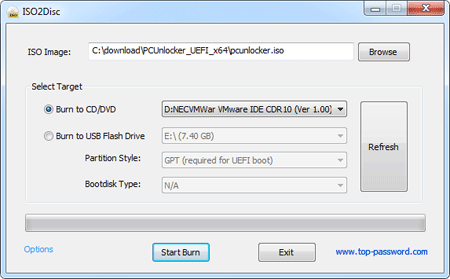
  1. Boot your server from PCUnlocker Live CD (or USB drive). If you don’t have one, you need to create it from another working PC. Download the PCUnlocker ISO file and burn it to CD (or USB drive) using the ISO2Disc software.

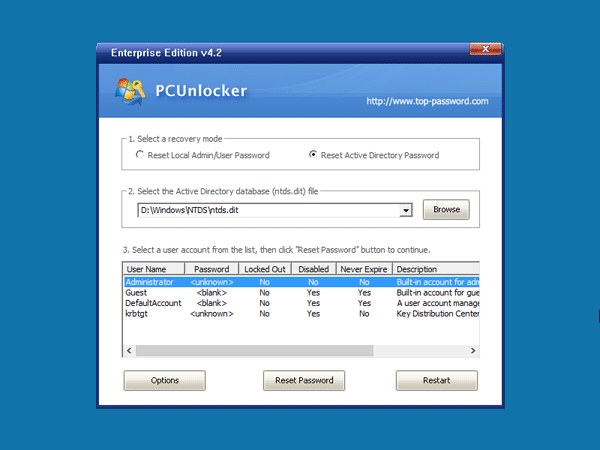
  2. When booting to the PCUnlocker program, you’ll see two options: Reset Local Admin/User Password, Reset Active Directory Password. The latter option is for domain controller only.

    pcunlocker

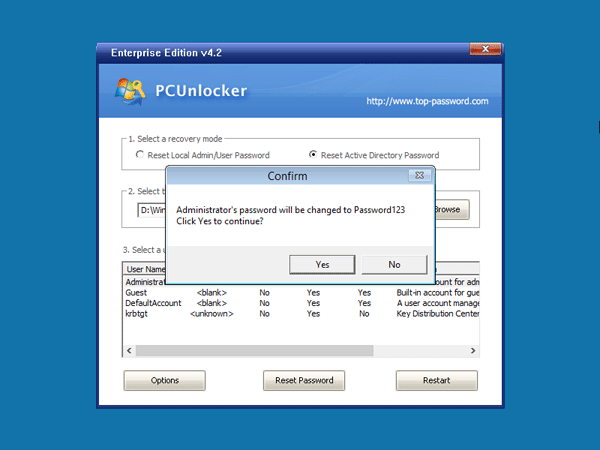
  3. Select the Administrator account and click the Reset Password button. Depend on your account type (local account or domain account), the program will set the password to be empty or Password123.

    reset-server-2016-domain-password

  4. After resetting the password, reboot the server and take out CD. You can then log into Windows Server 2016 administrator account successfully.

After a successful restore of a Windows client, windows gives a message of "The trust relationship between this workstation and primary domain failed"


Problem

After a successful full restore of a Windows client, Windows gives a message of  "The trust relationship between this workstation and primary domain failed" when trying to log on.

Error Message

No error message seen on restore - restore is successful

When trying to log on to the restored Windows machine, Windows gives a message of  "The trust relationship between this workstation and primary domain failed" 

Cause

In a Windows Active Directory (AD) environment, machines (as well as users) have domain passwords. While users change their own passwords manually, machines change their own passwords regularly in the background - by default every 30 days - and this happens transparently.

When a restore is done, it will restore the machine to the state it was in at that point  - which includes the machine password as it was at that time.

However if this machine's password had been subsequently changed (as part of the normal AD process), then the machine password stored on the restored image may no longer be valid, and would result in the windows machine no longer being able to log on to the domain, with the corresponding message of "The trust relationship between this workstation and primary domain failed" being seen.

Solution

As the restore was successful, no action is possible on the NetBackup side - the machine has been restored to the exact same state it was in at the time of the backup,

Instead, the machine's domain password on the restored machine would need to be updated so it matches the current one in Active Directory.

This is an OS/AD function, and the machine password can be updated using OS commands such as netdom or Reset-ComputerMachinePassword

Microsoft reference articles:

Thursday, June 2, 2022

Moving ADAudit Plus from one server/drive to another


  • Stop the ADAudit Plus server (Start → Run → type services.msc → Stop "ManageEngine ADAudit Plus" ).
  • Stop the DB,
    Open a command prompt as an administrator
    Navigate to <installation dir>\ManageEngine\ADAudit Plus\bin
    Execute StopDB.bat
  • Remove the ADAudit Plus service,
    Open a command prompt as an administrator
    Navigate to <installation dir>\ManageEngine\ADAudit Plus\bin
    Execute the command : wrapper.exe -r ..\conf\wrapper.conf
    Note: The 4th step found below, is required only for build numbers 6000 and above.
  • Remove the ADAudit Plus - DataEngine service,
    Open a command prompt as an administrator
    Navigate to <installation dir>\ManageEngine\ADAudit Plus\apps\dataengine-xnode\bin
    Execute the command : dataengine-xnode.bat -r
  • Copy the entire ADAudit Plus folder to the new server or drive.
  • Ensure both folder sizes are the same.
  • Open the command prompt [with Administrative privileges] <installation-directory>\ManageEngine\ADAudit Plus\bin → Execute InstallNTService.bat.</installation-directory>
  • Open the command prompt [as an administrator]\ManageEngine\ADAudit Plus\bin → Execute initPgsql.bat.
  • If you want to start the product as service, go to Services.msc → 'ManageEngine ADAudit Plus' Service → Right click on properties → Click on 'Log on' tab and select 'This Account' → Provide the suitable credentials.

Note: If you are using MS SQL server as your database and if the MS SQL server is running in a remote computer- Download and install SQL native client, command line utilities, and ODBC Driver; in the computer on which ADAudit Plus is running.

SQL Server version Command Line Utilities (cmdlnutils) Native Client (ncli) ODBC Driver (odbc)
2008 https://www.microsoft.com/en-in/download/details.aspx?id=44272 https://www.microsoft.com/en-in/download/details.aspx?id=44272 Not needed.
2012 https://www.microsoft.com/en-in/download/details.aspx?id=36433 https://www.microsoft.com/en-us/download/details.aspx?id=50402 Not needed.
2014 https://www.microsoft.com/en-US/download/details.aspx?id=53164 Not needed. https://www.microsoft.com/en-in/download/details.aspx?id=36434
2016, 2017, and 2019 https://www.microsoft.com/en-us/download/details.aspx?id=56833 Not needed. https://www.microsoft.com/en-us/download/details.aspx?id=56833

Note: Native client, command line utilities, and ODBC driver versions have to be the same as the MS SQL version (to which the DB and/or data is to be moved).
Note: If you want to change the location of the archived files as well, kindly contact support.

Wednesday, May 18, 2022

Deploy MS Office 2021 LTSC

To configure and perform deployments of Office 2021 LTSC (Long Term Servicing Channel) aka Perpetual, including Project and Visio, for users in your organization, you use the Office Deployment Tool (ODT). The Office Customization Tool (OCT) that you previously used for Windows Installer (MSI) is no longer used.

The installation files for Office LTSC 2021 are available on the Office Content Delivery Network (CDN) on the internet instead of on the Volume Licensing Service Center (VLSC). You can install Office LTSC 2021 directly from the Office CDN. Or, you can download the installation files from the Office CDN to a location on your local network, such as a shared folder, and install Office LTSC 2021 from that location. You can use different methods for different sets of devices in your organization. Whichever method you choose, you use the ODT. 

The following steps are the basic steps for deploying Office LTSC 2021:

  1. Download the Office Deployment Tool from the Microsoft Download Center
  2. Create the configuration.xml file
  3. Download the Office LTSC 2021 installation files (optional, if not installing directly from the Office CDN)
  4. Install Office LTSC 2021 by using the Office Deployment Tool

Download the Office Deployment Tool from the Microsoft Download Center

The Office Deployment Tool is a free download from the Microsoft Download Center. We recommend that you always download and use the most current version of the ODT.

After you download the Office Deployment Tool, double-click on the officedeploymenttool executable (.exe) file to extract the ODT files. When you are finished, you should have several files: setup.exe and some sample configuration.xml files. For an Office LTSC 2021-specific sample, see Sample configuration.xml file to use with the Office Deployment Tool.

The setup.exe file is the ODT and is a command-line tool that supports downloading and installing Office LTSC 2021. The configuration.xml files are sample files to get you started. You use the configuration.xml file to provide settings for the ODT to use when downloading or installing Office LTSC 2021. The configuration.xml is a simple xml file that can be created and edited in any text editor, such as Notepad. You can name the file anything that you want, as long as it retains the xml file extension.

Create the configuration.xml file

Once you have a copy of the ODT, you need to create a configuration.xml file. You can create multiple configuration.xml files to be used with the ODT. For example, you would create a configuration.xml file to download and install the 64-bit version of Office LTSC Professional Plus 2021 in English and a different configuration.xml file to install the 32-bit version of Visio LTSC Professional 2021 in French. When you run the ODT from an elevated command prompt, you specify which configuration.xml file to use.

Tip

Instead of using a text editor to create your configuration.xml file, we recommend that you use the Office Customization Tool (OCT). The OCT provides a web-based interface for making your selections and creating your configuration.xml file to be used with the Office Deployment Tool. For more information, see Overview of the Office Customization Tool. Please note that this is different than the Office Customization Tool that you might have used in the past to install volume licensed versions of Office that used Windows Installer (MSI) as the installation technology.

There are a series of settings in the configuration.xml file that you configure to customize the Office LTSC 2021 download or installation. The following table lists the most common settings to configure in the configuration.xml file.

Configuration configuration.xml setting Additional information
Where to download the Office installation files to and where to install Office from

For example, \\server\share (a shared folder on your local network).
SourcePath If you don’t specify a SourcePath when using the ODT to install Office, the ODT looks for the installation files in the folder it’s located in. If it doesn’t find the Office installation files there, it goes to the Office CDN to get the installation files.

We recommend that you install Office directly from the Office CDN, if internet connectivity and network bandwidth make that possible.
Which products to download or install

For example, Office LTSC Professional Plus 2021.
Product ID Valid values include the following:
- ProPlus2021Volume
- Standard2021Volume
- ProjectPro2021Volume
- ProjectStd2021Volume
- VisioPro2021Volume
- VisioStd2021Volume

For a list of Product IDs for other volume licensed Office products, such as Access LTSC 2021, see Product IDs that are supported by the Office Deployment Tool for Click-to-Run.

If you have a Microsoft Services Provider License Agreement (SPLA), review this information.
Use Key Management Service (KMS) to activate Office LTSC 2021 PIDKEY Enter the Generic Volume License Key (GVLK) for KMS activation.
Use Multiple Activation (MAK) to activate Office LTSC 2021 PIDKEY Enter the product key for MAK activation.
Which languages to download or install

For example, English (en-us) and French (fr-fr).
Language ID You can install multiple languages at the same time you’re Installing Office LTSC 2021, or you can install them later.

For more information, see Deploy languages for Office LTSC 2021.
Which proofing tools to install Product ID The Product ID is "ProofingTools" and is used in combination with the Language ID.

For more information, see Deploy languages for Office LTSC 2021.
Which edition of Office LTSC 2021 to download or install.

For example, the 64-bit version.
OfficeClientEdition Valid xml values are "32" and "64."

All Office products on the device must be of the same architecture. You can’t have both 32-bit and 64-bit Office products installed on the same device.

We recommend 64-bit on devices that have 4 GB or more of memory. But you should assess application compatibility and other factors that might require you to use the 32-bit version.

For more information, see Choose between the 64-bit or 32-bit version of Office.
Which apps to install

For example, all apps except Publisher.
ExcludeApp By default, all apps included in Office LTSC Professional Plus 2021 are installed.

For example, to not install Publisher, you can include the following line in your configuration.xml:

<ExcludeApp ID="Publisher" />

For more information, see ExcludeApp element.
Where to get security and quality updates from.

For example, directly from the Office CDN on the internet.
UpdatePath The default is to get updates directly from the Office CDN on the internet. This is recommended and requires the least amount of administrative effort.

But if you need to update devices that don’t have connectivity to the internet, you can specify that Office gets updates, for example, from a shared folder on your local network. But this means that you must download the updates from the Office CDN and copy them to the shared folder.

For more information, see Update Office LTSC 2021.
Which update channel to install from and get updates from Channel Office uses the concept of update channels to determine which updates an installed version of Office receives.

For more information, see Update channel for Office LTSC 2021.
Whether to remove previous Windows Installer (MSI) versions of Office before installing Office LTSC 2021 RemoveMSI This is recommended.

For more information, see Remove existing versions of Office before installing Office LTSC 2021.

Tip

More information about these configuration.xml settings is available here: Configuration options for the Office Deployment Tool. Keep in mind that not all the information in that article applies to Office LTSC 2021. For example, the settings related to shared computer activation, such as SharedComputerLicensing and SCLCacheOverride, don’t apply to Office LTSC 2021.

Sample configuration.xml file to use with the Office Deployment Tool

The following is a sample configuration.xml file that can be used to either download or install the 64-bit version of Office LTSC Professional Plus 2021 in English using a shared folder on your local network and activate by using MAK. If you’re using this configuration.xml to install Office LTSC 2021, previous Windows Installer (MSI) versions of Office are removed as part of the installation process. Also, even though it’s not specified in the configuration.xml file, updates are automatically enabled and are configured to come directly from the Office CDN, because those are the default settings.

XML
<Configuration>
  <Add SourcePath="\\Server\Share" OfficeClientEdition="64" Channel="PerpetualVL2021">
      <Product ID="ProPlus2021Volume"  PIDKEY="#####-#####-#####-#####-#####" >
         <Language ID="en-us" />
      </Product>
      <Product ID="ProofingTools">
        <Language ID="de-de" />
        <Language ID="es-es" />
      </Product>
  </Add>
  <RemoveMSI />
  <Display Level="None" AcceptEULA="TRUE" />  
</Configuration>

For the PIDKEY, replace #####-#####-#####-#####-##### with your MAK client activation key.

Remove existing versions of Office before installing Office LTSC 2021

We recommend that you uninstall any previous versions of Office before installing Office LTSC 2021. To help you uninstall versions of Office that use Windows Installer (MSI) as the installation technology, you can use the Office Deployment Tool and specify the RemoveMSI element in your configuration.xml file.

There are several ways that you can use the RemoveMSI element when installing Office LTSC 2021.

  • Uninstall all Office products on the device.
  • Identify any existing language resources, like language packs, and install the same languages.
  • Keep some Office products and uninstall all other Office products on the device.

RemoveMSI can be used to uninstall 2007, 2010, 2013, or 2016 versions of Office, Visio, or Project that were installed using Windows Installer (MSI).

For more information about using RemoveMSI, see Remove existing MSI versions of Office when upgrading to Microsoft 365 Apps. Even though this article is about Microsoft 365 Apps, most of the information also applies to Office LTSC 2021.

To uninstall 2019 versions of Office, Visio, or Project from the device, use the Remove element. You use the Remove element because 2019 versions of Office, Visio, and Project are installed by using Click-to-Run, not Windows Installer (MSI).

Download the Office LTSC 2021 installation files

Once you have a copy of the ODT and have created your configuration.xml file, you can download the Office LTSC 2021 installation files to your local network. To do that, open an elevated command prompt, go to the folder where you saved the ODT and the configuration.xml file, and type this command:

Console
setup /download configuration.xml

If you have saved the configuration.xml file with a different name, use that name in the command.

It will look as if nothing is happening, but the download is happening in the background. Once the download is complete, you are returned to a command prompt.

If you want to check that the files are downloading, go to the location you specified for your SourcePath in the configuration.xml file. You should see a folder named “Office” with a subfolder named “Data.” There will also be a folder named with the version number of the download. For example, 16.0.14332.20099. Which files you see and the names of the files depend on whether you are downloading the 32-bit or 64-bit version of Office and which languages you are downloading.

Here some additional details about downloading Office LTSC 2021 installation files:

  • You must download the 32-bit and 64-bit versions separately.
  • All volume licensed Office products – such as Office LTSC Professional Plus 2021, Visio LTSC Professional 2021, and Project Professional 2021 – are included in the same download, regardless of which products you specify in the configuration.xml file. This helps you save disk space on your local network. The core files for these products are in the stream.x86.x-none.dat or stream.x64.x-none.dat file, depending if it’s the 32-bit or 64-bit version of Office.

Install Office LTSC 2021 by using the Office Deployment Tool

Once you have a copy of the ODT and have created your configuration.xml file (and downloaded the Office LTSC 2021 installation files to your local network, if necessary), you can install Office LTSC 2021. To do that, open an elevated command prompt, go to the folder where you saved the ODT and the configuration.xml file, and type the following command:

Console
setup /configure configuration.xml

If you have saved the configuration.xml file with a different name, use that name in the command.

Once the installation is complete, you are returned to a command prompt and you can go open the Office LTSC 2021 programs you’ve installed.

Note

Office LTSC 2021 is installed on the system drive, which is usually the C:\ drive. The installation location can't be changed.