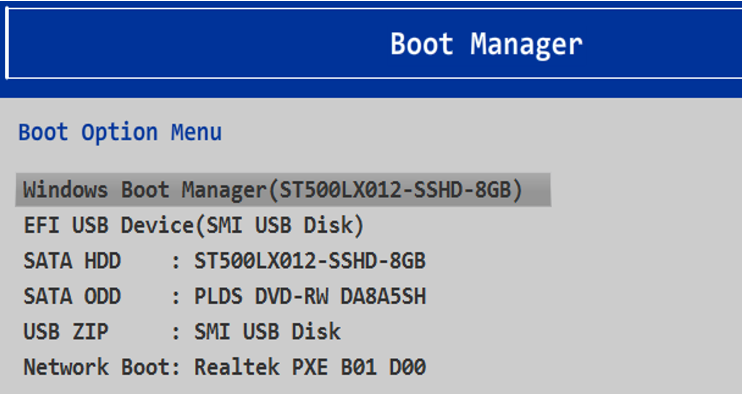
UEFI (Unified Extensible Firmware Interface) is a standard firmware interface for PCs, which is designed to replace
BIOS
(basic input/output system). When the PC starts, the firmware interface
controls the power-on startup process of the PC, and then passes
control to Windows or another operating system.
The recommended method to use to access the BIOS is the function key.
- Turn the PC off.
- Turn the PC on.
- The PC screen displays the Lenovo logo.
- Immediately and repeatedly press (Fn+) F2.

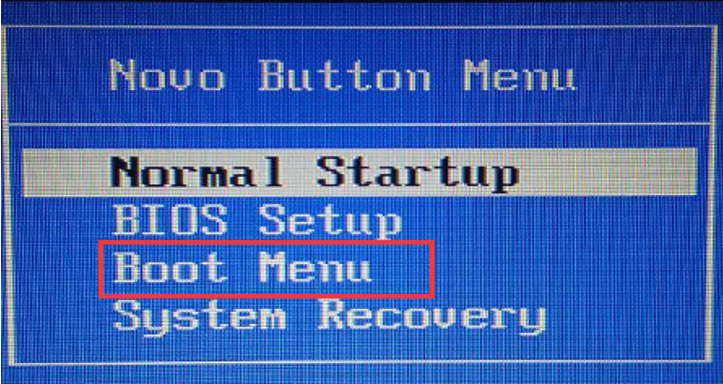
- Shut down the computer. Find the Novo button.
More information on NOVO button:

- Press Novo button to enter Novo Boot Menu, select BIOS Setup to enter BIOS.
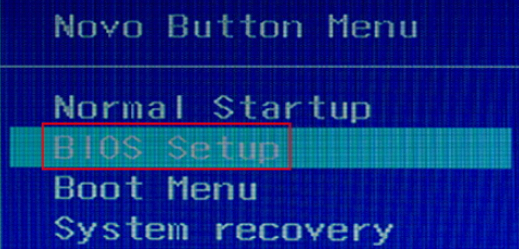
If the computer
boots too fast, there may not be enough time to press F2. Enter the
UEFI firmware from Windows 10. Use the following steps:
1. Click

-->
Settings or click New notifications

at the lower-right corner -->
All settings to open
Settings window. If using a touch screen, swipe in from the right edge of the screen, and then tap
Settings.
2. Click
Update & security.
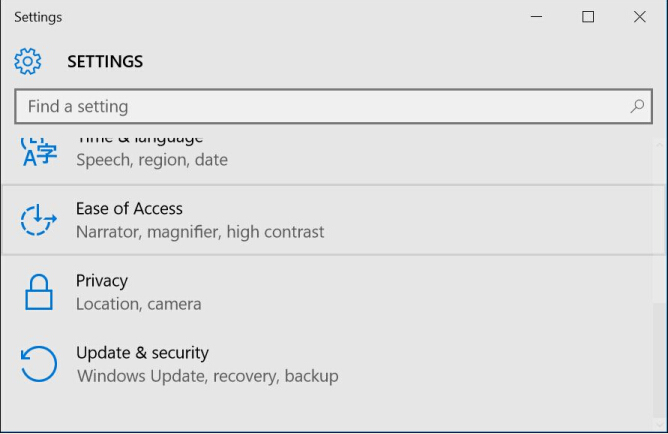
3. Click
Recovery, then
Restart now.
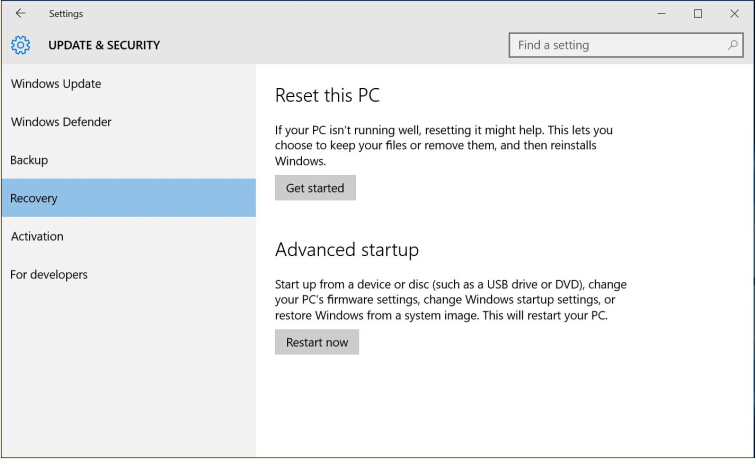
4. The Options menu will be displayed after executing the above procedures. Click
Troubleshoot.
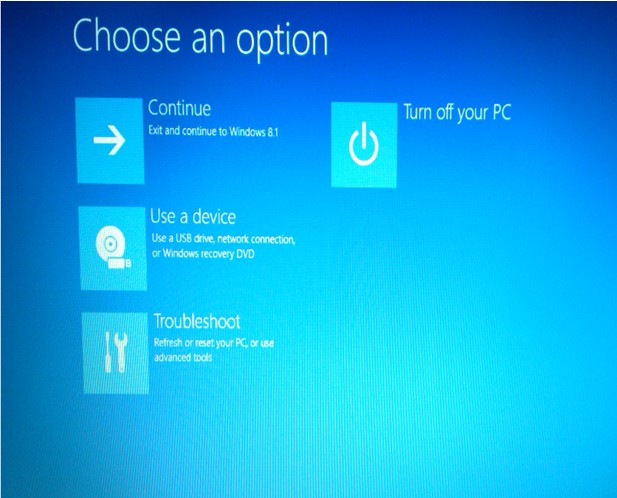
5. Select
Advanced options.
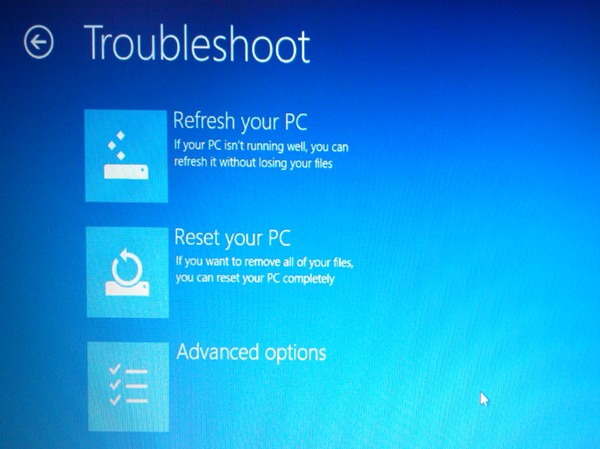
6. Click
UEFI Firmware Settings.
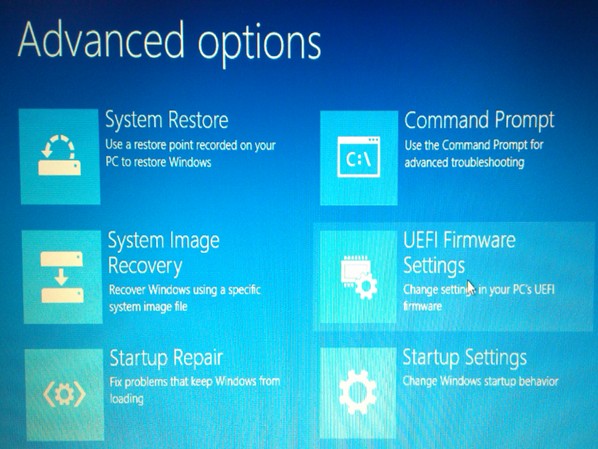
7. Choose
Restart.
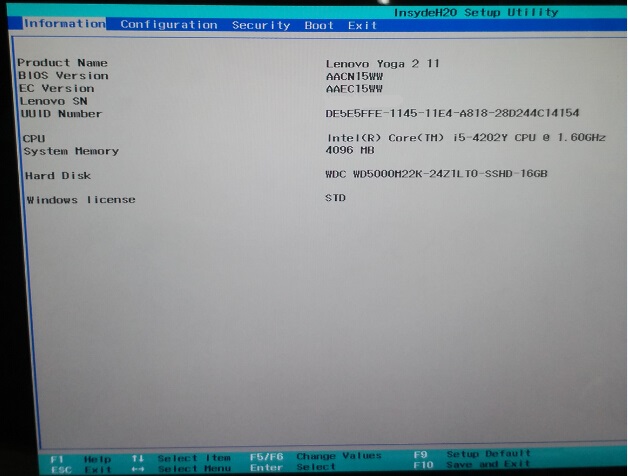
8. Now the BIOS setup utility interface is displayed.
 Note:
Note: Lenovo preloaded Windows 10 is set up with
UEFI boot. If the computer does not have UEFI boot and UEFI firmware
settings are not available, enter the BIOS setup via function key or
NOVO button.
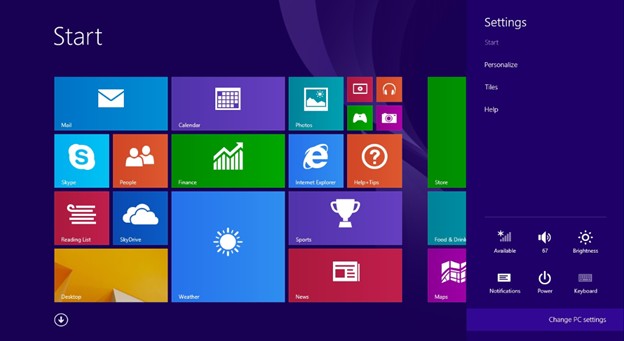
- Point to the upper-right corner of the screen, move the mouse pointer down, and then click Settings. If using a touch screen, swipe in from the right edge of the screen, and then tap Settings.
- Click Change PC settings.
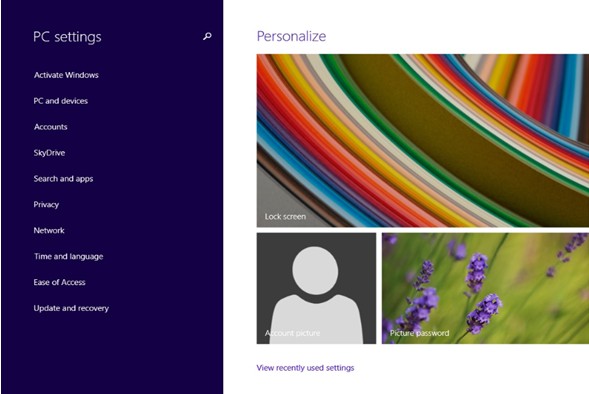
3. Click
Update and recovery.
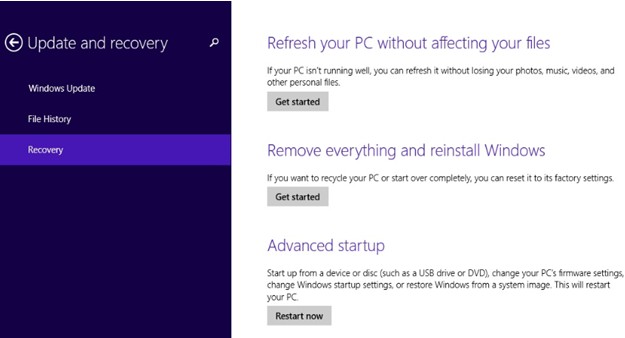
4. Select
Recovery. Then
Restart now.
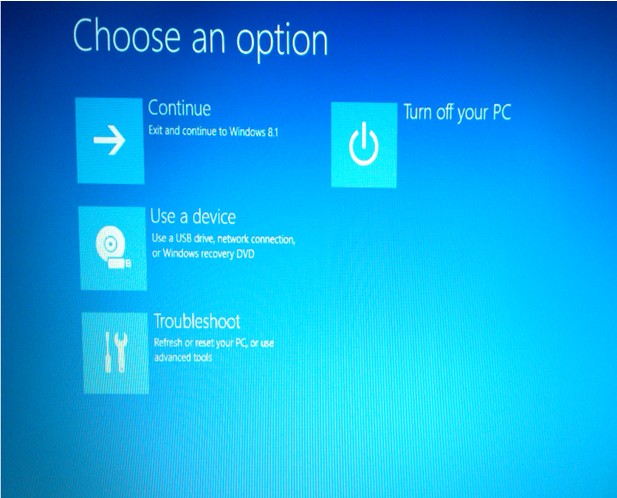
5. The Options menu will be displayed after executing the above procedure. Click
Troubleshoot.
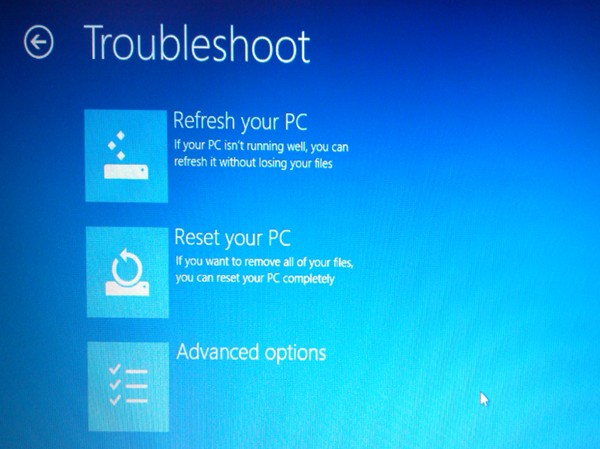
6. Select
Advanced options.
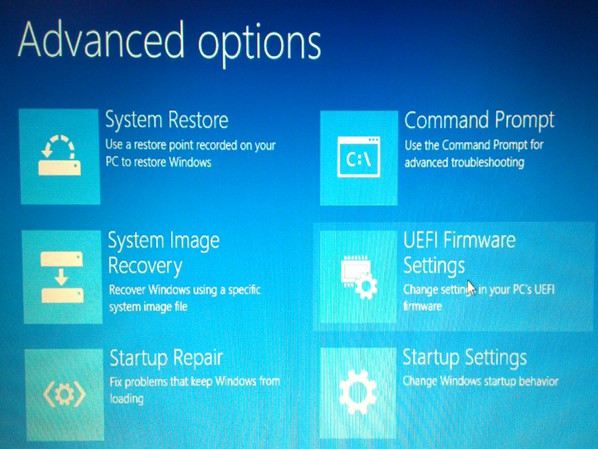
7. Click
UEFI Firmware.
8. Choose
Restart.
9. Now the BIOS setup utility interface is displayed.
- Log out of Windows and go to the sign in screen.
- Hold down the Shift key on the keyboard while clicking the Power
button on the screen. Continue to hold down the Shift key while clicking
Restart.
- Hold down the Shift key. The computer will open a bluescreen with the option to continue.
- Click Troubleshoot --> Advanced options --> UEFI Firmware Settings --> Restart. The BIOS setup utility interface is displayed.
 To enter BIOS via function key