How Managed Service Accounts Work
The Windows Server 2008 R2 AD Schema introduces a new object class called
msDS-ManagedServiceAccount. Create an MSA, examine its
objectClass attribute, and notice the object has an interesting object class inheritance structure:
Computer
msDS-ManagedServiceAccount
organizationalPerson
Top
User
The object is a user
and a computer at the same time, just like a computer account. But it does not have an object class of
person like a computer account typically would; instead it has
msDS-ManagedServiceAccount. MSA’s inherit from a parent object class of “Computer”, but they are also users. MSA objects do not contain new attributes from the Win2008 R2 schema update.
And this leads me to how MSA’s handle passwords – it’s pretty clever. An MSA is a quasi-computer object that utilizes the same password update mechanism used by computer objects. So, the MSA account password is updated when the computer updates its password (
every 30 days by default). This can be controlled - just like a computer’s password - with the following two DWORD values:
HKEY_LOCAL_MACHINE\SYSTEM\CurrentControlSet\Services\NetLogon\Parameters
DisablePasswordChange = [0 or 1, default if value name does not exist is 0]
MaximumPasswordAge = [1-1,000,000 in days, default if value name does not exist is 30]
MSA’s, like computers, do not observe domain or fine-grained password policies. MSA’s use a complex, automatically generated password (240 bytes, which is 120 characters, and cryptographically random). MSA’s cannot be locked out, and cannot perform interactive logons. Administrators can set an MSA password to a known value, although there’s ordinarily no justifiable reason (and they can be reset on demand; more on this later).
All Managed Service Accounts are created (by default) in the new
CN=Managed Service Accounts, DC=, DC= container. You can see this by configuring
DSA.MSC to show “Advanced Features”:


As you will see later though, there isn’t much point to looking at this in
AD Users and Computers because… wait for it… all your administration will be done through
PowerShell. You knew that was coming, didn’t you?
MSA’s automatically maintain their Kerberos Service Principal Names (SPN), are linked to one computer at a time, and support delegation. A network capture shows a correctly configured MSA using Kerberos:


Implementing MSA’s
Forest and OS Requirements
To use MSAs you must:
- Use Active Directory
- Extend your AD schema to Windows Server 2008 R2
- Host services using MSAs on Windows Server 2008 R2 and Windows 7 computers (MSAs cannot be installed on down-level operating systems)
- PowerShell, AD PowerShell (part of the RSAT), and the .Net 3.5x framework enabled on any computers using or configuring MSAs
MSAs do not require a specific Forest Functional Level, but there is a scenario where
part of MSA functionality requires a Windows Server 2008 Domain Functional Level. This means:
- If your domain is Windows Server 2008 R2 functional level, automatic passwords and SPN management will work
- If your domain is less than WIndows Server 2008 R2 Domain Functional Level, automatic passwords will work. Automatic SPN management will not work, and SPN’s will have to be maintained by administrators
Deployment
Using a new MSA always works in four steps:
1. You create the MSA in AD.
2. You associate the MSA with a computer in AD.
3. You install the MSA on the computer that was associated.
4. You configure the service(s) to use the MSA.
We begin by using PowerShell to create the new MSA in Active Directory. You can run this command on Windows Server 2008 R2 or Windows 7 computer that has the RSAT feature “Active Directory Module for Windows PowerShell” enabled. Perform all commands as an administrator.
1. Start PowerShell.
2. Import the AD module with:
Import-Module ActiveDirectory
3. Create an MSA with:
New-ADServiceAccount -Name -Enabled $true

4. Associate the new MSA with a target computer in Active Directory:
Add-ADComputerServiceAccount -Identity -ServiceAccount

5. Now logon to the target computer where the MSA is going to be running. Ensure the following features are enabled:
- Active Directory Module for Windows PowerShell
- .NET Framework 3.5.1 Feature


6. Start PowerShell.
7. Import the AD module with:
Import-Module ActiveDirectory
8. Install the MSA with:
Install-ADServiceAccount -Identity

Note: Besides being a local administrator on the computer, the account installing the MSA needs to have permissions to modify the MSA in AD. If a domain admin this "just works"; otherwise, you would need to delegate modify permissions to the service account's AD object.
9. Now you can associate the new MSA with your service(s).
The GUI way:
a. Start services.msc.
b. Edit your service properties.
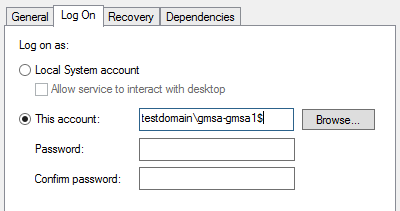
c. On the Log On tab, set “This Account” to the domain\name$ of your MSA. So if your MSA was called “AskDS” in the “contoso.com” domain, it would be:
contoso\askds$
d. Remove all information from Password and Confirm password – they should not contain any data:

e. Click Apply and Ok to the usual “Logon as a Service Right granted” message:

f. Start the service. It should run without errors.


The PowerShell way:
a. Start PowerShell.
b. Paste this sample script into a text file:
# Sample script for setting the MSA password through PowerShell
# Provided "AS IS" with no warranties, and confers no rights.
# See http://www.microsoft.com/info/cpyright.mspx
# Edit this section:
$MSA="contoso\askds$"
$ServiceName="'testsvc'"
# Don't edit this section:
$Password=$null
$Service=Get-Wmiobject win32_service -filter "name=$ServiceName"
$InParams = $Service.psbase.getMethodParameters("Change")
$InParams["StartName"] = $MSA
$InParams["StartPassword"] = $Password
$Service.invokeMethod("Change",$InParams,$null) |
c. Modify the highlighted red sections to correctly configure your MSA and service name.
d. Save the text file as MSA.ps1.
e. In your PowerShell console, get your script policy with:
Get-ExecutionPolicy

f. Set your execution policy to remote signing only:
Set-ExecutionPolicy remotesigned

g. Run the script:

h. Set your execution policy back to whatever you had returned in step E:

Note: Obviously, I made this example very manual; it could easily be automated completely. That’s the whole point of PowerShell after all. Also, it is ok to shake your fist at us for not having the User and Password capabilities in the V2 PowerShell cmdlet Set-Service. Grrr.
Removal
Removing an MSA is a simple two-part process. Now that you know all the PowerShell rigmarole, here are the two things you do:
1. Use the following PowerShell cmdlet to remove the MSA from a local computer:
Remove-ADServiceAccount –identity

2. Optionally, remove the service account from Active Directory. You can skip this step if you just want to reassign an existing MSA from one computer to another.
Remove-ADComputerServiceAccount –Identity -ServiceAccount

Group Memberships
The
Set-ADServiceAccount and
New-ADServiceAccount cmdlets do not allow you to make MSA’s members of groups. To do this you will instead use
DSA.MSC or
Add-ADGroupMember.
AD Users and Computers method:
1. Start DSA.MSC.
2. Select the group (not the MSA).
3. Add the MSA through the Members tab:

PowerShell method:
1. Start PowerShell.
2. Run:
Add-ADGroupMember "" ""
So for example:

Note: Use the distinguished name of the MSA; otherwise
Add-ADGroupMember will return “cannot find object with identity”. Don’t try to use
NET GROUP as it doesn’t know how to find MSA’s.
Limitations
Managed Service Accounts are useful in most service scenarios. There are limits though, and understanding these up front will save you planning time later.
- MSA’s cannot span multiple computers – An MSA is tied to a specific computer. It cannot be installed on more than one computer at once. In practical terms, this means MSAs cannot be used for:
- Cluster nodes
- Authenticated load-balancing using Kerberos for a group of web servers
The MSA can only exist on one computer at a time; therefore, MSAs are not compatible with cluster fail-over scenarios. And authentication through a load balancer would require you to provide a Kerberos SPN of the MSA account-- that won’t work either. Load balancing scenarios include Microsoft software-based and third-party hardware and software-based load balancing solutions. If you’re clustering or NLB’ing, then you are still going to need to use old fashioned service accounts.
A key clarification: You can have multiple MSAs installed on a single computer. So if you have an application that uses 5 services, it’s perfectly alright to use one MSA on all five services or five different MSA’s at once.
- The supportability of an MSA is determined by the component, not Windows – Just because you can configure an MSA on a service doesn’t mean that the folks who make that service support the configuration. So, if the SQL team here says “we don’t support MSA’s on version X”, that’s it. You have to convince them to support their products, not me :-). Some good places to start asking, as we get closer to the general availability of Windows Server 2008 R2 in October:
TechNet Forums - http://social.technet.microsoft.com/Forums
MSDN Forums - http://social.msdn.microsoft.com/Forums
SQL Support Blog - http://blogs.msdn.com/psssql/default.aspx
Exchange Blog - http://msexchangeteam.com/
SharePoint Blog - http://blogs.msdn.com/sharepoint/
Dynamics Blog - https://community.dynamics.com/blogs/
BizTalk Blog - http://blogs.msdn.com/biztalk_server_team_blog/
Troubleshooting
For the most part MSA’s are straightforward and have easily understandable errors. There are a few issues that people seem to run into repeatedly though:
Error: Error 1069: The service did not start due to a logon failure.
Cause: Typically caused by the MSA being disabled. Use
Set-ADServiceAccount to enable your MSA.
Error: Duplicate Backlink. The service account 'AskDS2' has backlinks to computer 'CN=2008R2-F-05,CN=Computers,DC=contoso,DC=com'. This add operation will potentially disable service accounts installed on the other computer. Cannot install service account. Error Message: 'Unknown error (0xc000005a)
Cause: You are trying to associate an MSA with a computer that is already used by another computer. The error notes the server (in this case, 2008r2-f-05) currently using the MSA. Un-associate and uninstall the MSA from the old computer before using it on the new one.
Error: Add-ADComputerServiceAccount : The object could not be found on the server.
Cause: You gave an incorrect identity for the MSA and PowerShell cannot find it. Either it’s been deleted or you typed in the wrong name.
Error: Please enter a valid password.
Cause: You did not remove the password information in the service’s Logon On properties when editing in
services.msc. See the setup steps above.
Error: The account name is invalid or does not exist, or the password is invalid for the account name specified.
Cause: This is typically caused by not adding the “$” character to the end of the account name used in the Log On tab in the service’s properties in
services.msc. Also, this error is caused by simply mistyping the name of the account or forgetting to add the appropriate domain.
Final Notes and References
For further reading on Managed Service Accounts, check out: