Showing posts with label RDP. Show all posts

Wednesday, March 17, 2021

Setting up Remote Desktop Connection via Router Port Forwarding


           Step 1: Enable Remote Desktop on your computer

Right-click 'My Computer' and then click 'Properties'. Click the 'Remote' tab and then choose 'Allow remote connections to this computer'. Then click the 'OK' button.
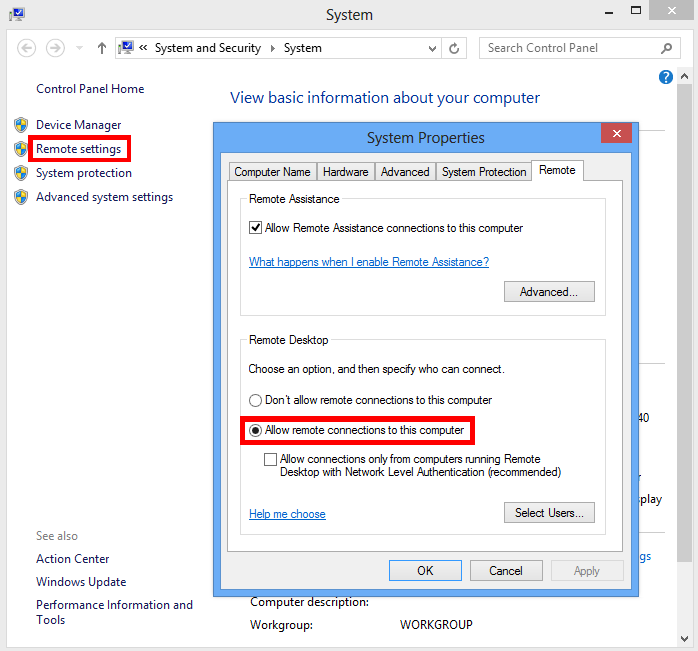
Remote Desktop

Step 2: Open Remote Desktop port (port 3389) in Windows firewall

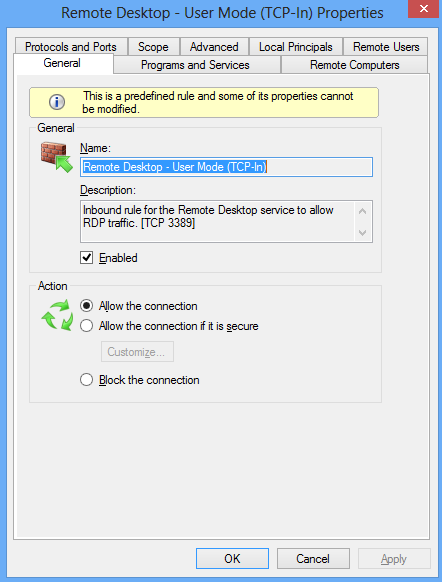
Go into the control panel in your computer and then into 'System and security' and then into 'Windows Firewall'. Click 'Advanced settings' on the left side. Ensure that 'Inbound Rules' for Remote Desktop is 'Enabled'. Please note that if you are using a firewall other than Windows Firewall on your computer, you must open port 3389 in the firewall.
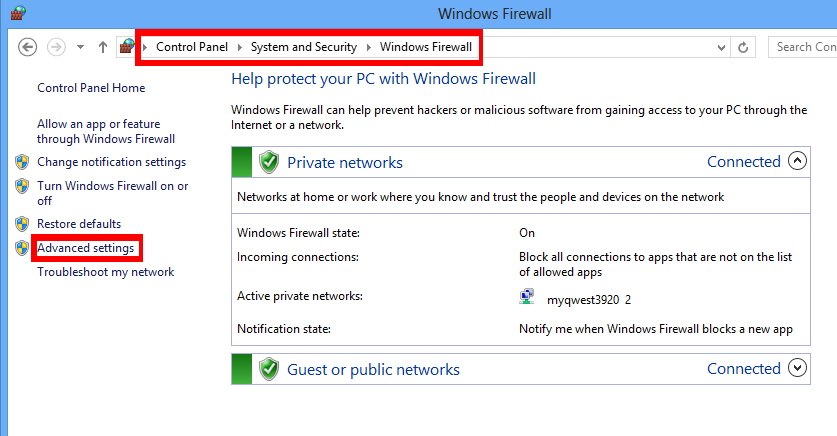
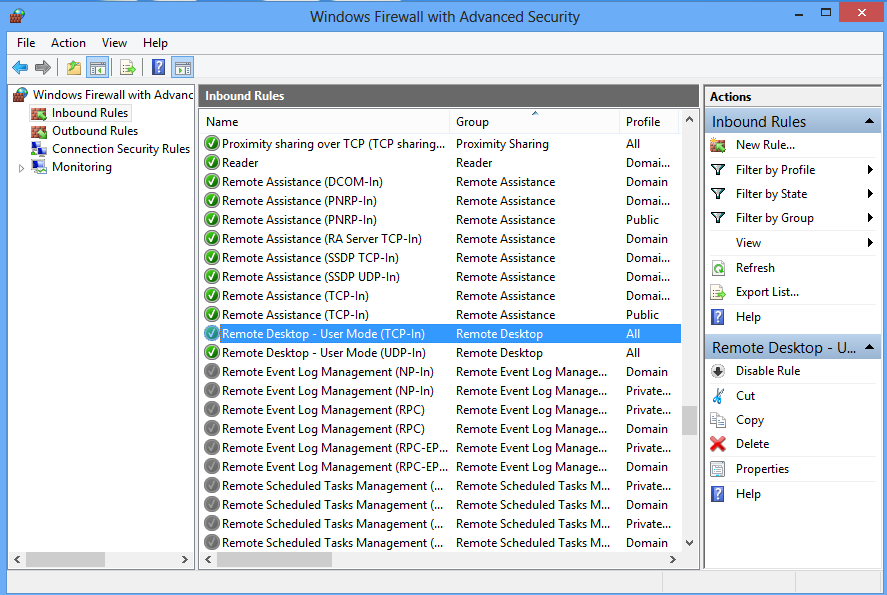
Open Windows Firewall for Remote Desktop

Open Windows Firewall for Remote Desktop

Open Windows Firewall for Remote Desktop

Step 3: Set up Port Forwarding (Port Translation) in the router

Please log into the router website (generally at http://192.168.1.1 or http://192.168.0.1) and go into the 'Port Forwarding' section. Add a new 'Port Forwarding' rule for TCP port 3389 to be forwarded to the internal IP of your computer. To get the internal IP address of the device, you may type ipconfig in "cmd.exe". It is usually in the form of "192.168.1.**".
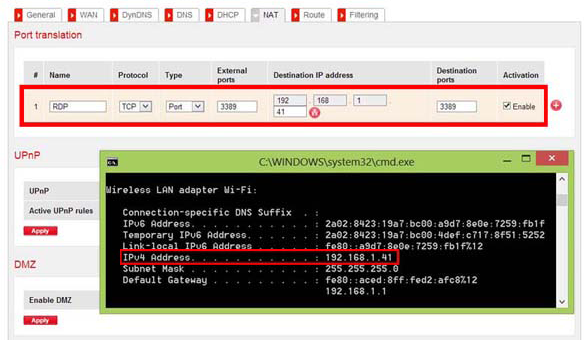
Port Forwarding for Remote Desktop

NOTE: If you need to connect to several machines behind the same router, you should set up port forwarding for all these machines. Let's suppose machine 1 has an internal IP 192.168.1.41, machine 2 has an internal IP 192.168.1.42, and machine 3 has an internal IP 192.168.1.43. We can setup different external ports for different machines as shown in the picture below.
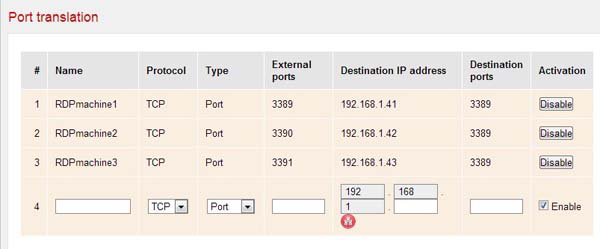
Port Forwarding for Remote Desktop

To see if the port forwarding has been setup correctly, you can use our Port Check network tool to see if the corresponding port is open. If you get a "Success" response from the port check, then your network has been correctly set up.

STEP 4: Map your dynamic IP to a hostname

Internet service providers change your IP address on a regular basis, but with dynamic DNS you can keep your domain pointing at the current IP of your home server or other devices.

You may register a domain name of your own (yourdomain.com) and sign up for Dynu Dynamic DNS Service for it or use a free Dynu domain name (yourdomain.dynu.com). You may refer to this Getting started tutorial for more information.

STEP 5: Use Dynu DDNS service to access your computer remotely

Download the appropriate client software and run it in the computer to keep the hostname mapped to your dynamic IP. You may also set up the DDNS service in your router if your router supports it.

You should now be able to access your computer using yourhostname.dynu.com from the internet via Remote Desktop using any compatible Remote Desktop client and your domain name.
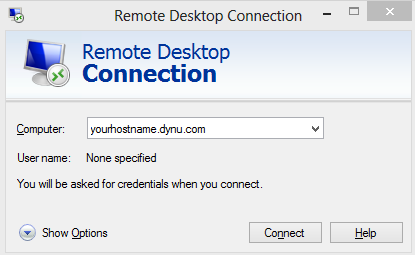
Port Forwarding for Remote Desktop

NOTE: In the case of connecting several machines, for machine 1, you can use "yourhostname.dynu.com:3389", for machine 2, you may use "yourhostname.dynu.com:3390", and for machine 3, you may use "yourhostname.dynu.com:3391".               

Tuesday, March 16, 2021

Enable RDP through CMD Line

 Quick and simple way to enable Remote Desktop (RDP) via psexec

    4 Steps total

    Step 1: Install PSEXEC

    PSEXEC is a standalone executable file that allows you to run commands on remote machines.

    You can download the tool from here:

    http://technet.microsoft.com/en-us/sysinternals/bb897553.aspx

    Step 2: Run psexec

    You can add the location of psexec to your %PATH% variable or simple copy the psexec to C:\WINDOWS\System32\ folder.

    After that simply open a command line and type psexec /? to test its functioning accordingly

    Step 3: Enable RDP

    Open a command line and type the follwoing:

    psexec \machinename reg add hklm\system\currentcontrolset\control\terminal server /f /v fDenyTSConnections /t REG_DWORD /d 0

    This adds a registry entry enabling RDP connections.

    Step 4: Configure Machine Firewall to allow RDP

    Open a command line and type the following

    psexec \remotecomputername netsh firewall set service remoteadmin enable psexec \remotecomputername netsh firewall set service remotedesktop enable:

    With this you have successfully configured a remote machine to enable RDP sessions and configured the firewall to allow the connections on the correct ports.


    Other Examples

    The following command launches an interactive command prompt on \\marklap computer name:

    cmd
    psexec -i \\marklap cmd
    

    This command executes IpConfig on the remote system with the /all switch, and displays the resulting output locally:

    cmd
    psexec -i \\marklap ipconfig /all
    

    This command copies the program test.exe to the remote system and executes it interactively:

    cmd
    psexec -i \\marklap -c test.exe
    

    Specify the full path to a program that is already installed on a remote system if its not on the system's path:

    cmd
    psexec -i \\marklap c:\bin\test.exe
    

    Run Regedit interactively in the System account to view the contents of the SAM and SECURITY keys::

    cmd
    psexec -i -d -s c:\windows\regedit.exe
    

    To run Internet Explorer as with limited-user privileges use this command:

    cmd

    psexec -l -d "c:\program files\internet explorer\iexplore.exe"

    Saturday, January 20, 2018

    How to Enable / Disable Multiple RDP Sessions in Windows 2012

    How to Enable/Disable Multiple RDP Sessions in Windows 2012By default, Windows 2012 servers allow a single Remote Desktop session. If only one session is available and you take over another person's live session, you may choose to enable multiple RDP sessions. This article describes the process for enabling and disabling multiple sessions.

    Enable Multiple RDP Sessions
    1. Log into the server using Remote Desktop.
    2. Open the start screen (press the Windows key) and type gpedit.msc and open it
    3. Go to Computer Configuration > Administrative Templates > Windows Components > Remote Desktop Services > Remote Desktop Session Host > Connections.
    4. Set Restrict Remote Desktop Services user to a single Remote Desktop Services session to Disabled.
    5. Double click Limit number of connections and set the RD Maximum Connections allowed to 999999.
    Disable Multiple RDP Sessions
    1. Log into the server using Remote Desktop.
    2. Open the start menu and type 'gpedit.msc' and open it
    3. Go to Computer Configuration > Administrative Templates > Windows Components > Remote Desktop Services > Remote Desktop Session Host > Connections.
    4. Set Restrict Remote Desktop Services user to a single Remote Desktop Services session to Enabled.

    Tuesday, January 9, 2018

    Configure the Number of Simultaneous Remote Connections Allowed for a Connection

    Applies To: Windows Server 2008 R2

    You can configure the number of simultaneous remote connections that are allowed for a connection. Restricting the number of simultaneous remote connections can improve performance of the computer because fewer sessions are demanding system resources.
    If the RD Session Host role service is not installed on the computer, a connection can only allow a maximum of two simultaneous remote connections to the computer.
    Use the following procedure to configure the number of simultaneous remote connections allowed for a connection.
    Membership in the local Administrators group, or equivalent, on the RD Session Host server that you plan to configure, is the minimum required to complete this procedure. Review details about using the appropriate accounts and group memberships at http://go.microsoft.com/fwlink/?LinkId=83477.
    To configure the number of simultaneous remote connections allowed for a connection
    1. On the RD Session Host server, open Remote Desktop Session Host Configuration. To open Remote Desktop Session Host Configuration, click Start, point to Administrative Tools, point to Remote Desktop Services, and then click Remote Desktop Session Host Configuration.
    2. Under Connections, right-click the name of the connection, and then click Properties.
    3. In the Properties dialog box for the connection, on the Network Adapter tab, click Maximum connections, enter the number of simultaneous remote connections that you want to allow for the connection, and then click OK.
      If the Maximum connections option is selected and dimmed, the Limit number of connections Group Policy setting has been enabled and has been applied to the RD Session Host server.
    You can also set the maximum number of simultaneous connections allowed for an RD Session Host server by applying the Limit number of connections Group Policy setting. This Group Policy setting is located in Computer Configuration\Policies\Administrative Templates\Windows Components\Remote Desktop Services\Remote Desktop Session Host\Connections and can be configured by using either the Local Group Policy Editor or the Group Policy Management Console (GPMC). Note that the Group Policy setting will take precedence over the setting configured in Remote Desktop Session Host Configuration.
    For more information about Group Policy settings for Remote Desktop Services, see the Remote Desktop Services Technical Reference (http://go.microsoft.com/fwlink/?LinkId=138134).