Showing posts with label AD DS. Show all posts

Tuesday, October 3, 2017

Step-By-Step: Migrating Active Directory FSMO Roles From Windows Server 2012 R2 to 2016

With Windows server 2016 was released for public (GA), many businesses are working on migrating their services to the new offering. This post will walk you through the steps needed to migrate Active Directory FSMO roles running on Windows Server 2012 R2 to Windows Server 2016 Active Directory. The same steps are valid for migrating from Windows Server 2012, Windows Server 2008 R2 and Windows Server 2008.
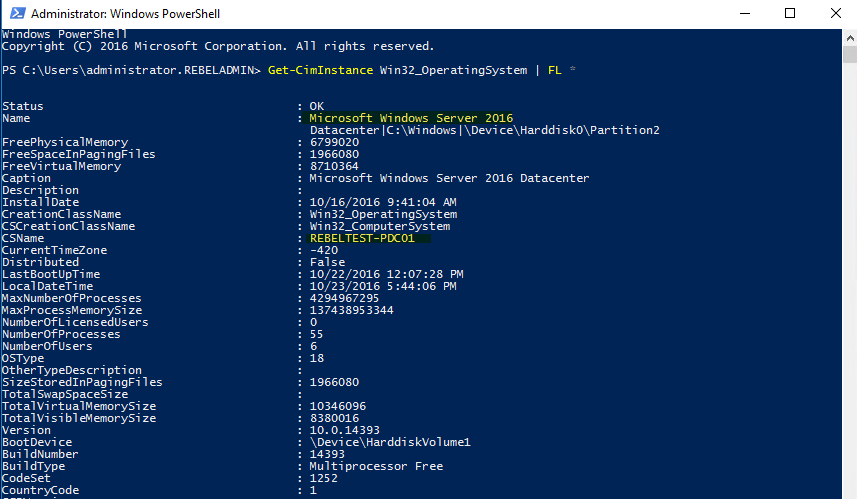
In this setup, the Windows Server 2012 R2 domain controller is setup as a PDC. The Windows Server 2016 machine has already been added to the existing domain.


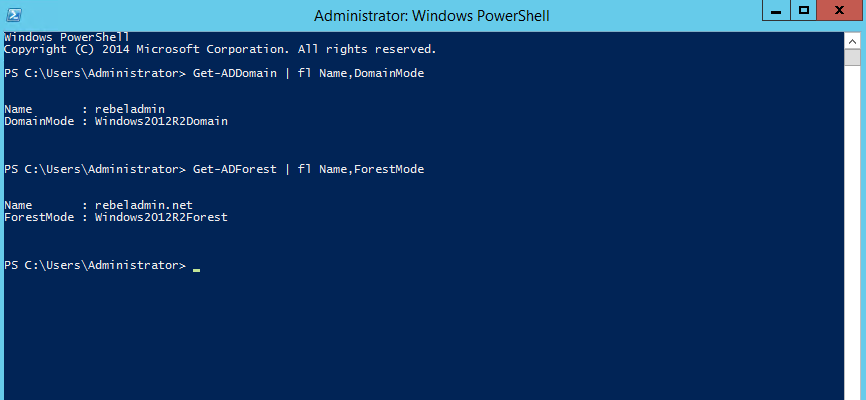
Current domain and forest functional level of the domain is windows server 2012 R2.

So, let's start with the migrate process.
Install Active Directory on windows server 2016
1. Log in to windows server 2016 as domain administrator or enterprise administrator
2. Check the IP address details and put the local host IP address as the primary DNS and another AD server as secondary DNS. This is because after AD install, server itself will act as DNS server
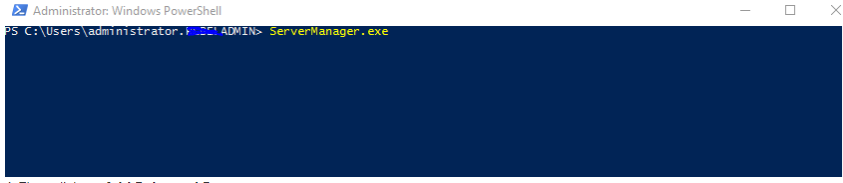
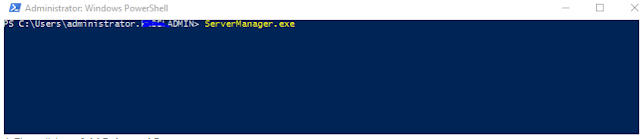
3. Run servermanager.exe form PowerShell to open server manager (there is many ways to open it)
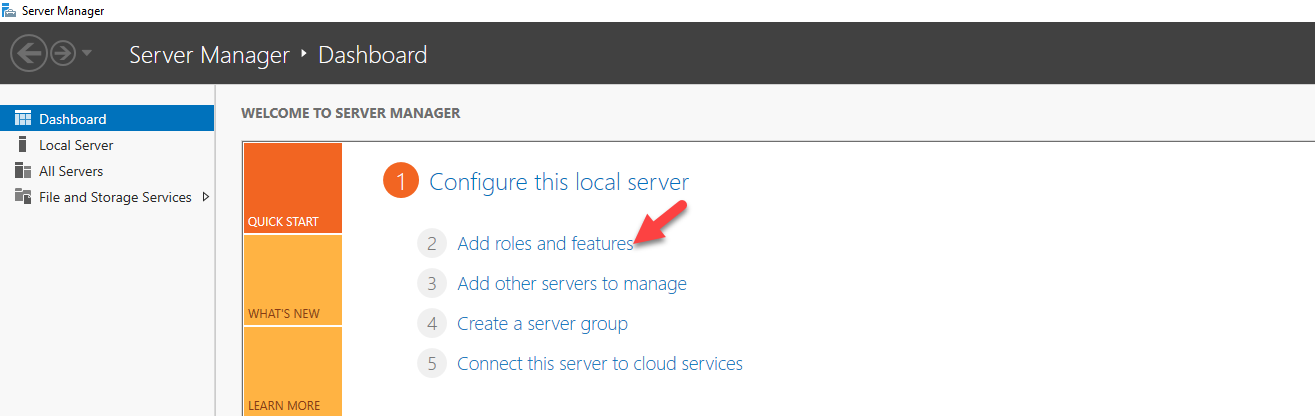
4. Then click on Add Roles and Features

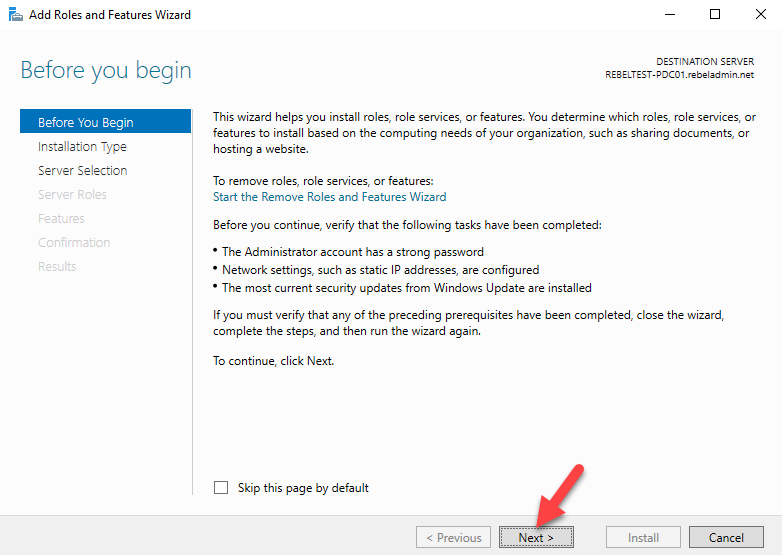
5. It will open up the wizard, click next to continue
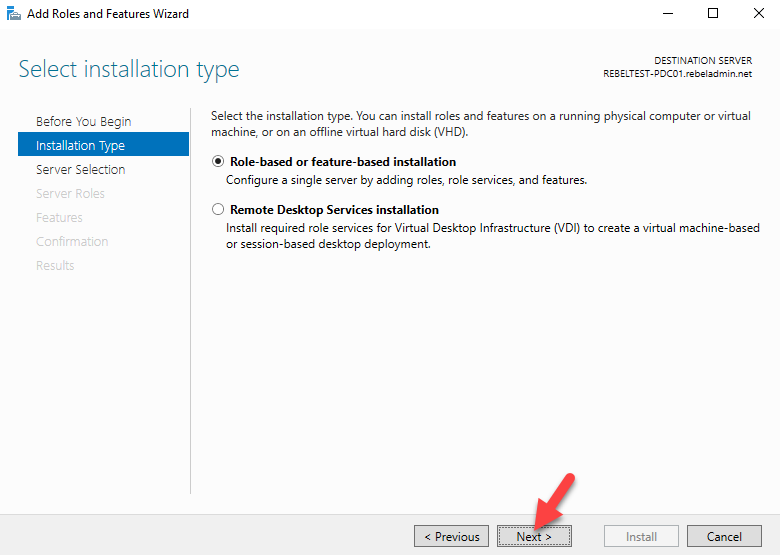
6. In next window keep the default and click next
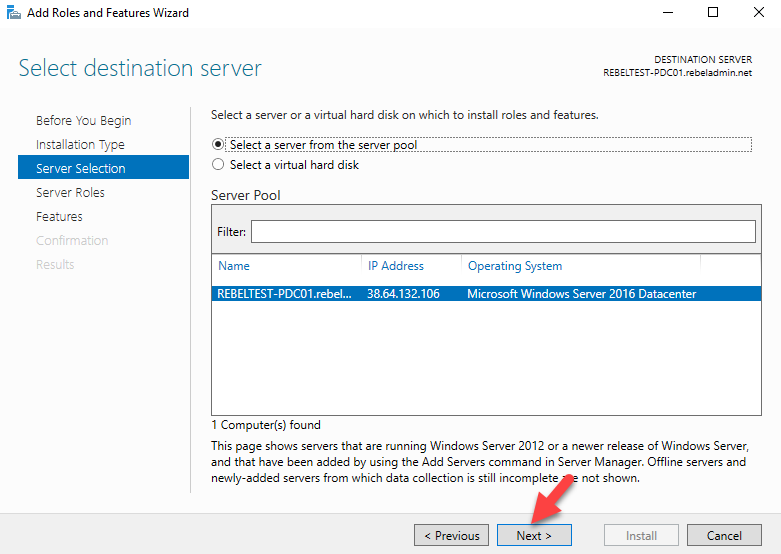
7. Roles will be installed on same server, so leave the default selection and click next to continue
8. Under the server roles tick on Active Directory Domain Services, then it will prompt with the features needs for the role. Click on add features. Then click next to proceed
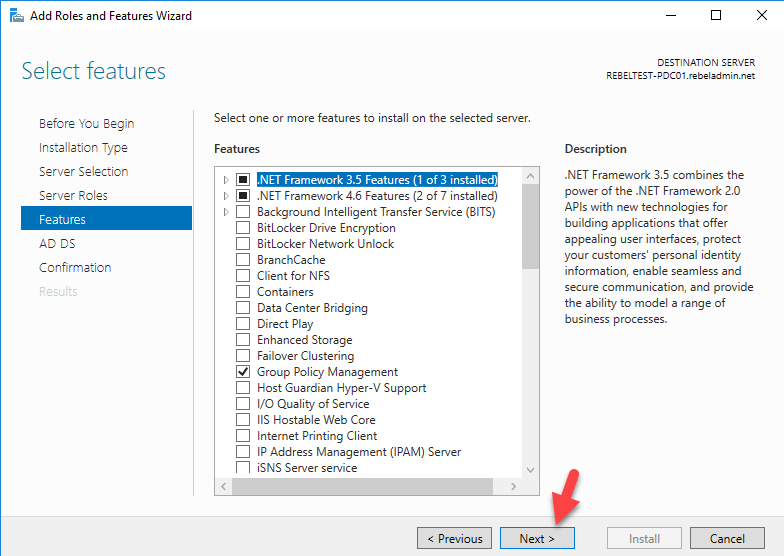
9. On the features windows keep the default and click next
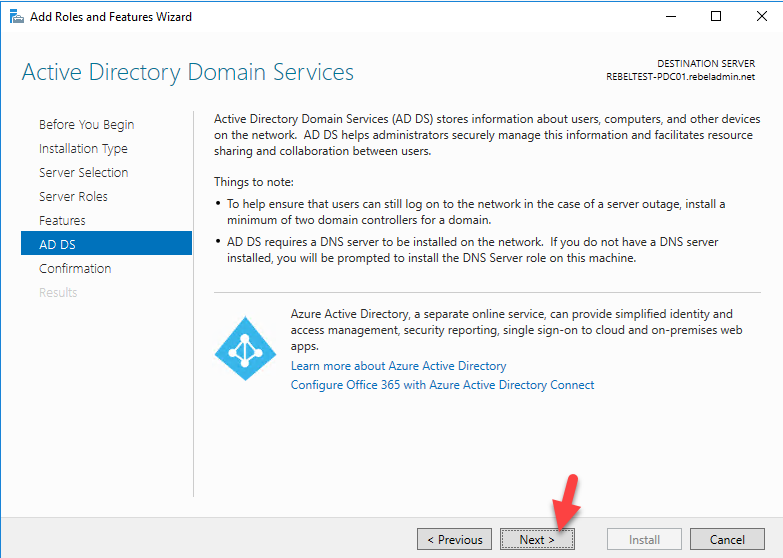
10. In next window, it will give brief description about AD DS, click next to proceed
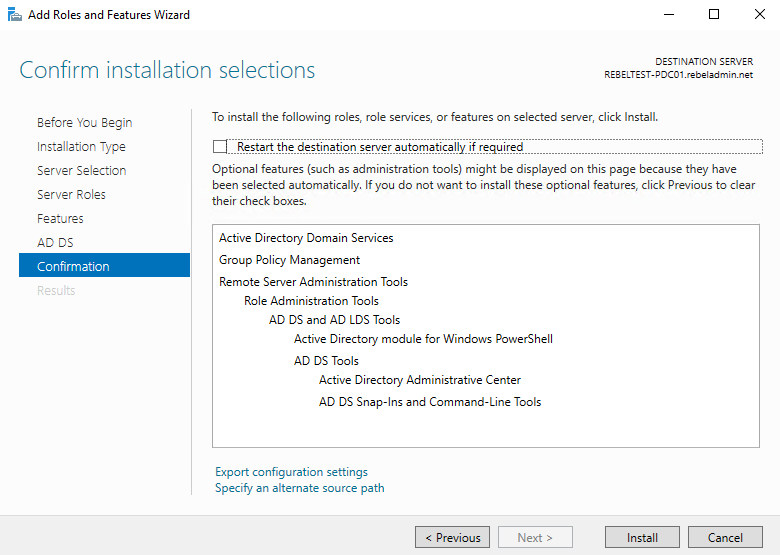
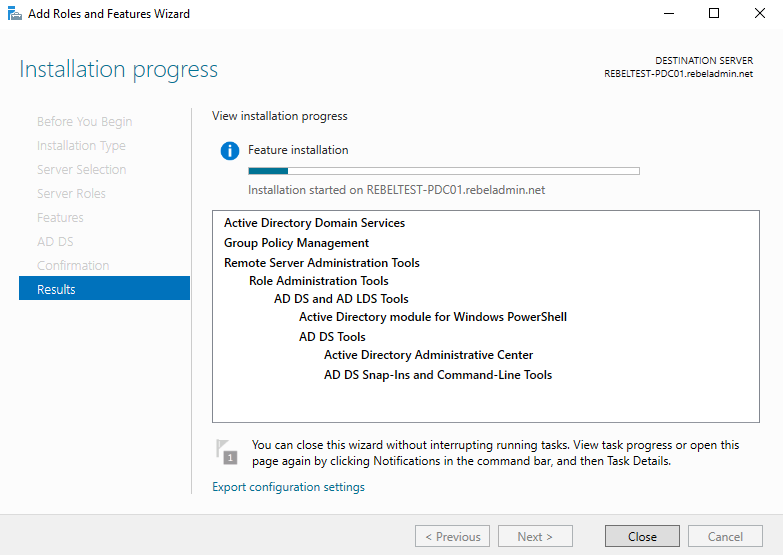
11. Then in next window it will give brief description about configuration and click on install to start the role installation process.
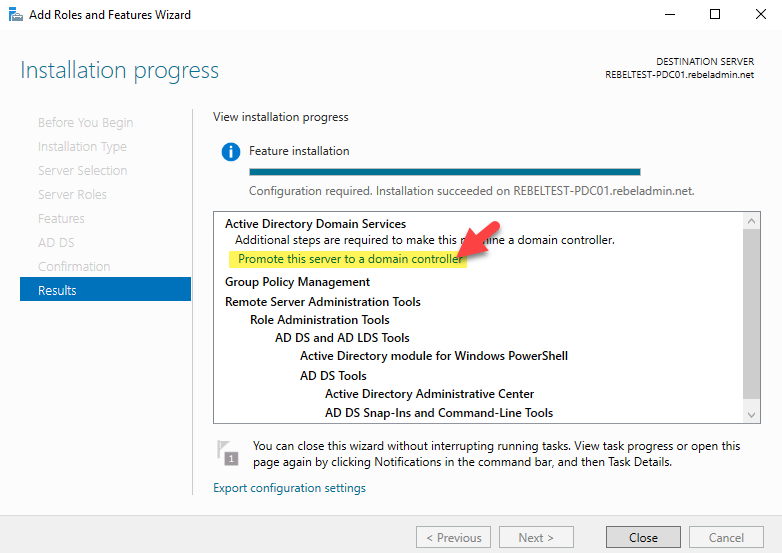
12. Once installation completed, click on promote this server to a domain controller option

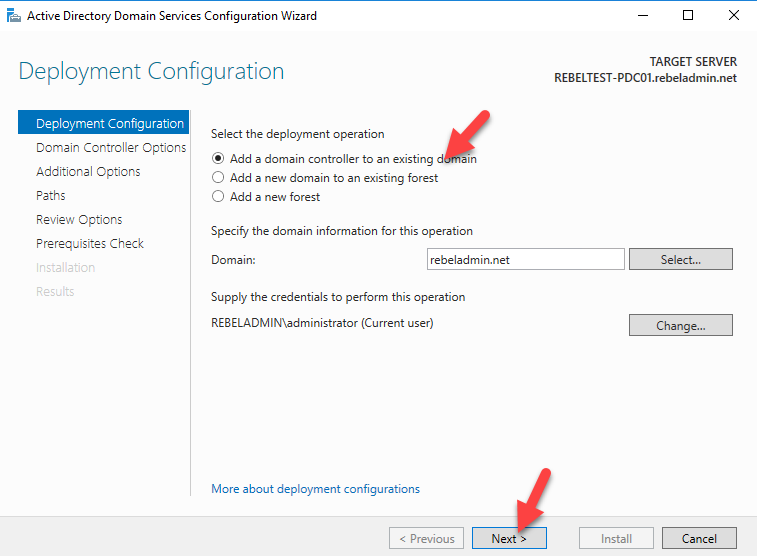
13. It will open up the Active Directory Domain Service configuration wizard, leave the option Add a domain controller to existing domain selected and click next.

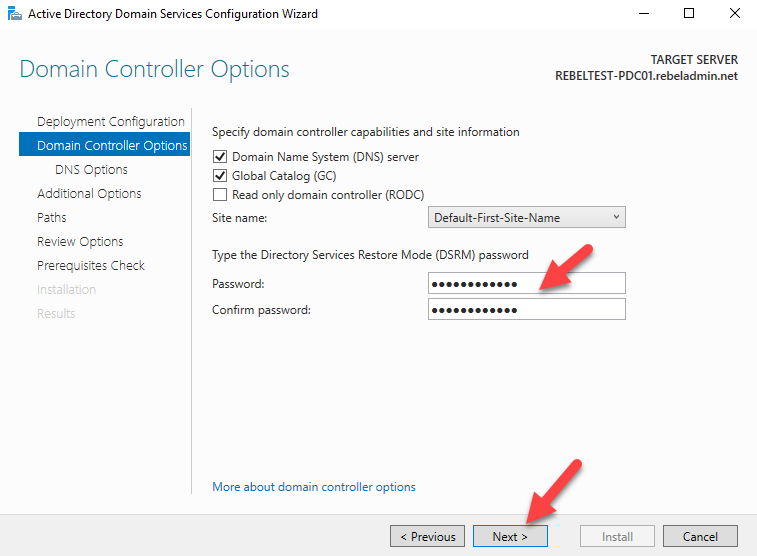
14. In next window define a DSRM password and click next

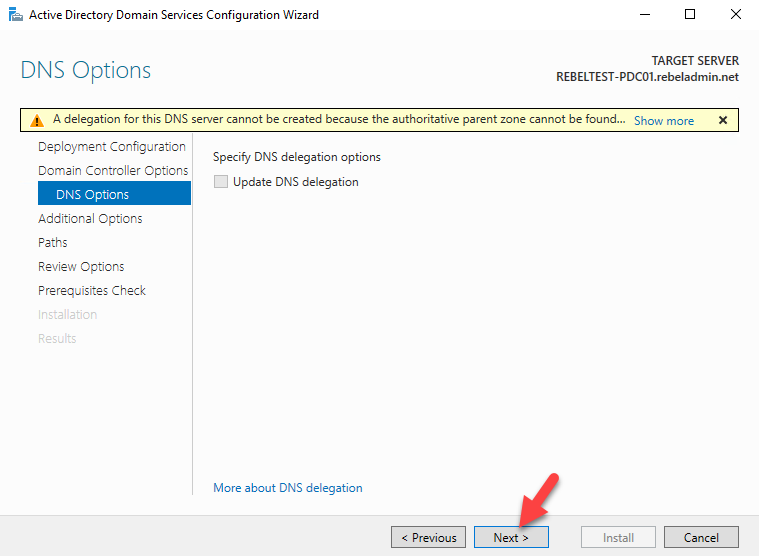
15. In next window click on next to proceed
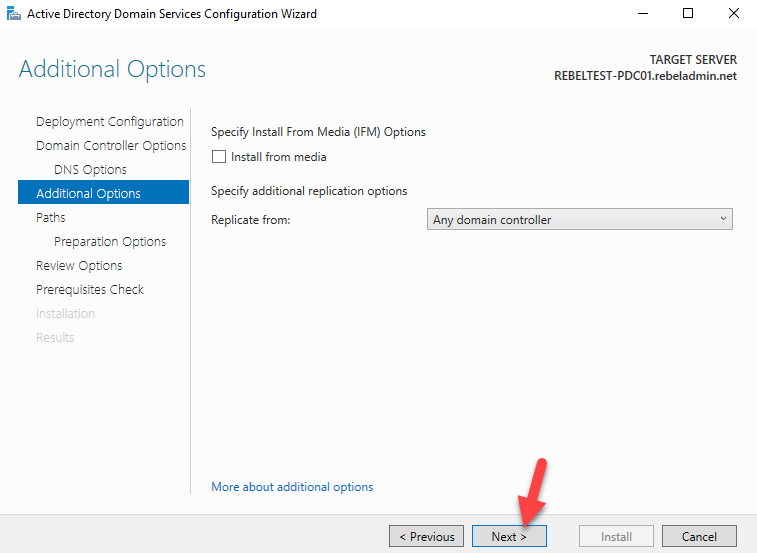
16. In next windows, it asks from where to replicate domain information. You can select the specific server or leave it default. Once done click next to proceed.Â
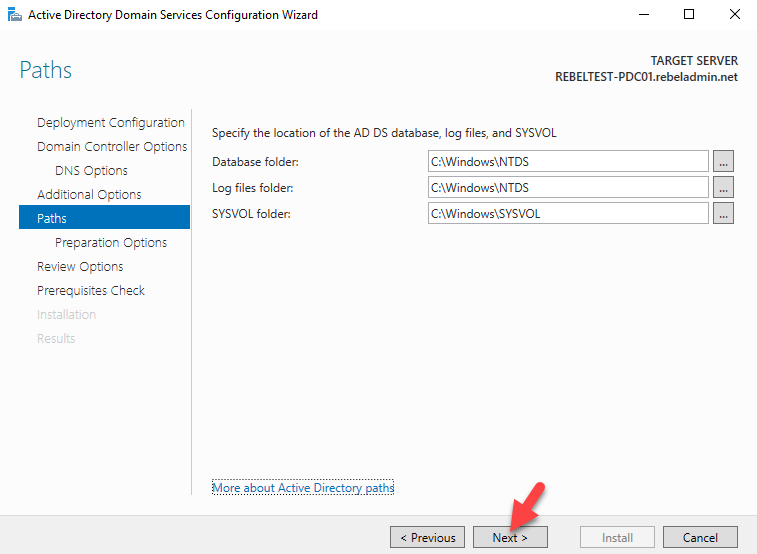
17. Then it shows the paths for AD DS database, log files and SYSVOL folder. You can change the paths or leave default. In demo, I will keep default and click next to continue
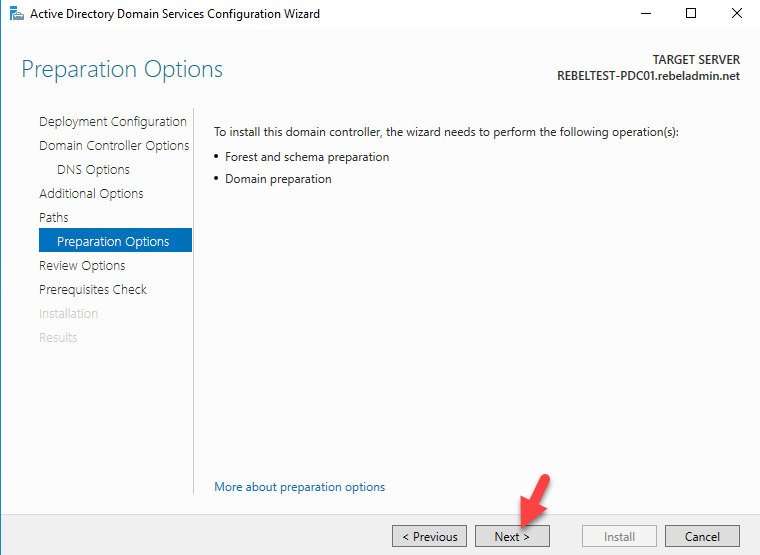
18. In next windows, it will explain about preparation options. Since this is first windows server 2016 AD on the domain it will run forest and domain preparation task as part of the configuration process. Click next to proceed.
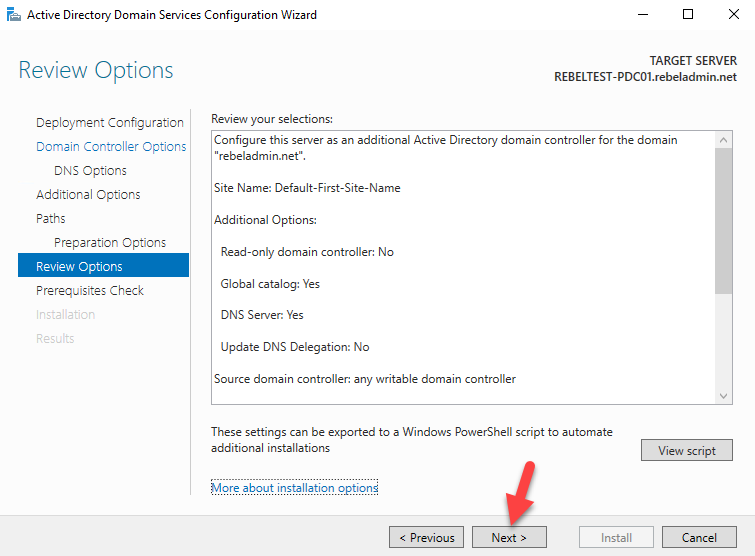
19. In next window, it will list down the options we selected. Click next to proceed.

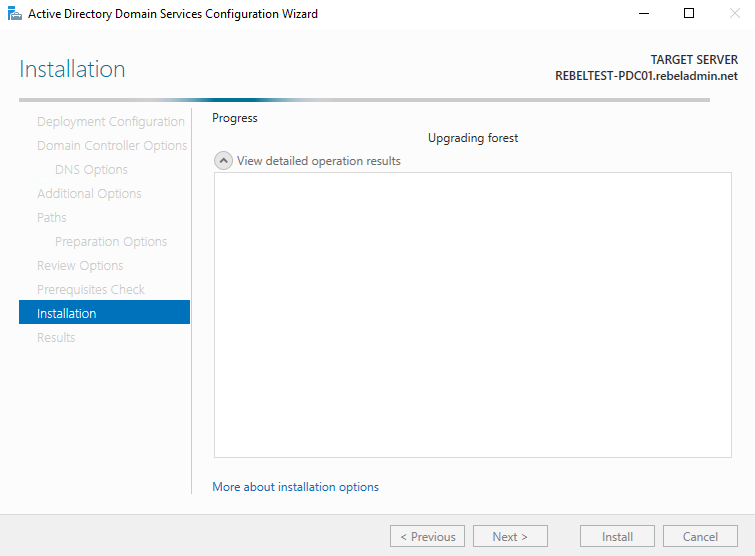
20. Then it will run prerequisite check, if all good click on install to start the configuration process.

21. Once the installation completes it will restart the server.

Migrate FSMO Roles to windows server 2016 AD
I assume by now you have idea what is FSMO roles. If not search my blog and you will find article explaining those roles.
There are 2 ways to move the FSMO roles from one AD server to another. One is using GUI and other one is using command line. I had already written articles about GUI method before so I am going to use PowerShell this time to move FSMO roles. If you like to use GUI mode search my blog and you will find articles on it.
1) Log in to windows server 2016 AD as enterprise administrator
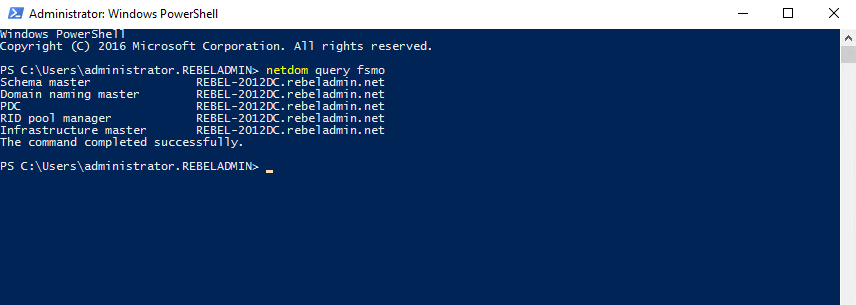
2) Open up the Powershell as administrator. Then type netdom query fsmo. This will list down the FSMO roles and its current owner.

3) In my demo, the windows server 2012 R2 DC server holds all 5 fsmo roles. Now to move fsmo roles over, type Move-ADDirectoryServerOperationMasterRole -Identity REBELTEST-PDC01 -OperationMasterRole SchemaMaster, DomainNamingMaster, PDCEmulator, RIDMaster, InfrastructureMaster and press enter

In here REBELTEST-PDC01 is the windows server 2016 DC. If FSMO roles are placed on different servers, you can migrate each and every FSMO roles to different servers.
4) Once its completed, type netdom query fsmo again and you can see now its windows server 2016 DC is the new FSMO roles owner.

Uninstall AD role from windows server 2012 R2
Now we moved FSMO roles but we still running system on windows 2012 R2 domain and forest functional levels. In order to upgrade it, first we need to decommission AD roles from existing windows server 2012 R2 servers.
1) Log in to windows 2012 R2 domain server as enterprise administrator
2) Open the PowerShell as administrator
3) Then type Uninstall-ADDSDomainController -DemoteOperationMasterRole -RemoveApplicationPartition and press enter. It will ask for local administrator password. provide new password for local administrator and press enter.
4) Once its completed it will restart the server.

Upgrade the forest and domain functional levels to windows server 2016
Now we have the windows server 2012 R2 domain controllers demoted, next step is to upgrade domain and forest functional levels.
1) Log in to windows server 2016 DC as enterprise administrator
2) Open PowerShell as administrator
3) Then type Set-ADDomainMode -identity rebeladmin.net -DomainMode Windows2016Domain to upgrade domain functional level to windows server 2016.  In here rebeladmin.net is the domain name.Â
4) Then type Set-ADForestMode -Identity rebeladmin.net -ForestMode Windows2016Forest to upgrade forest functional level.
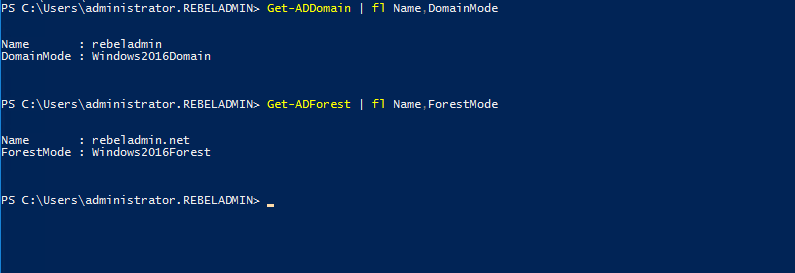
5) Once done you can run Get-ADDomain | fl Name,DomainMode and Get-ADForest | fl Name,ForestMode to confirm new domain and functional level


Friday, June 30, 2017

Understanding Active Directory Domain Services (AD DS) Functional Levels

Applies To: Windows Server 2008, Windows Server 2008 R2, Windows Server 2012, Windows Server 2012 R2
Functional levels determine the available Active Directory Domain Services (AD DS) domain or forest capabilities. They also determine which Windows Server operating systems you can run on domain controllers in the domain or forest. However, functional levels do not affect which operating systems you can run on workstations and member servers that are joined to the domain or forest.
When you deploy AD DS, set the domain and forest functional levels to the highest value that your environment can support. This way, you can use as many AD DS features as possible. For example, if you are sure that you will never add domain controllers that run Windows Server 2003 to the domain or forest, select the Windows Server 2008 functional level during the deployment process. However, if you might retain or add domain controllers that run Windows Server 2003, select the Windows Server 2003 functional level.
When you deploy a new forest, you are prompted to set the forest functional level and then set the domain functional level. You cannot set the domain functional level to a value that is lower than the forest functional level. For example, if you set the forest functional level to Windows Server 2008, you can set the domain functional level only to Windows Server 2008. In this case, the Windows 2000 native and Windows Server 2003 domain functional level values are not available. In addition, all domains that you subsequently add to that forest have the Windows Server 2008 domain functional level by default.
You can set the domain functional level to a value that is higher than the forest functional level. For example, if the forest functional level is Windows Server 2003, you can set the domain functional level to Windows Server 2003or higher.
The following sections describe the features that are available at the different functional levels.

Features that are available at domain functional levels

The following table shows the features that are available at each domain functional level.


Domain functional levelAvailable featuresSupported domain controller operating systems
Windows 2000 native
All of the default AD DS features and the following directory features are available:
  • Universal groups for both distribution and security groups.
  • Group nesting
  • Group conversion, which allows conversion between security and distribution groups
  • Security identifier (SID) history
noteNote
In Windows Server 2008 R2, the Personal Virtual Desktop feature was introduced. It requires the Windows 2000 native domain functional level.
To deploy personal virtual desktops, your schema for the Active Directory forest must be at least Windows Server 2008. To use the added functionality provided by the Personal Virtual Desktop tab in the User Account Properties dialog box in Active Directory Users and Computers, you must run Active Directory Users and Computers from a computer running Windows Server 2008 R2 or a computer running Windows 7 that has Remote Server Administration Tools (RSAT) installed.
  • Windows Server 2008 R2
  • Windows Server 2008
  • Windows Server 2003
  • Windows 2000
Windows Server 2003
All the default AD DS features, all the features that are available at the Windows 2000 native domain functional level, and the following features are available:
  • The domain management tool, Netdom.exe, which makes it possible for you to rename domain controllers
  • Logon time stamp updates

    The lastLogonTimestamp attribute is updated with the last logon time of the user or computer. This attribute is replicated within the domain.
  • The ability to set the userPassword attribute as the effective password on inetOrgPerson and user objects
  • The ability to redirect Users and Computers containers

    By default, two well-known containers are provided for housing computer and user accounts, namely, cn=Computers, and cn=Users,. This feature allows the definition of a new, well-known location for these accounts.
  • The ability for Authorization Manager to store its authorization policies in AD DS
  • Constrained delegation

    Constrained delegation makes it possible for applications to take advantage of the secure delegation of user credentials by means of Kerberos-based authentication.

    You can restrict delegation to specific destination services only.
  • Selective authentication

    Selective authentication makes it is possible for you to specify the users and groups from a trusted forest who are allowed to authenticate to resource servers in a trusting forest.
  • Windows Server 2012 R2
  • Windows Server 2012
  • Windows Server 2008 R2
  • Windows Server 2008
  • Windows Server 2003
Windows Server 2008
All of the default AD DS features, all of the features from the Windows Server 2003 domain functional level, and the following features are available:
  • Distributed File System (DFS) replication support for the Windows Server 2003 System Volume (SYSVOL)

    DFS replication support provides more robust and detailed replication of SYSVOL contents.

    noteNote
    Beginning with Windows Server 2012 R2, File Replication Service (FRS) is deprecated. A new domain that is created on a domain controller that runs at least Windows Server 2012 R2 must be set to the Windows Server 2008 domain functional level or higher.
  • Domain-based DFS namespaces running in Windows Server 2008 Mode, which includes support for access-based enumeration and increased scalability. Domain-based namespaces in Windows Server 2008 mode also require the forest to use the Windows Server 2003 forest functional level. For more information, see Choose a Namespace Type (http://go.microsoft.com/fwlink/?LinkId=180400).
  • Advanced Encryption Standard (AES 128 and AES 256) support for the Kerberos protocol. In order for TGTs to be issued using AES, the domain functional level must be Windows Server 2008 or higher and the domain password needs to be changed.

    noteNote
    Authentication errors may occur on a domain controller after the domain functional level is raised to Windows Server 2008 or higher if the domain controller has already replicated the DFL change but has not yet refreshed the krbtgt password. In this case, a restart of the KDC service on the domain controller will trigger an in-memory refresh of the new krbtgt password and resolve related authentication errors.
    For more information, see Kerberos Enhancements.
  • Last Interactive Logon Information

    Last Interactive Logon Information displays the following information:

    • The total number of failed logon attempts at a domain-joined Windows Server 2008 server or a Windows Vista workstation
    • The total number of failed logon attempts after a successful logon to a Windows Server 2008 server or a Windows Vista workstation
    • The time of the last failed logon attempt at a Windows Server 2008 or a Windows Vista workstation
    • The time of the last successful logon attempt at a Windows Server 2008 server or a Windows Vista workstation
    For more information, see Active Directory Domain Services: Last Interactive Logon(http://go.microsoft.com/fwlink/?LinkId=180387).
  • Fine-grained password policies

    Fine-grained password policies make it possible for you to specify password and account lockout policies for users and global security groups in a domain. For more information, see Step-by-Step Guide for Fine-Grained Password and Account Lockout Policy Configuration (http://go.microsoft.com/fwlink/?LinkID=91477).
  • Personal Virtual Desktops

    To use the added functionality provided by the Personal Virtual Desktop tab in the User Account Properties dialog box in Active Directory Users and Computers, your AD DS schema must be extended for Windows Server 2008 R2 (schema object version = 47). For more information, see Deploying Personal Virtual Desktops by Using RemoteApp and Desktop Connection Step-by-Step Guide(http://go.microsoft.com/fwlink/?LinkId=183552).
  • Windows Server 2012 R2
  • Windows Server 2012
  • Windows Server 2008 R2
  • Windows Server 2008
Windows Server 2008 R2
All default Active Directory features, all features from the Windows Server 2008 domain functional level, plus the following features:
  • Authentication mechanism assurance, which packages information about the type of logon method (smart card or user name/password) that is used to authenticate domain users inside each user’s Kerberos token. When this feature is enabled in a network environment that has deployed a federated identity management infrastructure, such as Active Directory Federation Services (AD FS), the information in the token can then be extracted whenever a user attempts to access any claims-aware application that has been developed to determine authorization based on a user’s logon method.
  • Automatic SPN management for services running on a particular computer under the context of a Managed Service Account when the name or DNS host name of the machine account changes. For more information about Managed Service Accounts, see Service Accounts Step-by-Step Guide(http://go.microsoft.com/fwlink/?LinkId=180401).
  • Windows Server 2012 R2
  • Windows Server 2012
  • Windows Server 2008 R2
Windows Server 2012
The KDC support for claims, compound authentication, and Kerberos armoring KDC administrative template policy has two settings (Always provide claims and Fail unarmored authentication requests) that require Windows Server 2012 domain functional level. For more information, see What's New in Kerberos Authentication.
  • Windows Server 2012 R2
  • Windows Server 2012
Windows Server 2012 R2
  • DC-side protections for Protected Users. Protected Users authenticating to a Windows Server 2012 R2 domain can no longer:

    • Authenticate with NTLM authentication
    • Use DES or RC4 cipher suites in Kerberos pre-authentication
    • Be delegated with unconstrained or constrained delegation
    • Renew user tickets (TGTs) beyond the initial 4 hour lifetime
  • Authentication Policies

    New forest-based Active Directory policies which can be applied to accounts in Windows Server 2012 R2 domains to control which hosts an account can sign-on from and apply access control conditions for authentication to services running as an account.
  • Authentication Policy Silos

    New forest-based Active Directory object, which can create a relationship between user, managed service and computer, accounts to be used to classify accounts for authentication policies or for authentication isolation.
  • Windows Server 2012 R2

Features that are available at forest functional levels

The following table shows the features that are available at each forest functional level.


Forest functional levelAvailable featuresSupported domain controllers
Windows 2000
All of the default AD DS features are available.
  • Windows Server 2008 R2
  • Windows Server 2008
  • Windows Server 2003
  • Windows 2000
Windows Server 2003
All of the default AD DS features, and the following features, are available:
  • Forest trust
  • Domain rename
  • Linked-value replication

    Linked-value replication makes it possible for you to change group membership to store and replicate values for individual members instead of replicating the entire membership as a single unit. Storing and replicating the values of individual members uses less network bandwidth and fewer processor cycles during replication, and prevents you from losing updates when you add or remove multiple members concurrently at different domain controllers.
  • The ability to deploy a read-only domain controller (RODC)
  • Improved Knowledge Consistency Checker (KCC) algorithms and scalability

    The intersite topology generator (ISTG) uses improved algorithms that scale to support forests with a greater number of sites than AD DS can support at the Windows 2000 forest functional level. The improved ISTG election algorithm is a less-intrusive mechanism for choosing the ISTG at the Windows 2000 forest functional level.
  • The ability to create instances of the dynamic auxiliary class named dynamicObject in a domain directory partition
  • The ability to convert an inetOrgPerson object instance into a User object instance, and to complete the conversion in the opposite direction
  • The ability to create instances of new group types to support role-based authorization.

    These types are called application basic groups and LDAP query groups.
  • Deactivation and redefinition of attributes and classes in the schema. The following attributes can be reused: ldapDisplayName, schemaIdGuid, OID, and mapiID.
  • Domain-based DFS namespaces running in Windows Server 2008 Mode, which includes support for access-based enumeration and increased scalability. For more information, see Choose a Namespace Type (http://go.microsoft.com/fwlink/?LinkId=180400).
  • Windows Server 2012 R2
  • Windows Server 2012
  • Windows Server 2008 R2
  • Windows Server 2008
  • Windows Server 2003
Windows Server 2008
All of the features that are available at the Windows Server 2003 forest functional level, but no additional features are available. All domains that are subsequently added to the forest, however, operate at the Windows Server 2008 domain functional level by default.
  • Windows Server 2012 R2
  • Windows Server 2012
  • Windows Server 2008 R2
  • Windows Server 2008
Windows Server 2008 R2
All of the features that are available at the Windows Server 2003 forest functional level, plus the following features:
  • Active Directory Recycle Bin, which provides the ability to restore deleted objects in their entirety while AD DS is running.
All domains that are subsequently added to the forest will operate at the Windows Server 2008 R2 domain functional level by default.
If you plan to include only domain controllers that run Windows Server 2008 R2 in the entire forest, you might choose this forest functional level for administrative convenience. If you do, you will never have to raise the domain functional level for each domain that you create in the forest.
  • Windows Server 2012 R2
  • Windows Server 2012
  • Windows Server 2008 R2
Windows Server 2012
All of the features that are available at the Windows Server 2008 R2 forest functional level, but no additional features.
All domains that are subsequently added to the forest will operate at the Windows Server 2012 domain functional level by default.
  • Windows Server 2012 R2
  • Windows Server 2012
Windows Server 2012 R2
All of the features that are available at the Windows Server 2012 forest functional level, but no additional features.
All domains that are subsequently added to the forest will operate at the Windows Server 2012 R2 domain functional level by default.
  • Windows Server 2012 R2

Guidelines for raising domain and forest functional levels

The following guidelines apply to raising the domain or forest functional levels:
  • You must be a member of the Domain Admins group to raise the domain functional level.
  • You must be a member of the Enterprise Admins group to raise the forest functional level.
  • You can raise the domain functional level on the primary domain controller (PDC) emulator operations master only. The AD DS administrative tools that you use to raise the domain functional level (the Active Directory Domains and Trusts snap-in and the Active Directory Users and Computers snap-in) automatically target the PDC emulator when you raise the domain functional level.
  • You can raise the forest functional level on the schema operations master only. Active Directory Domains and Trusts automatically targets the schema operations master when you raise the forest functional level.
  • You can raise the functional level of a domain only if all domain controllers in the domain run the version or versions of Windows Server that the new functional level supports.
  • You can raise the functional level of a forest only if all domain controllers in the forest run the version or versions of Windows Server that the new functional level supports.
  • You cannot set the domain functional level to a value that is lower than the forest functional level, but you can set it to a value that is equal to or higher than the forest functional level.
  • With versions of Windows Server that are earlier than Windows Server 2008 R2, you cannot roll back or lower a functional level under any circumstances. If you have to revert to a lower functional level with a version of Windows Server that is earlier than Windows Server 2008 R2, you must rebuild the domain or forest or restore it from a backup copy.
  • After you set the domain functional level, you cannot roll back or lower the domain functional level except in the cases listed in the following table. The domain functional level can be lowered only by using Windows PowerShell. For more information, see Set-ADDomainMode.


    Current domain functional levelCurrent forest functional levelRollback options
    Windows Server 2012 R2
    Windows Server 2012 R2
    None unless you first lower forest functional level
    Windows Server 2012 R2
    Windows Server 2012
    Windows Server 2012
    Windows Server 2012 R2
    Windows Server 2008 R2
    Windows Server 2012 or Windows Server 2008 R2
    Windows Server 2012 R2
    Windows Server 2008
    Windows Server 2012, Windows Server 2008 R2, or Windows Server 2008
    Windows Server 2012
    Windows Server 2012
    None unless you first lower forest functional level
    Windows Server 2012
    Windows Server 2008 R2
    Windows Server 2008 R2
    Windows Server 2012
    Windows Server 2008
    Windows Server 2008 R2 or Windows Server 2008
    Windows Server 2008 R2
    Windows Server 2008 R2
    None unless you first lower forest functional level
    Windows Server 2008 R2
    Windows Server 2008
    Windows Server 2008
    Windows Server 2008 or lower
    Windows Server 2008 or lower
    None
  • After you set the forest functional level, you cannot roll back or lower the forest functional level except in the cases listed in the following table. The forest functional level can be lowered only by using Windows PowerShell. For more information, see Set-ADForestMode. For more information about the Active Directory Recycle Bin, see What's New in AD DS: Active Directory Recycle Bin (http://go.microsoft.com/fwlink/?LinkId=141392).


    Current forest functional levelRecycle Bin enabled?Rollback options
    Windows Server 2012 R2
    Yes
    Windows Server 2012 or Windows Server 2008 R2
    Windows Server 2012 R2
    No
    Windows Server 2012, Windows Server 2008, or Windows Server 2008 R2
    Windows Server 2012
    Yes
    Windows Server 2008 R2
    Windows Server 2012
    No
    Windows Server 2008 R2 or Windows Server 2008
    Windows Server 2008 R2
    Yes
    None
    Windows Server 2008 R2
    No
    Windows Server 2008