Applies To: Windows Server 2012 R2, Windows Server 2012
This topic describes the Distributed File System (DFS) Replication
functionality that is new or changed in Windows Server 2012 R2 and the
DFS Replication and DFS Namespaces functionality that was new or changed
in Windows Server 2012.DFS Replication is a role service in File and Storage Services. It enables you to efficiently replicate folders (including those referred to by a DFS namespace path) across multiple servers and sites. DFS Replication uses a compression algorithm known as remote differential compression (RDC). RDC detects changes to the data in a file, and it enables DFS Replication to replicate only the changed file blocks instead of the entire file. DFS Namespaces enables you to group shared folders that are located on different servers into one or more logically structured namespaces.
In this topic:
- What’s new in DFS Replication in Windows Server 2012 R2
- What’s new in DFS Namespaces and DFS Replication in Windows Server 2012
What’s new in DFS Replication in Windows Server 2012 R2
In Windows Server 2012 R2, DFS Replication offers enhanced support in the following areas.| Feature/functionality | New or updated? | Description |
|---|---|---|
| Windows PowerShell module for DFS Replication | New | Provides Windows PowerShell cmdlets for performing the majority of administrative tasks for DFS Replication, in addition to new functionality. |
| DFS Replication Windows Management Infrastructure provider | New | Provides the latest Windows Management Infrastructure (WMI)-based methods to manage DFS Replication. |
| Database cloning for initial sync | New | Provides support for bypassing initial replication when creating new replicated folders, replacing servers, or recovering from a disaster. |
| Database corruption recovery | New | Provides support for rebuilding corrupt databases without unexpected data loss caused by nonauthoritative initial sync. |
| Cross-file RDC disable | New | Provides the option to disable cross-file remote differential compression (RDC) between servers. |
| File staging tuning | New | Provides the option to configure variable file staging sizes on individual servers. |
| Preserved file restoration | New | Provides the capability to restore files from the ConflictAndDeleted and PreExisting folders. |
| Unexpected shutdown database recovery improvements | Updated | Enables automatic recovery after a loss of power or an unexpected stoppage of the DFS Replication service. |
| Membership disabling improvements | Updated | Stops DFS Replication private folder cleanup when disabling a server’s membership in a replicated folder. |
Windows PowerShell module for DFS Replication
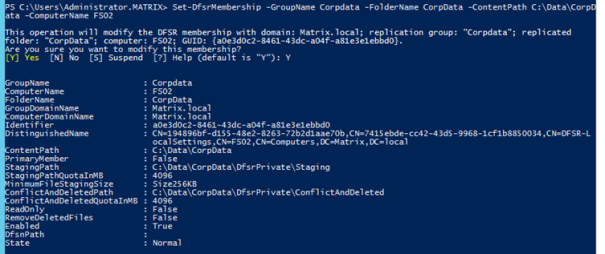
The DFS Replication module provides Windows PowerShell cmdlets for performing the majority of administrative tasks for DFS Replication, in addition to the new functionality described in this topic.What value does this change add?
Administrators can use the extensive Windows PowerShell cmdlets to perform common administrative tasks, and optionally automate them by using Windows PowerShell scripts. These tasks include operational actions such as creating, modifying, and removing replication settings. New functionality is also included with the cmdlets, such as the ability to clone DFS Replication databases and restore preserved files.
What works differently?
Instead of using DFS Management or DFS Replication command-line tools, administrators can perform all common tasks by using the Windows PowerShell cmdlets.
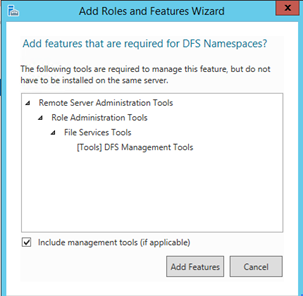
The Windows PowerShell cmdlets are available on computers that run Windows Server 2012 R2 or Windows 8.1 and that have the DFS Management Tools feature (part of the Remote Server Administration Tools) installed.
Tip
To use the Windows PowerShell module for DFS Replication from a computer that doesn’t have the module installed, use the Enter-PSSession or Invoke-Command cmdlets to establish a session with a computer that has the DFS Management Tools feature installed.
To use the Windows PowerShell module for DFS Replication from a computer that doesn’t have the module installed, use the Enter-PSSession or Invoke-Command cmdlets to establish a session with a computer that has the DFS Management Tools feature installed.
DFS Replication Windows Management Infrastructure provider
Windows Server 2012 R2 includes new Windows Management Infrastructure (sometimes referred to as WMI v2) provider functionality, which provides programmatic access to manage DFS Replication.What value does this change add?
Management programs can use the latest Windows Management Infrastructure-based methods to manage DFS Replication.
What works differently?
Windows Management Infrastructure-based management access occurs over a firewall friendly Windows Remote Management (WinRM) transport protocol. The WMI v1 namespace is still available for backwards compatibility.
For more information about the new DFSR WMI classes, see What’s New.
Database cloning for initial sync
Windows Server 2012 R2 includes new database cloning functionality, which can accelerate initial replication when you create new replicated folders, replace servers, or recover from disaster.What value does this change add?
You can now export a DFS Replication database from a volume on one server, and then preseed replicated files and import the database on multiple servers. The replicated folders begin replicating with a greatly reduced initial setup time (the setup time is usually reduced approximately 99%).
What works differently?
In Windows Server 2012 and earlier operating systems, initial sync replication required that a destination server populate its database over the network through a resource-expensive version-vectoring process with the source server. For larger datasets, this can take considerable time (days or weeks), even when you preseed data on the destination server.
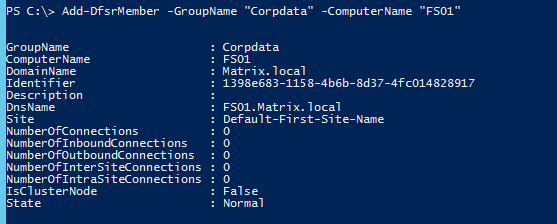
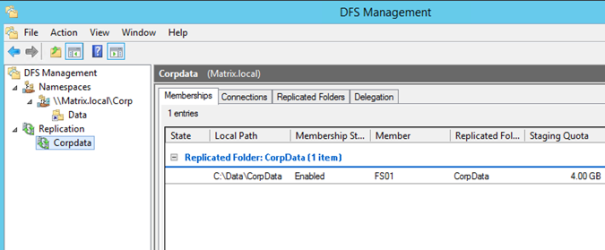
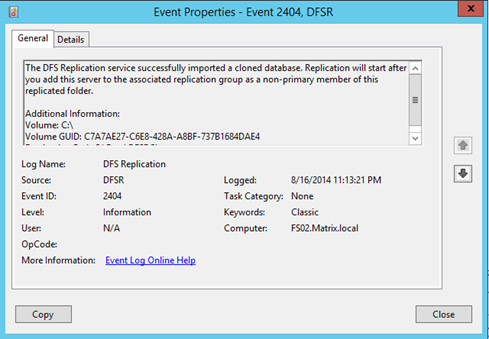
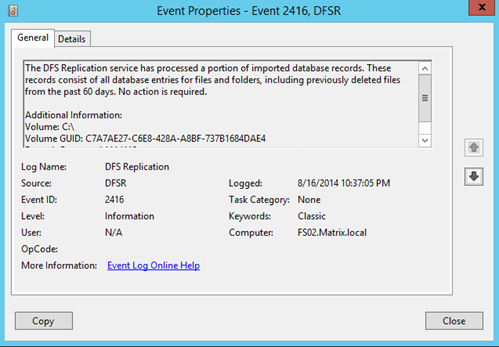
Now the Export-DfsrClone cmdlet allows you to export the DFS Replication database and volume configuration .xml file settings for a given volume from the local computer to clone that database on another computer. Running the cmdlet triggers the export in the DFS Replication service and then waits for the service to complete the operation. During the export, DFS Replication stores file metadata in the database as part of the validation process. After you preseed the data and copy the exported database and .xml file to the destination server, you use Import-DfsrClone to import the database to a volume and validate the files in the file system. Any files that perfectly match don’t require expensive interserver metadata and file synchronization, which leads to dramatic performance improvements during the initial sync.
For more information, see Export a Clone of the DFS Replication Database.
Database corruption recovery
Windows Server 2012 R2 provides support for rebuilding corrupt databases without unexpected data loss caused by a nonauthoritative initial sync.What value does this change add?
When DFS Replication detects database corruption, it rebuilds the database and then resumes replication normally, with no files arbitrarily losing conflicts. When replicating with a Read-only partner, DFS Replication resumes replication without waiting indefinitely for an administrator to manually set the primary flag.
What works differently?
Previously, a corrupt database would trigger DFS Replication to delete the database and start the nonauthoritative initial sync process again, as if replication was being set up for the first time. Any files on the recovering server would lose all conflicts automatically, even if they were the latest version of the file. Those conflicts would move into the ConflictAndDeleted or PreExisting folders, leading to perceived or real data loss.
In Windows Server 2012 R2, when DFS Replication detects database corruption, it rebuilds the database by using local file and update sequence number (USN) change journal information, and then marks each file with a Normal replicated state. DFS Replication then contacts its partner servers and merges the changes, which allows the last writer to save the most recent changes as if this was normal ongoing replication.
Cross-file RDC disable
Windows Server 2012 R2 provides the option to disable cross-file remote differential compression between servers.What value does this change add?
You can now specifically choose to use the cross-file remote differential compression (RDC) capability, depending on your data and network topologies. For servers on LANs, turning off cross-file RDC may reduce server resource overhead and increase replication performance.
What works differently?
In Windows Server 2012, DFS Replication always enables cross-file RDC. Cross-file RDC uses up to five existing previously replicated files on a volume to seed a new replicating file. Applying cross-file RDC over low-bandwidth network connections with files that are similar results in large bandwidth savings and potentially large time savings. However, when you use cross-file RDC on high-bandwidth network connections, cross-file RDC might increase local processing time and negatively affect performance. In extremely large datasets (millions of files on a volume with a great deal of similarity), cross-file RDC might also negatively affect CPU and disk utilization.
In Windows Server 2012 R2, DFS Replication allows you to choose whether to use cross-file RDC on a per-connection basis between partners. Disabling cross-file RDC might increase performance at the cost of higher bandwidth usage.
File staging tuning
Windows Server 2012 R2 provides the option to configure variable file staging sizes on individual servers.What value does this change add?
You can now choose a minimum file size for a file to stage if you have not configured RDC for a smaller size. For servers on LANs with larger files, increasing the minimum staging size for files can increase replication performance.
What works differently?
In Windows Server 2012 and earlier operating systems, DFS Replication uses a hard-coded 256 KB file size to determine staging requirements. If RDC is enabled and the RDC minimum size (by default, this is 64 KB) is larger than 256 KB, a file will be staged before it replicates. Usually this means that files smaller than 64 KB don’t get staged on servers running Windows Server 2012 and earlier operating systems. File staging adds replication time to allow for performing RDC operations and to lower the chance of files not replicating because they are in use by applications that created file locks on them.
DFS Replication now allows you to configure the staging minimum size from as little as 256 KB to as large as 512 TB. When you are not using RDC or staging, files are no longer compressed or copied to the staging folder, which can increase performance at the cost of much higher bandwidth usage.
Preserved file restoration
Windows Server 2012 R2 provides the ability to restore files from the ConflictAndDeleted and PreExisting folders.What value does this change add?
This allows recovery of obfuscated user data from hidden DFS Replication private folders.
What works differently?
Windows Server 2012 and earlier operating systems don’t provide any tools to recover these files.
DFS Replication now enables you to inventory and retrieve the conflicted, deleted, and preexisting files by using the Get-DfsrPreservedFiles and Restore-DfsrPreservedFiles cmdlets. You can restore these files and folders to their previous location or to a new location. You can choose to move or copy the files, and you can keep all versions of a file or only the latest version.
Unexpected shutdown database recovery improvements
Windows Server 2012 R2 enables automatic recovery after a loss of power or an unexpected stoppage of the DFS Replication service.What value does this change add?
When DFS Replication detects an unexpected database shutdown (for example, after a power outage or service termination), it automatically validates the database against the file system and then resumes replication normally, settling any file conflicts normally.
What works differently?
In Windows Server 2012 and Windows Server 2008 R2, an unexpected shutdown required you to re-enable replication manually by using a WMI method. You could disable this default behavior by using a per-computer registry value.
When DFS Replication detects an unexpected shutdown in Windows Server 2012 R2, it defaults to triggering the automatic recovery process. You must opt out of this behavior by using the registry value. In addition, if the only replicated folder on a volume is the built-in SYSVOL folder of a domain controller, it automatically triggers recovery regardless of the registry setting.
Membership disabling improvements
Windows Server 2012 R2 stops DFS Replication private folder cleanup when disabling a server’s membership in a replicated folder.What value does this change add?
Files that had previously moved to the ConflictAndDeleted or PreExisting folders are no longer deleted when you disable a server’s replication group membership. Additionally, the message that is displayed by the management tools now states the processing that occurs after memberships are disabled. The message also explains that re-enabling a membership starts nonauthoritative synchronization.
What works differently?
In Windows Server 2012 and earlier operating systems, disabling a membership immediately deleted the DfsrPrivate folder for that membership, including the Staging, ConflictAndDeleted, and PreExisting folders. After these folders are deleted, you can’t easily recover data from them without reverting to a backup.
DFS Replication now leaves the DfsrPrivate folder untouched when you disable a membership. You can recover conflicted, deleted, and preexisting files from that location if the membership is not re-enabled. (Enabling the membership deletes the content of all private folders.)
Removed or deprecated functionality
The following features are included in Windows Server 2012 R2, but they are being phased out, and they likely will be removed from future versions of the Windows Server operating system.| Deprecated feature | Replacement |
|---|---|
| DFS Namespaces command-line tool, Dfscmd | DFS Namespaces module for Windows PowerShell |
| File Replication Service (FRS) | DFS Replication In Windows Server 2012 R2, it is no longer possible to use Windows PowerShell or Server Manager to create new domains with a Windows Server 2003 domain functional level. This means that new FRS deployments are blocked, and DFS Replication is always used for SYSVOL replication in new domains. To use FRS to replicate SYSVOL on domain controllers running Windows Server 2012 R2, the domain controllers must belong to an existing domain that uses the Windows Server 2003 domain functional level. |
What’s new in DFS Namespaces and DFS Replication in Windows Server 2012
In Windows Server 2012, DFS Namespaces and DFS Replication offer enhanced support in the following areas.| Feature/functionality | Description |
|---|---|
| Windows PowerShell module for DFS Namespaces | Provides Windows PowerShell cmdlets for performing the majority of administration tasks for DFS Namespaces. |
| DFS Namespaces: Site awareness for DirectAccess clients | Provides remote client computers with optimal referrals to corporate resources when the computers connect by using DirectAccess to the corporate network. |
| DFS Namespaces: Windows Management Infrastructure provider | Provides the latest Windows Management Infrastructure-based management methods to manage DFS Namespaces. |
| DFS Replication: Support for Data Deduplication volumes | Provides support for replicated folders stored on volumes that use Data Deduplication. |
Windows PowerShell module for DFS Namespaces
Windows Server 2012 includes Windows PowerShell cmdlets for performing the majority of administration tasks for DFS Namespaces.What value does this change add?
Administrators can use the extensive Windows PowerShell cmdlets to perform common administration tasks, and optionally automate them by using Windows PowerShell scripts.
What works differently?
Instead of using DFS Management or DFS command-line utilities, administrators can perform all common tasks by using the Windows PowerShell cmdlets.
The Windows PowerShell cmdlets are available on computers that run Windows Server 2012 or Windows 8 and that have the DFS Management Tools feature (part of the Remote Server Administration Tools) installed.
For more information, see DFS Namespace (DFSN) Cmdlets in Windows PowerShell and Introducing DFS Namespaces Windows PowerShell Cmdlets.
Tip
To use the Windows PowerShell module for DFS Namespaces from a computer that does not have the module installed, use the Enter-PSSession cmdlet to establish a session with a computer that has the DFS Management Tools feature installed.
To use the Windows PowerShell module for DFS Namespaces from a computer that does not have the module installed, use the Enter-PSSession cmdlet to establish a session with a computer that has the DFS Management Tools feature installed.
DFS Namespaces: Site awareness for DirectAccess clients
Windows Server 2012 includes site awareness for DirectAccess functionality to provide optimal site-aware referrals to remote users who access a corporate network by using DirectAccess.What value does this change add?
Remote users who connect to DFS namespaces over a DirectAccess connection receive referrals to the namespace servers and folder targets that are closest to their location. This reduces network latency when accessing files on the corporate network, making more efficient use of bandwidth.
What works differently?
When accessing a DFS namespace path by using DirectAccess in Windows 7 or Windows Server 2008 R2, remote computers that have IP addresses outside of the sites specified in Active Directory Domain Services receive a randomly ordered referral that could include servers in distant sites, even when servers in a nearby site are available.
When a remote computer accesses a DFS namespace path by using DirectAccess on computers running Windows 8 or Windows Server 2012, the computer provides a site name in the referral request to the namespace server running Windows Server 2012. The namespace server uses the site name to provide a referral to the closest site available.
For site awareness to work for clients that are using DirectAccess, the client computer must be running Windows 8 or Windows Server 2012 and the server must be running Windows Server 2012.
DFS Namespaces: Windows Management Infrastructure provider
Windows Server 2012 includes new Windows Management Infrastructure (the new version of WMI, sometimes known as MI or WMIv2) provider functionality, which provides programmatic access to manage DFS Namespaces.What value does this change add?
Management programs can use the latest Windows Management Infrastructure-based methods to manage DFS Namespaces.
What works differently?
Windows Management Infrastructure-based management access occurs over a firewall-friendly Windows Remote Management (WinRM) transport protocol.
DFS Replication: Support for Data Deduplication volumes
Windows Server 2012 includes support for replicated folders stored on volumes on which Data Deduplication is enabled.What value does this change add?
You can use the new Data Deduplication functionality to reduce storage requirements without impacting DFS Replication.
What works differently?
DFS Replication replicates files that include the new reparse point tag IO_REPARSE_TAG_DEDUP without impacting Data Deduplication or DFS Replication. Deduplicating or rehydrating a deduplicated file won’t trigger replication.
Removed or deprecated functionality
The following features are included in Windows
Server 2012, but they are being phased out, and they likely will be
removed from future versions of the Windows Server operating system.
| Deprecated feature | Replacement |
|---|---|
| DFS Namespaces command-line tool, Dfscmd | DFS Namespaces module for Windows PowerShell |
| File Replication Service (FRS) | DFS Replication |