To see a list of installed patches
c:\> wmic qfe list
orc:\> wmic qfe list brief /format:tableTo uninstall a listed patch
c:\> wusa /uninstall /kb:<kbnumber>
example:
wusa /uninstall /kb:892890To see a list of installed patches
c:\> wmic qfe list
orc:\> wmic qfe list brief /format:tableTo uninstall a listed patch
c:\> wusa /uninstall /kb:<kbnumber>
example:
wusa /uninstall /kb:892890 When importing a database in your SQL instance you would find yourself with Cannot use the special principal 'sa'. Microsoft SQL Server, Error: 15405 popping out when setting the sa user as the DBO of the database. To fix this,
Open SQL Management Studio and Click New Query. Type:
USE mydatabase

exec sp_changedbowner 'sa', 'true'
Close the new query and after viewing the security of the sa, you will find that that sa is the DBO of the database.
With Windows 10, Microsoft finally updated the long-neglected command prompt. You can now quickly select and paste text within the command prompt window, but first you have to enable the keyboard shortcuts. Here's how to do it.
Previously if you wanted to copy and paste in the command prompt you had to jump through hoops: Open the context menu with the Alt+E keyboard combination, go to Edit > Mark to tell Windows you want to mark text to select, and then use a lasso tool to create a box around the text you wanted to select. You needed to go back into the context menu to copy and to paste.
The upgraded command prompt in Windows 10 is much simpler. You can copy and paste with the familiar CTRL + C to copy and CTRL + V to paste keyboard shortcuts. To get this functionality, head to the application's properties settings.
1. Open Command Prompt. The quickest way to do this is to click the Windows key, type in cmd, and hit Enter or clicking on the app.

2. Right-click on the command prompt's title bar and choose Properties
3. Uncheck the box next to "Use legacy console (requires relaunch)". This should automatically check the "Enable Ctrl key shortcuts" option.
4. Click OK.
It is very possible that you cannot easily reduce the maximum performance of your CPU because the PROCESSOR POWER MANAGEMENT option is missing from ADVANCED POWER OPTIONS. Fortunately there is an easy fix:

HKEY_LOCAL_MACHINE
 >  SYSTEM  > CurrentControlSet > Control > Power >
PowerSettings>  54533251-82be-4824-96c1-47b60b740d00 >
bc5038f7-23e0-4960-96da-33abaf5935ecAttributes and the value to 2
If it is not already, the first thing you need to do is enable shell on ESXi, something that is generally disabled for security reasons. To enable Shell, follow the steps provided in KB 2004746. Once you enable it, you can use a tool like putty to access Shell via an SSH session. Alternatively, pressing ALT-F1 while in DCUI is one other way of accessing Shell. To run commands in shell, log in as root or with an account having similar privileges.
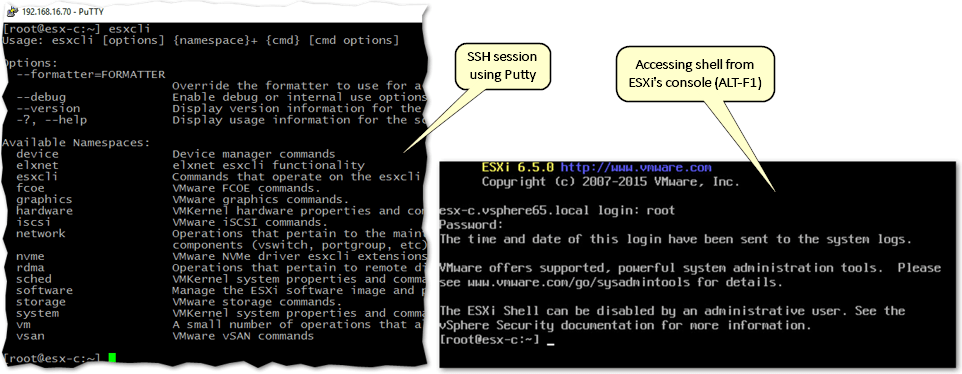
Accessing ESXi shell using an SSH client or directly from console
The esxcli command exposes a number of namespaces against which you can run queries to retrieve information about ESXi as well as configure it. The following table lists the available namespaces on ESXi 6.5 along with a description for each (source: VMware). For earlier ESXi releases, consult the relevant online documentation or run esxcli with no parameters to see which namespaces are available.
| Command | Description |
| esxcli device | Lists descriptions of device commands. |
| esxcli elxnet | Lists descriptions for commands that manage Emulex elxnet drivers. |
| esxcli esxcli | Lists descriptions of esxcli commands. |
| esxcli fcoe | FCOE (Fibre Channel over Ethernet) commands |
| esxcli graphics | Graphics commands |
| esxcli hardware | Hardware namespace. Used primarily for extracting information about the current system setup. |
| esxcli iscsi | iSCSI namespace for monitoring and managing hardware and software iSCSI. |
| esxcli network | Network namespace for managing virtual networking including virtual switches and VMkernel network interfaces. |
| esxcli nvme | Commands for managing NVMe devices. |
| esxcli rdma | Commands for monitoring RDMA devices. |
| esxcli sched | Manage the shared system-wide swap space. |
| esxcli software | Software namespace. Includes commands for managing and installing image profiles and VIBs. |
| esxcli storage | Includes core storage commands and other storage management commands. |
| esxcli system | System monitoring and management command. |
| esxcli vm | Namespace for listing virtual machines and shutting them down forcefully. |
| esxcli vsan | Namespace for Virtual SAN management commands. See the vSphere Storage publication for details. |
The following is a compilation of esxcli commands, sorted by namespace, I tend to use on a regular basis. It is by no means exhaustive as there are too many examples to mention. If you want the whole shebang, have a look at VMware’s documentation site.
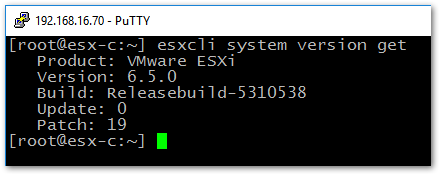
#1: esxcli system version get
Description: Returns the ESXi build and version numbers.
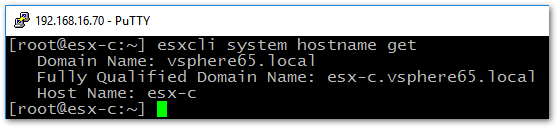
#2: esxcli system hostname get
Description: Returns the hostname, domain and FQDN for the host.
#3: esxcli system stats installtime get
Description: Returns the date and time of when ESXi was installed.

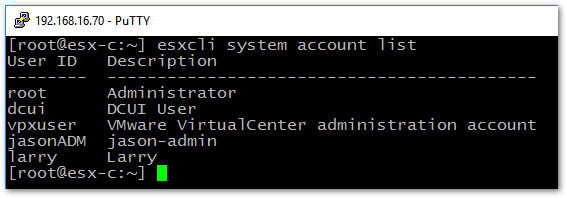
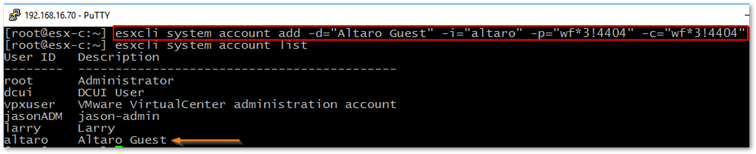
#4: esxcli system account list
Description: Lists the local users created on the ESXi host.
#5: esxcli system account add -d=”Altaro Guest” -i=”altaro” -p=”dsfewfewf*3!4404″ -c=”dsfewfewf*3!4404″
Description: This command allows you to create local ESXi users. All the parameters used in the example are mandatory.
#6: esxcli system maintenanceMode set –enable true
Description: Use this command to put ESXi in maintenance mode or take it out.

#7: esxcli system shutdown reboot -d 10 -r “Patch Updates”
Description: Use this command to reboot or shutdown ESXi. The -d parameter is a countdown timer; minimum 10 seconds. ESXi must be in maintenance mode before you can use the command.

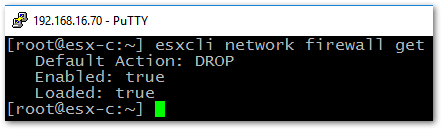
#8: esxcli network firewall get
Description: Returns the status of the ESXi firewall. The default action is to drop traffic unless allowed through by a specific firewall rule. The Enabled field indicates whether the firewall is enabled. The Loaded field shows whether the firewall module is active or not (see esxcli firewall load | unload commands).
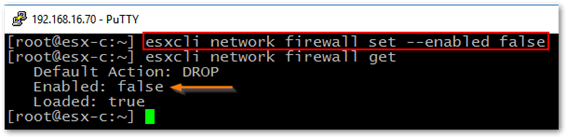
#9: esxcli network firewall set –enabled true | false
Description: Use this command to disable the ESXi firewall for troubleshooting purposes. Note that disabling the firewall on ESXi is highly discouraged.
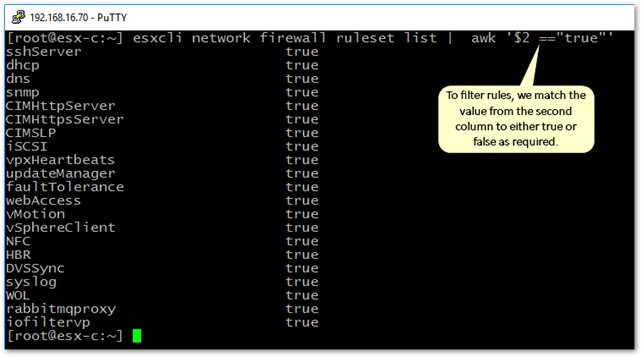
#10: esxcli network firewall ruleset list | awk ‘$2 ==”true”‘
Description: Generates a list of all enabled firewall rules on ESXi. The command is piped to awk which will matches the value from the second column to “true” so only enabled rules are displayed.
#11: esxcli network ip interface ipv4 get
Description: Displays the IPv4 configuration for all the interfaces present on ESXi.

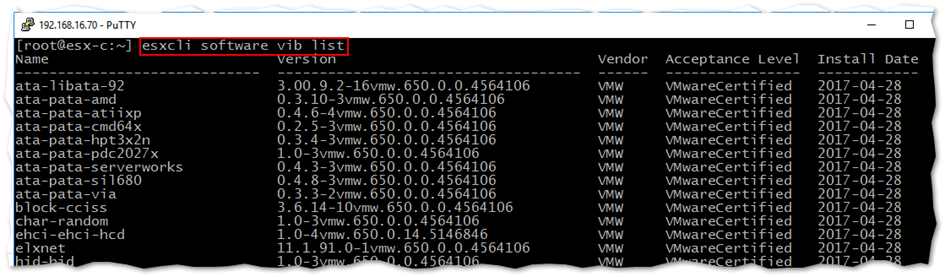
#12: esxcli software vib list
Description: Lists all the currently installed VIBs on ESXi. A VIB is a file packaging format used to distribute software on ESXi.
#13: esxcli software vib update -d “/tmp/update.zip”
Description: Use this command to update an installed VIB on ESXi. Note that the command does not install any new software. Instead it only updates what’s currently installed. Use esxcli software vib install instead when installing new software. The -d parameter specifies the full path to the package being used for the update. As per the next screenshot, I specified a non-existing patch hence the error message.

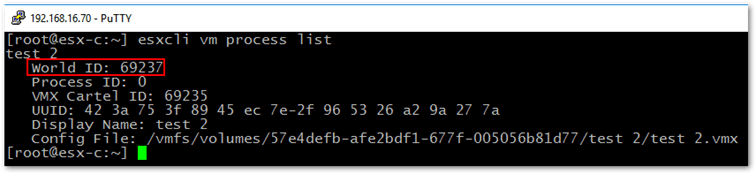
#14: esxcli vm process list
Description: Lists all the running VMs on the hosts. The World ID can be used with other commands to carry out various tasks related to VMs.
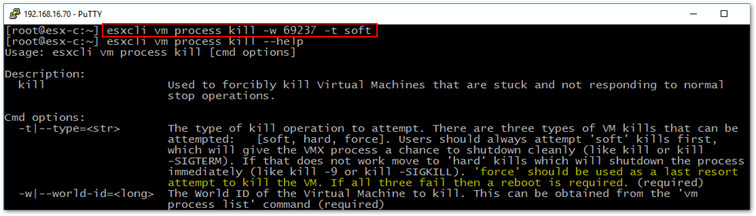
#15: esxcli vm process kill -w 69237 -t soft
Description: Use this command to kill a running VM such as one that fails to respond to commands. You must first retrieve the VM’s World ID (see command #14) and pass it on using the -w parameter. The -t <soft | hard | force> mandatory parameter sets the type of kill operation. Start with soft so you allow the VM to shut down cleanly. If this does not work, try the hard option which will kill the VM processes immediately as in kill -9. The Force type should only be used as a last resort. If none work, your only option is to reboot ESXi.
#16: esxcli storage vmfs extent list
Description: The command generates a list of extents for each volume as well as the corresponding device name to UUID mapping.

#17: esxcli storage filesystem list
Description: The command lists of all the volumes or datastores accessible by the ESXi host. The output includes the file system type, disk info along with the volume name, path and UUID.
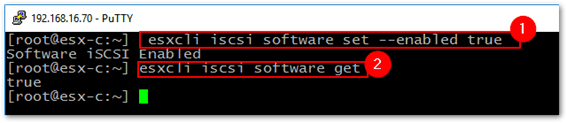
#18: esxcli iscsi software set –enabled true && esxcli iscsi software get
Description: The above command actually consists of two concatenated commands, which is what && does. The first command enables the iSCSI software adapter and the second verifies that the iSCSI adapter is enabled.
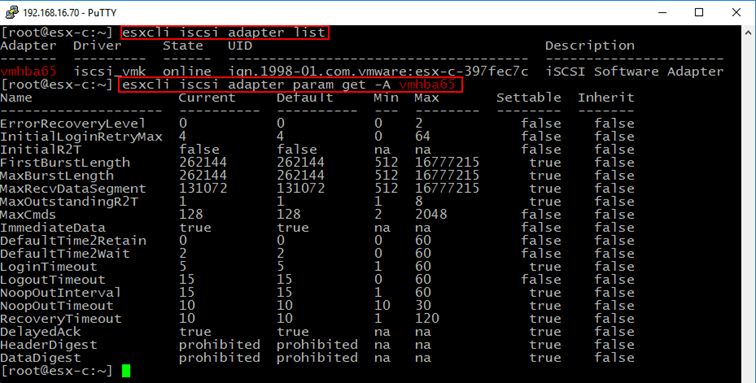
#19: esxcli iscsi adapter param get -A vmhba65
Description: The command returns metrics for the specified iSCSI adapter. These include the current, minimum and maximum values and whether the listed parameters may be configured or not. The name of the iSCSI adapter you want to be queried is specified via the -A parameter. The adapter name is retrieved using esxcli iscsi adapter list or from the vSphere Web client.
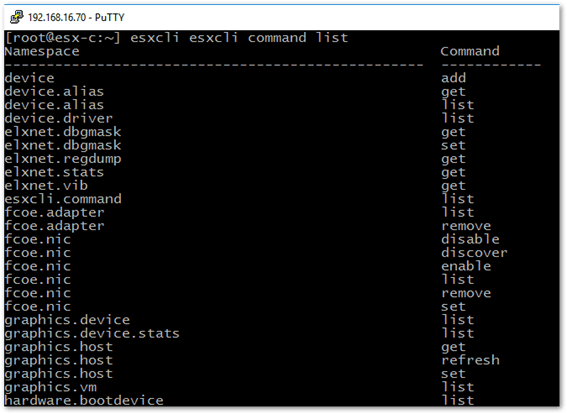
#20: esxcli esxcli command list
Description: Lists all the available namespaces and corresponding commands.
We’ve seen how you can use esxcli to query ESXi as well as it for configuration tasks. It is a great command to master, so make sure you familiarize yourself with it. Hopefully, this post has given you a taste of what it can do and how command line is sometimes better suited at accomplishing a given task such as upgrading ESXi from the command line, something I explain in Patching and Upgrading ESXi using ESXCLI commands.
[the_ad id=”4738″][the_ad id=”4796″]

